
Add a client to the client portal
Your client gets their own private page for the project. They sign in with a code, no password.
- On your Chats screen, tap the project.
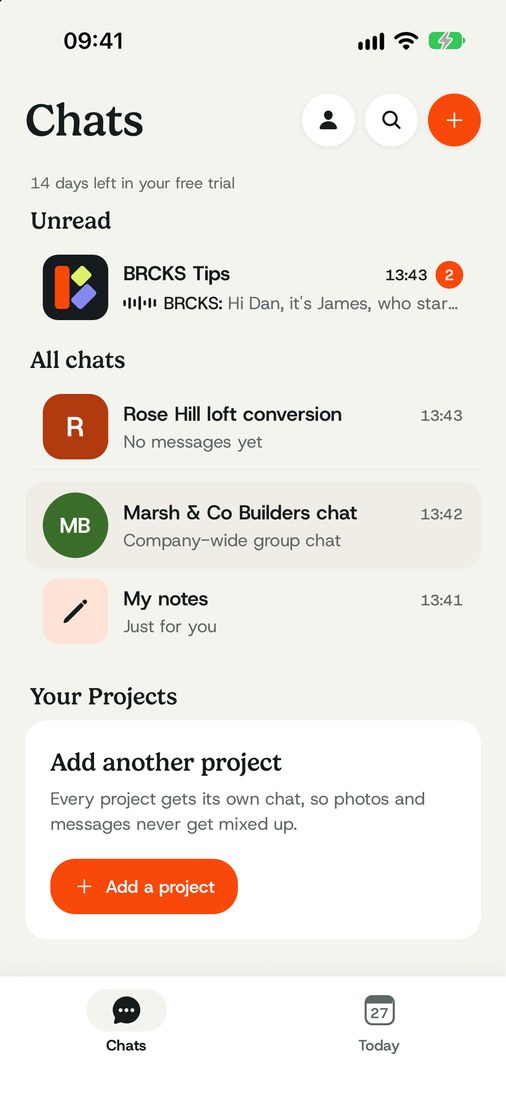 Tap your project
- Tap Project info at the top.
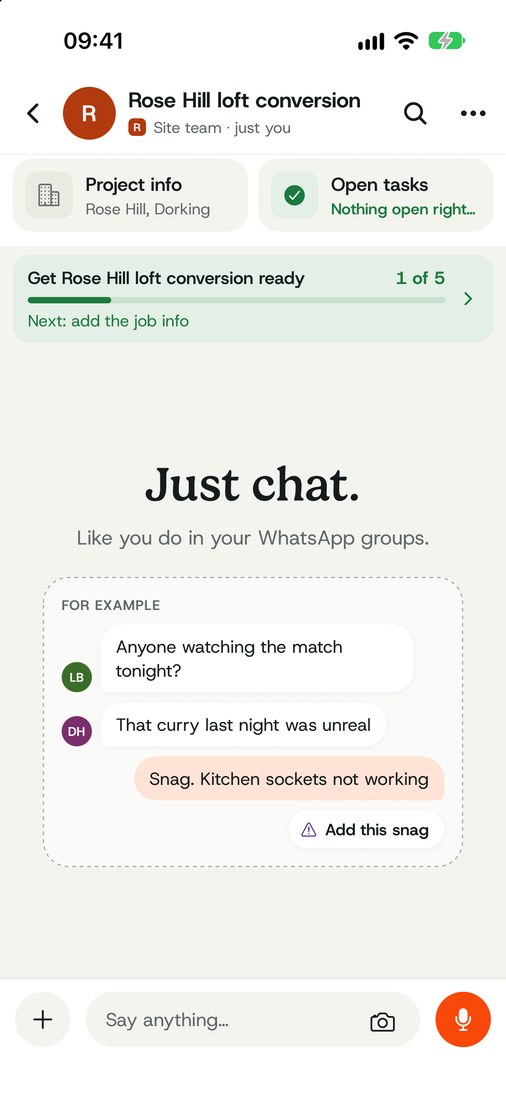 Tap here
- Scroll down and tap Clients.
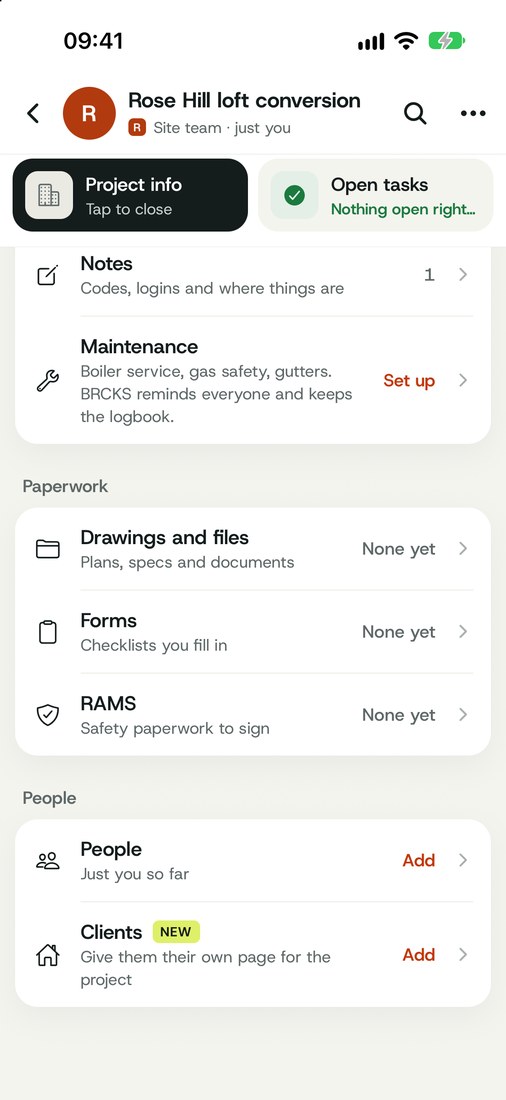 Tap here
- Tap Invite a client.
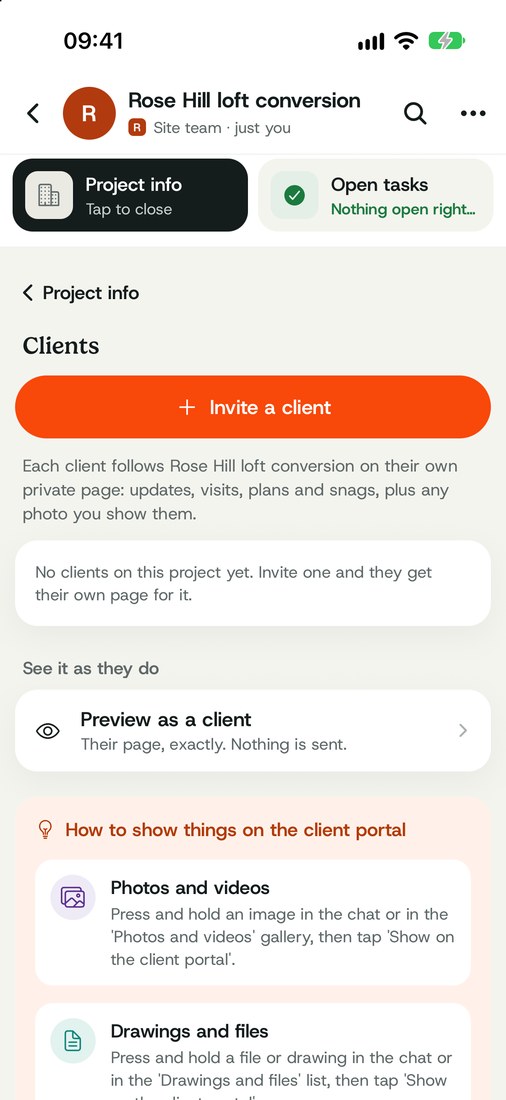 Tap here
- Type their name and email, then tap Send invite.Their mobile is optional. Or tap Pick from your contacts.
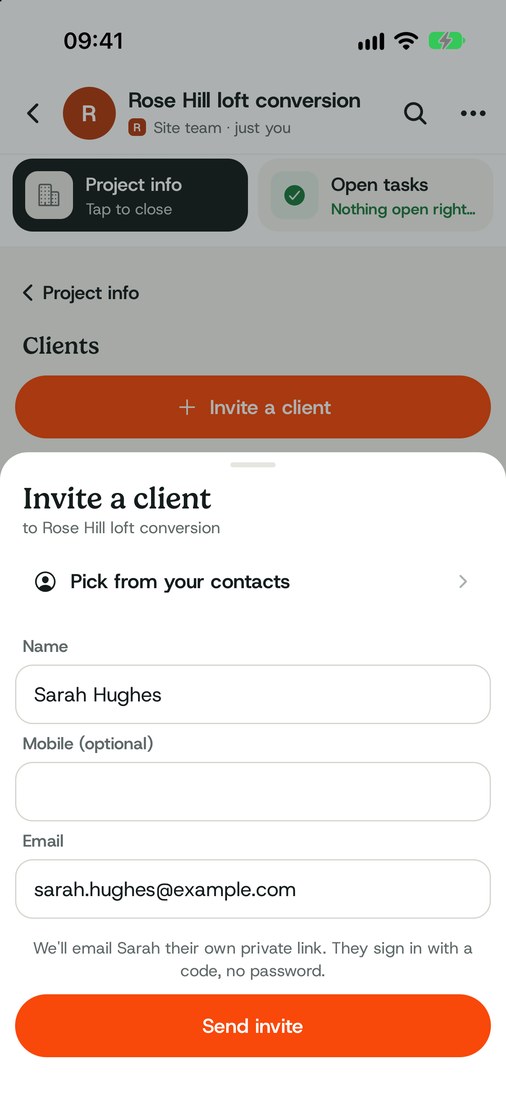 Tap here
- That's it. We email them their own private link.Want to see what they'll see? Tap Preview as a client.
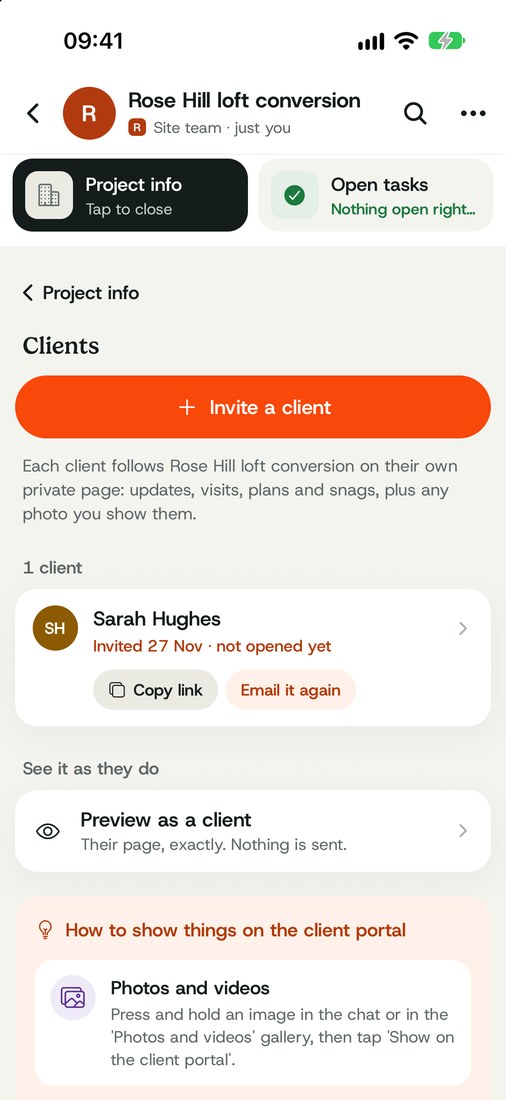 Your client
Having trouble?
Do they need a password?
No. They sign in with a code.
They haven't had the email
In Clients, tap Email it again under their name. Or tap Copy link and send it to them yourself.
What will they see?
Tap Preview as a client. It shows their page exactly as they see it, and nothing is sent.
Did this help?