
Add a project note
For codes, logins and where things are, like the alarm code or where the stopcock is.
- On your Chats screen, tap the project.
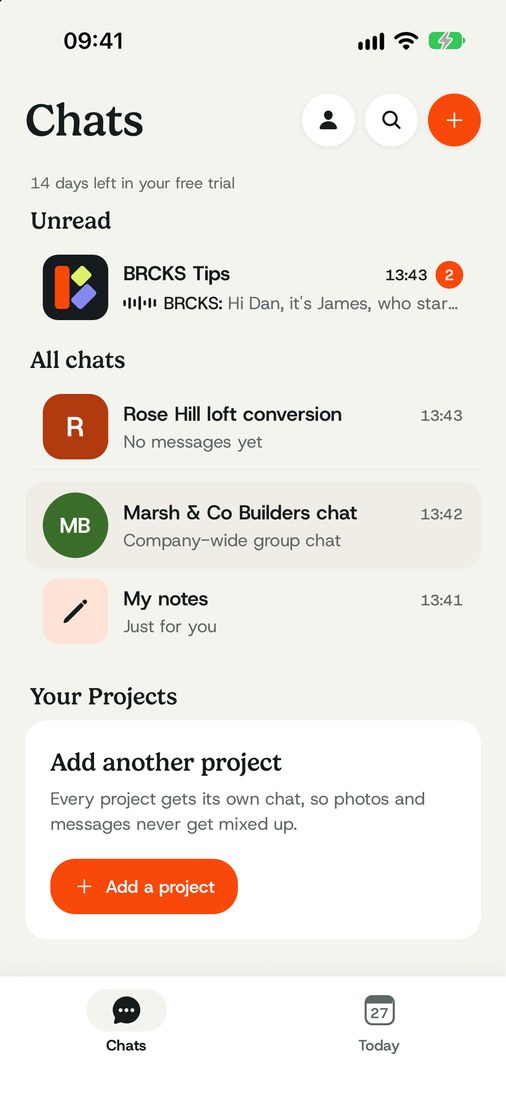 Tap your project
- Tap Project info at the top.
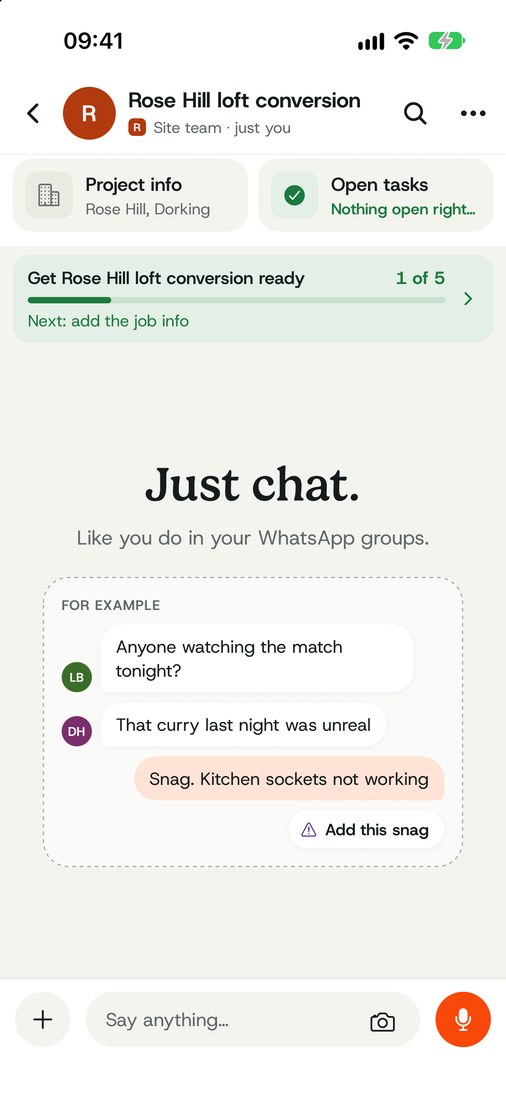 Tap here
- Scroll down. On the Notes row, tap Add.Already got notes? Tap Notes, then + New note at the top of the list.
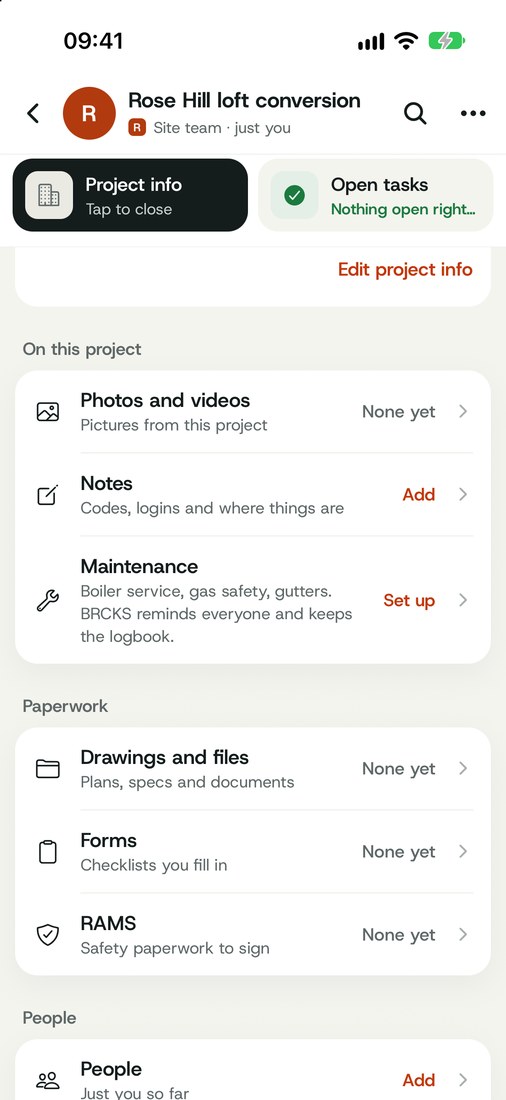 Tap here
- Give it a title and say what people need to know. Then tap Save note.Add a username or code if there is one. Codes stay hidden until someone taps Show.
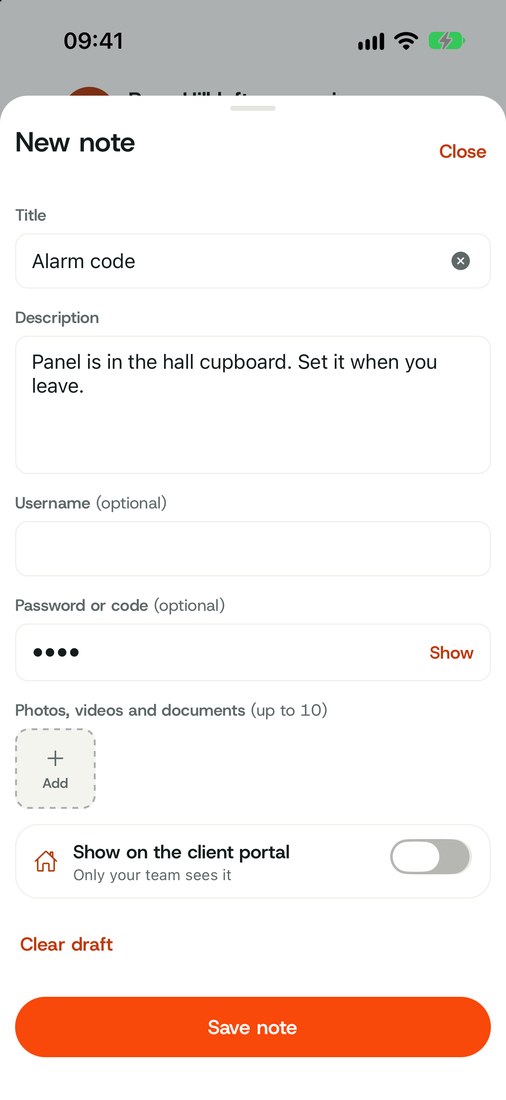 Tap here
- That's it. Your note is saved on the project.
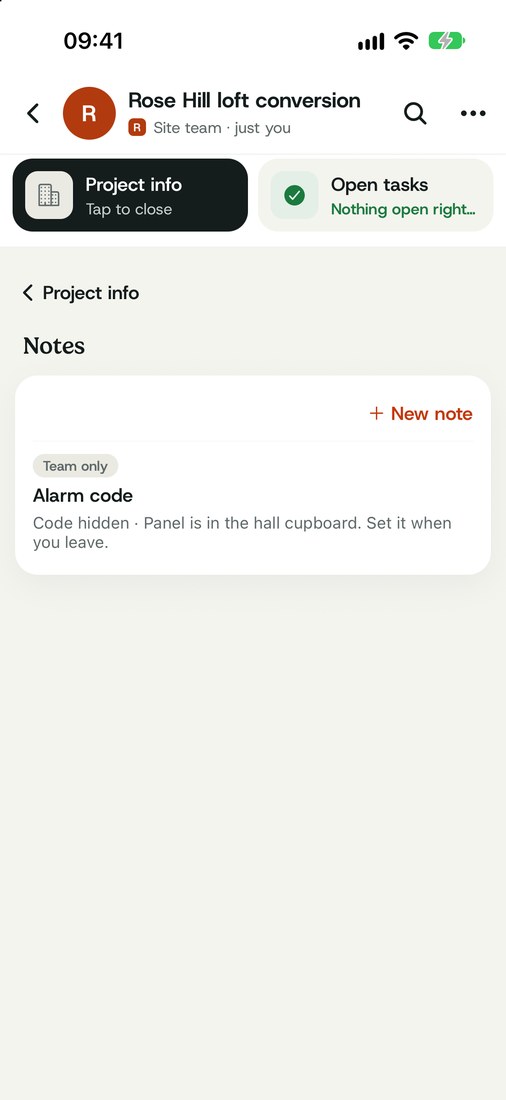 Team onlyOnly your team sees itUnless you switch on Show on the client portal.
Having trouble?
Can my client see my notes?
Not unless you switch on Show on the client portal for that note. Until then it says Only your team sees it.
How do I see a hidden code?
Tap the note, then tap Show.
Can I add photos or documents?
Yes. Tap Add under Photos, videos and documents. You can add up to 10.
Did this help?