
Add an event to the calendar
Put deliveries, inspections and site visits in the diary, so everyone knows who's where.
- On your Chats screen, tap Today at the bottom.First time? You'll see Your calendar. Tap Got it.
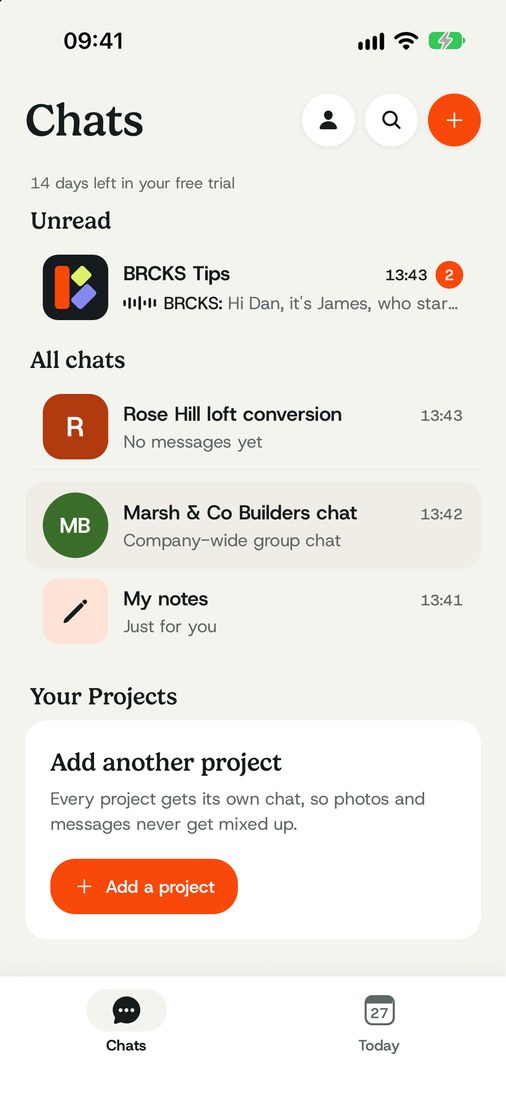 Tap here
- Tap the orange +.
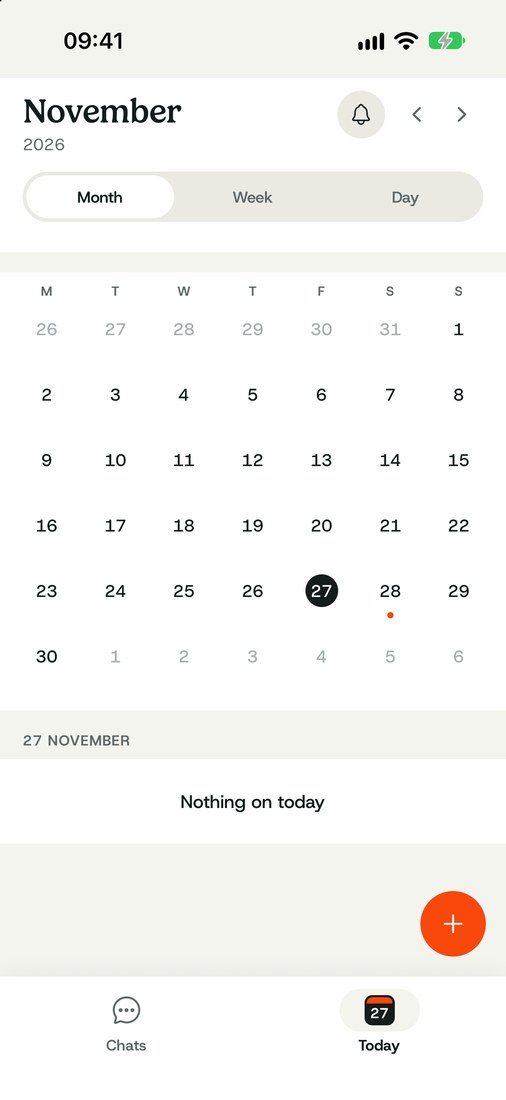 Tap here
- Under What is it, type what's happening.Add anything they need to know underneath.
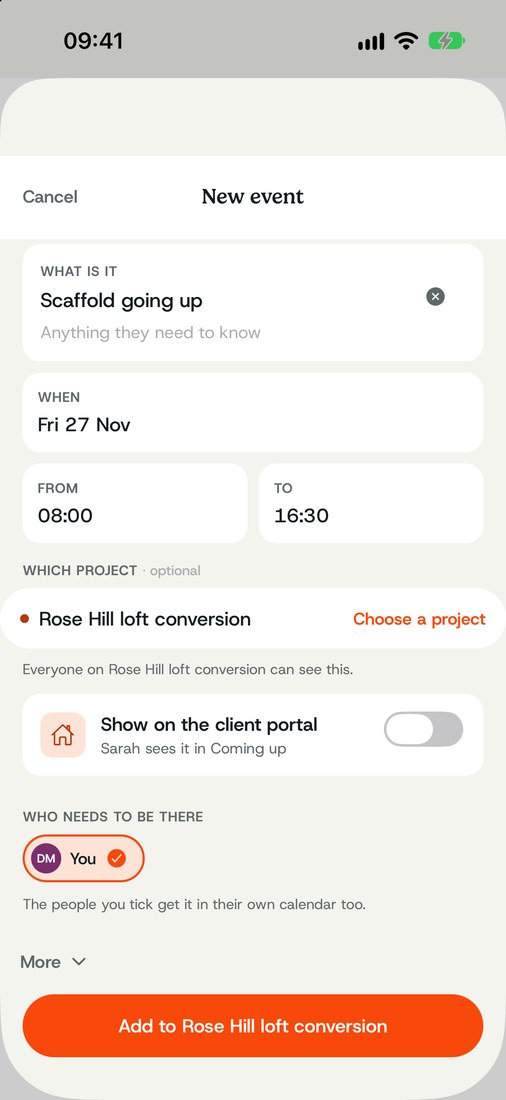 Type here
- Check the day under When, and the times under From and To.Check these
- Under Which project, check it's the right one. Tap Choose a project to change it.It's optional. Everyone on the project can see the event.Tap to change
- Under Who needs to be there, tick the people who should come. You're ticked already.The people you tick get it in their own calendar too.Tick who's coming
- Tap the orange button at the bottom.It shows the project, like Add to Rose Hill loft conversion.Tap here
- That's it. It's in the calendar.
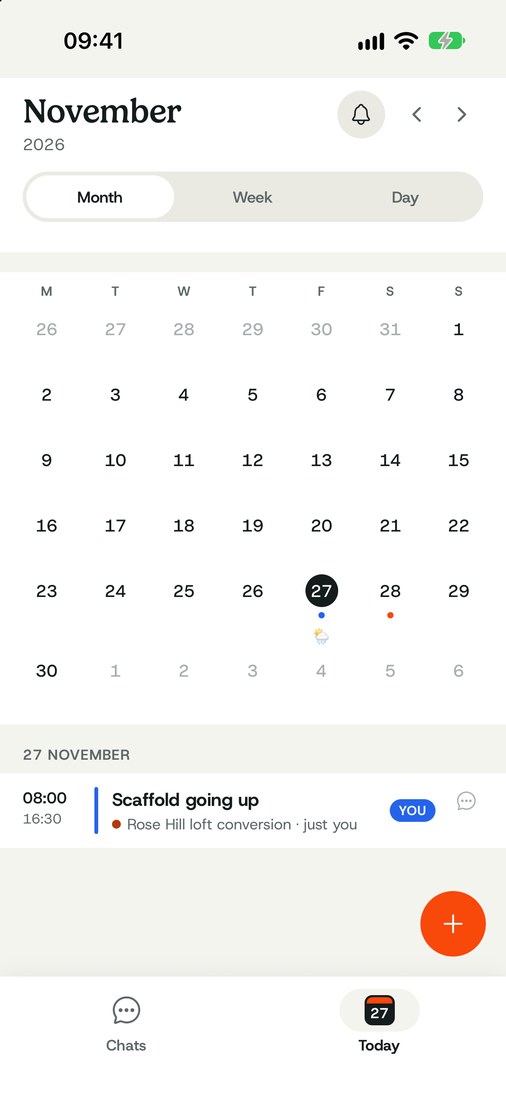 Your event
Having trouble?
Does it have to be on a project?
No. Which project is optional.
Will the others see it?
Everyone on the project can see it. The people you tick under Who needs to be there get it in their own calendar too.
Can my client see it?
Only if you switch on Show on the client portal. Then they see it under Coming up.
Did this help?