
Add drawings and files to a project
Keep plans, specs and documents on the project, where the whole team can find them.
- On your Chats screen, tap the project.
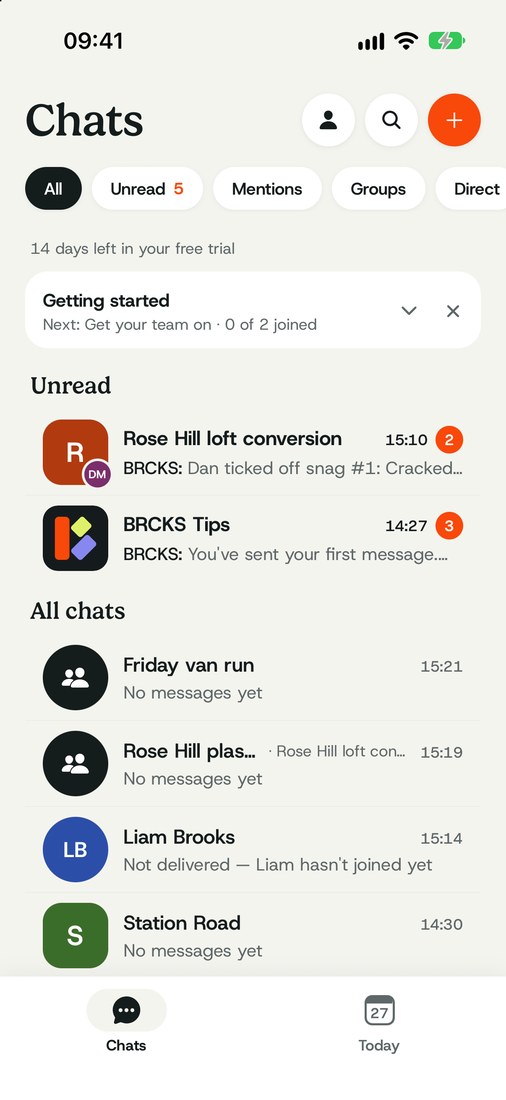 Tap your project
- Tap Project info at the top.
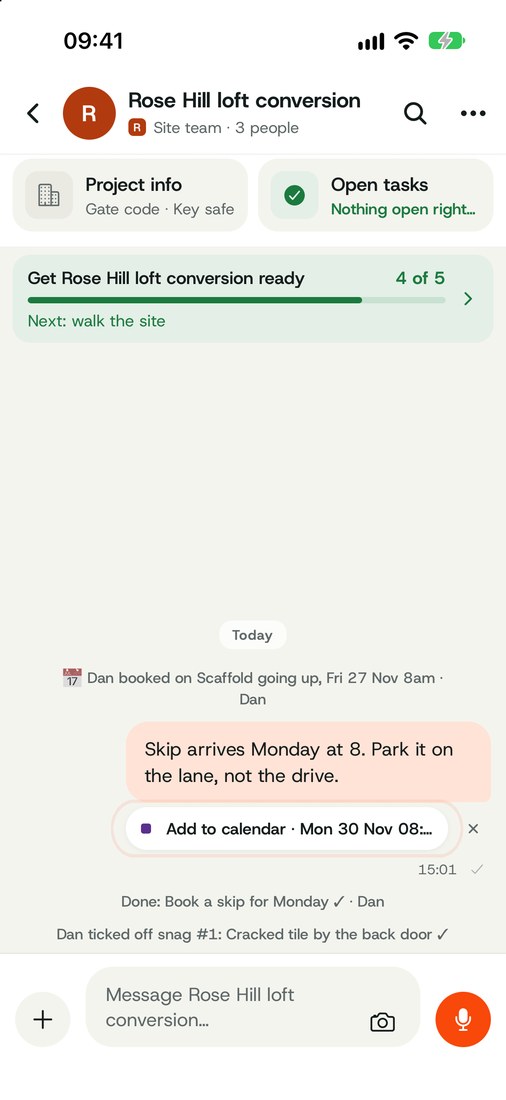 Tap here
- Scroll down and tap Drawings and files.
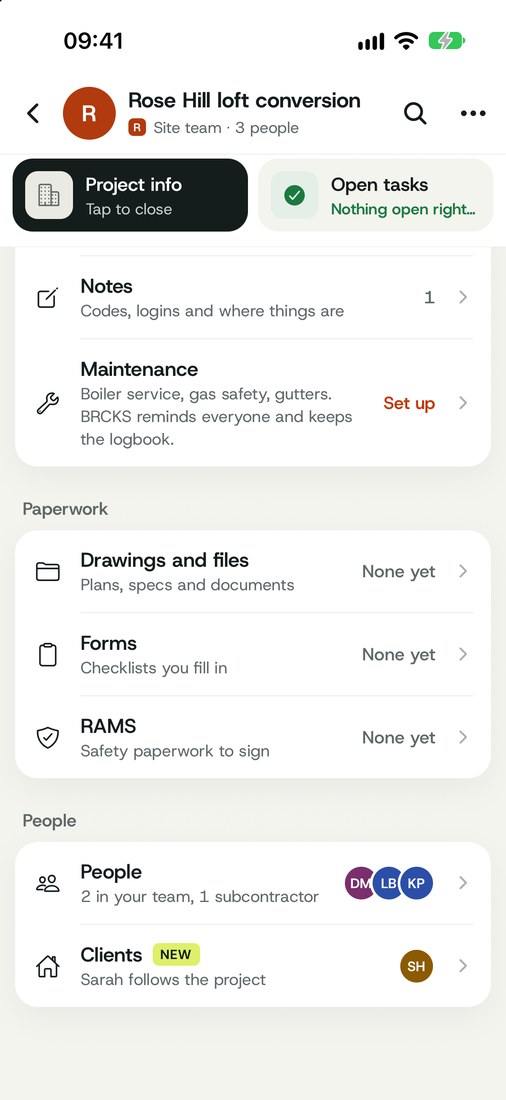 Tap here
- Tap + Add files.
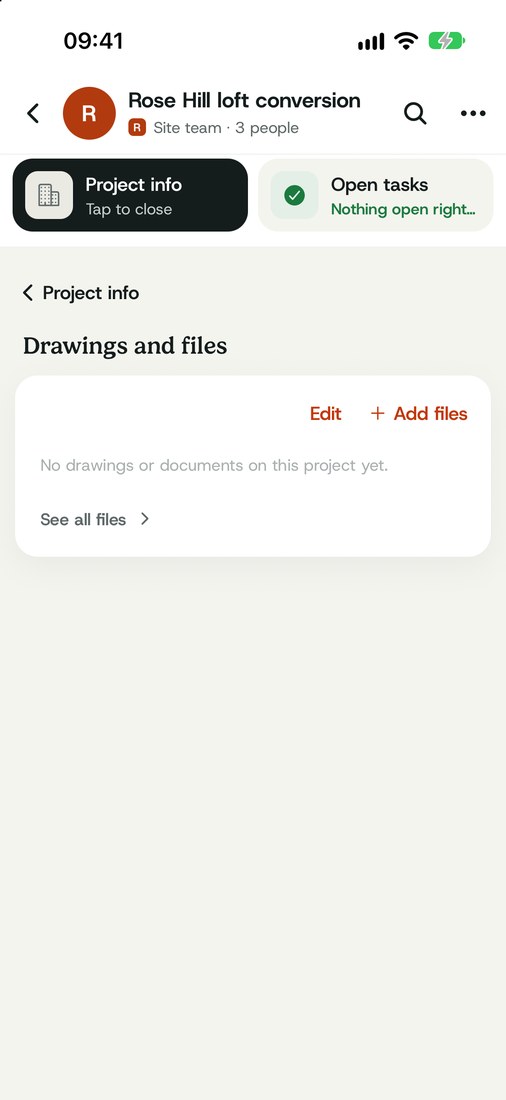 Tap here
- Your phone's files open. Find the file and tap it.Tap Browse at the bottom to look in the folders on your phone.
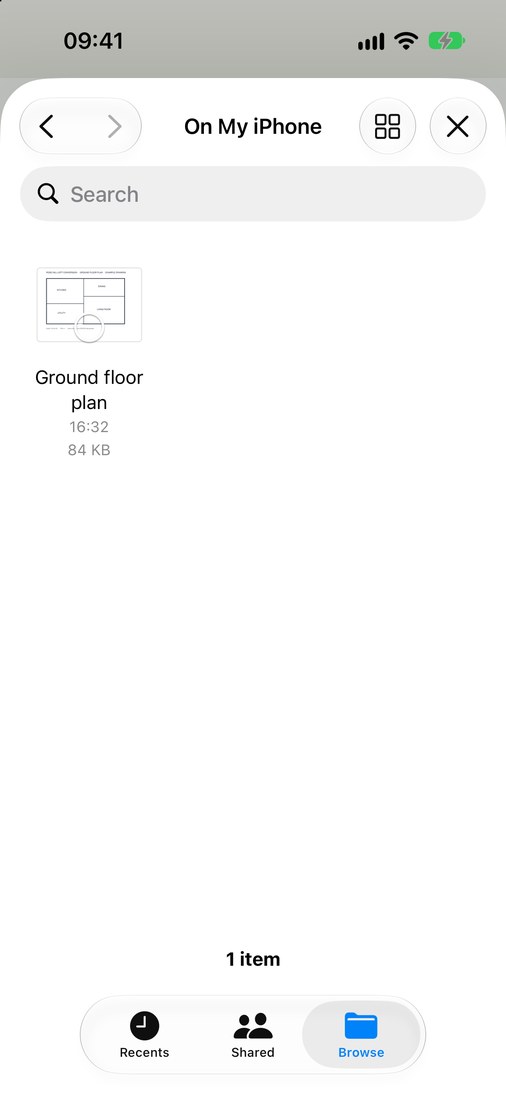 Tap your file
- Tap Open.You can tick more than one file first.
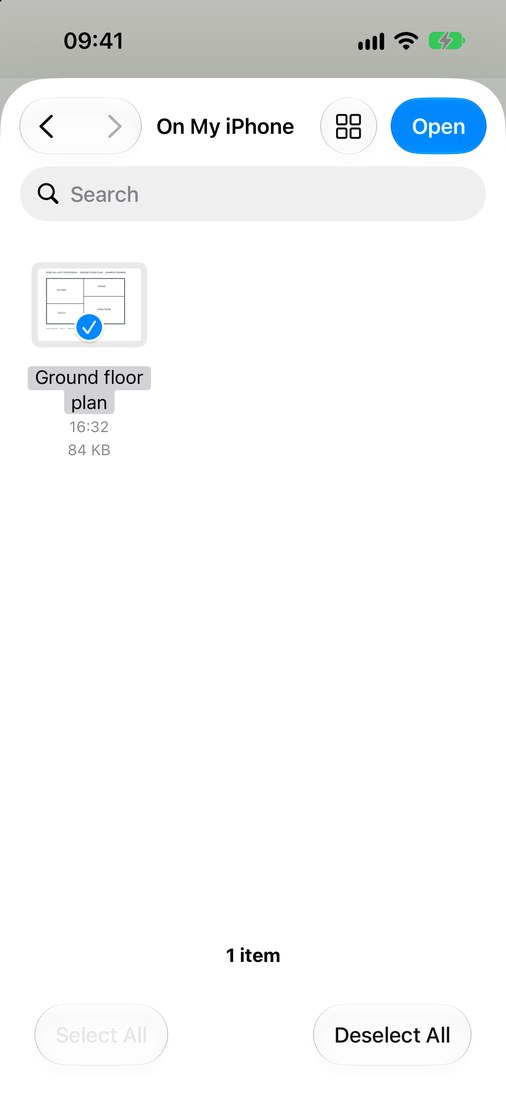 Tap here
- Choose Document or Drawing.
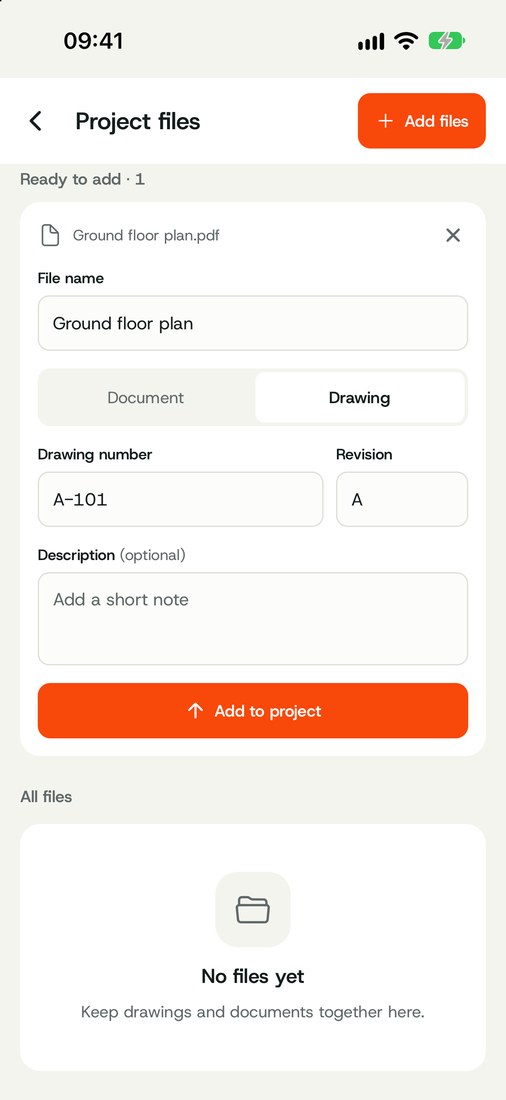 DocumentAnything that isn't a drawing.DrawingAlso asks for the drawing number and revision.
- Tap Add to project.You can add a short description first if you like.Tap here
- That's it. It's on the project.Drawings show their number and revision, like A-101 · Rev A.
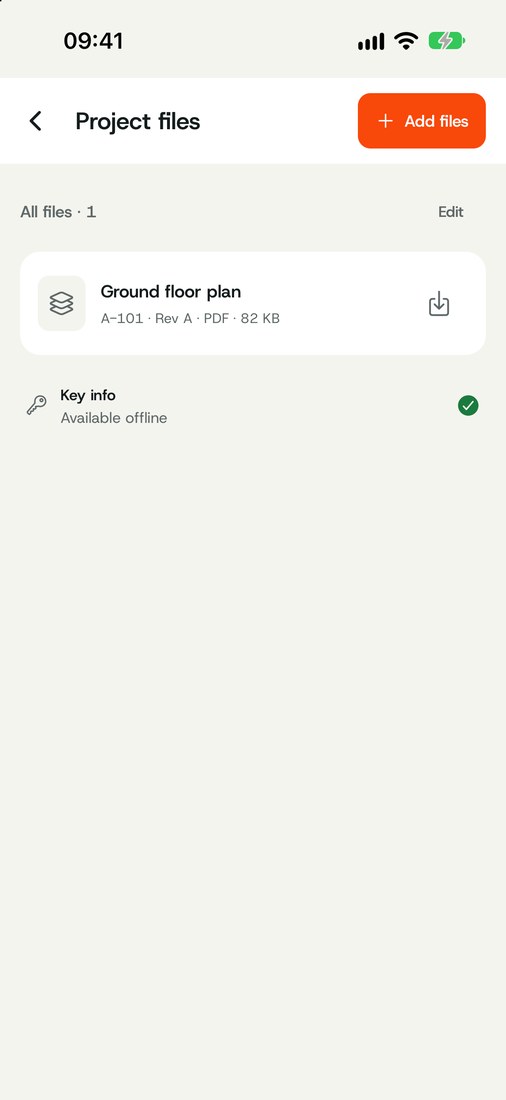 Your drawing
Having trouble?
Why can't I tap Add to project?
For a drawing, fill in the drawing number and revision first. Then the button turns orange.
Can my client see it?
Only if you show it. Press and hold it in the Drawings and files list, then tap Show on the client portal.
Did this help?