
Import a WhatsApp chat
Bring a project's WhatsApp history into BRCKS. Your WhatsApp chat stays exactly as it is.
- On your Chats screen, tap the project.
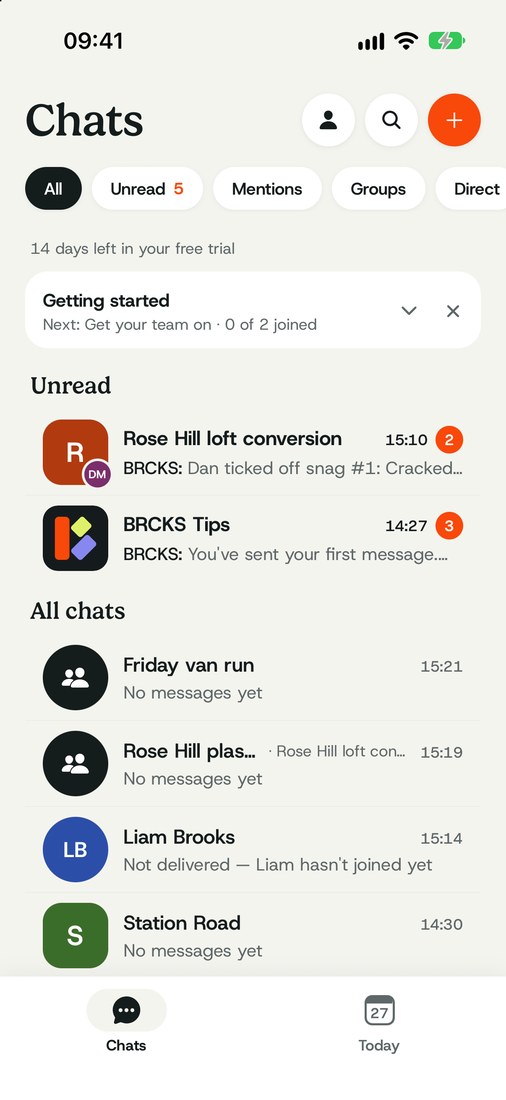 Tap your project
- Tap the three dots at the top right.
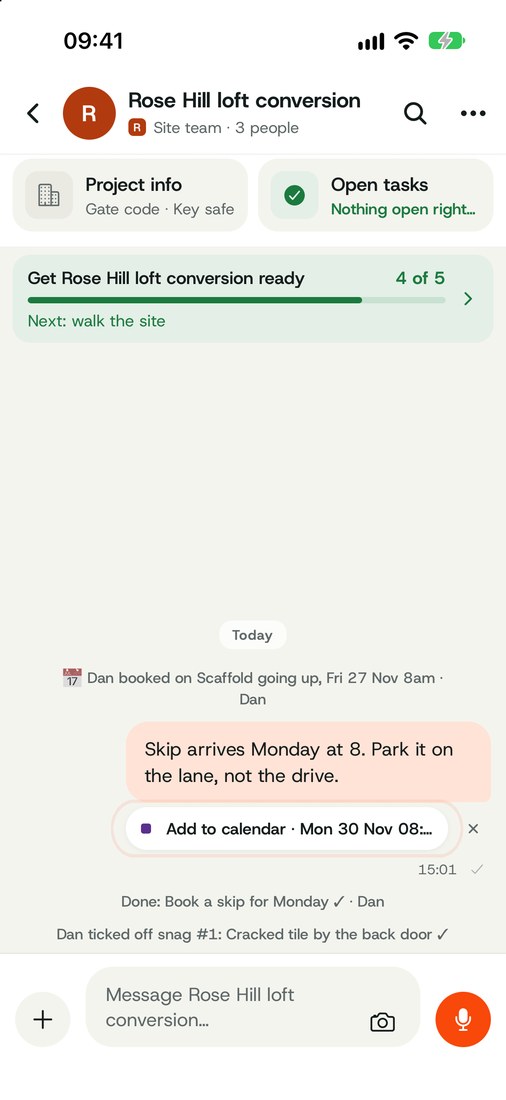 Tap here
- Tap Import a WhatsApp chat.
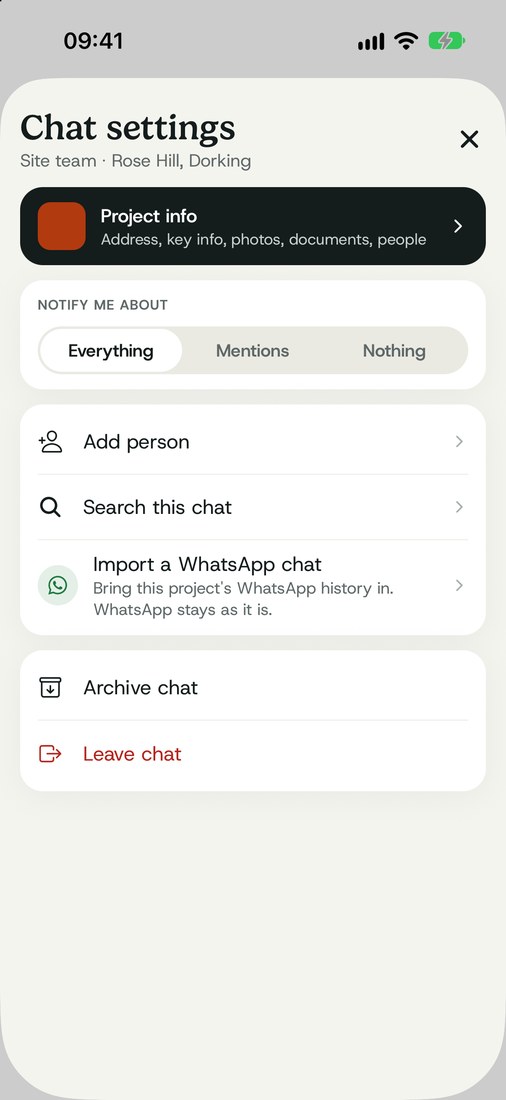 Tap here
- Tap Open WhatsApp and follow the six steps on the screen.At the end, WhatsApp asks where to send it. Tap BRCKS Chat.
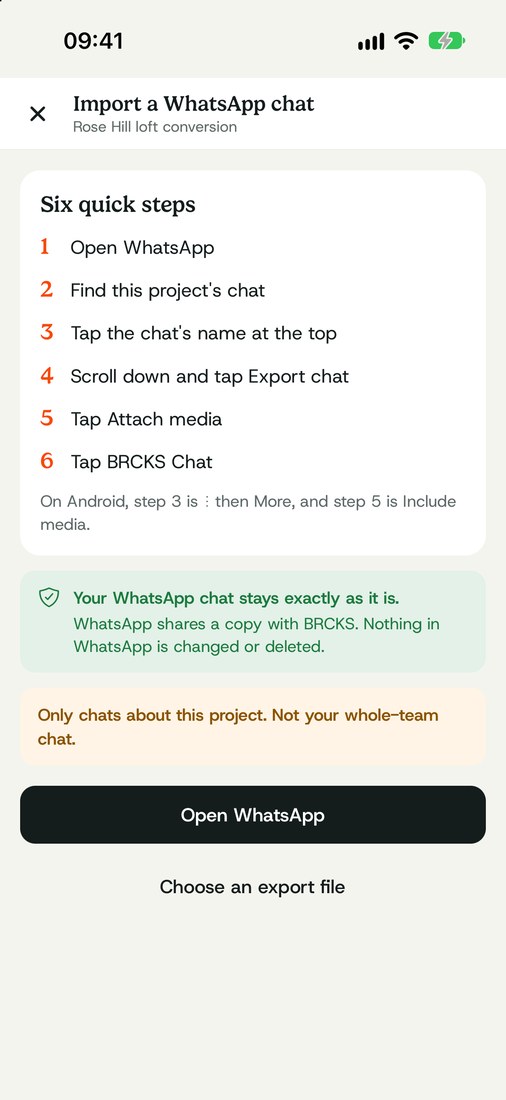 Your WhatsApp stays as it isWhatsApp shares a copy with BRCKS. Nothing in WhatsApp is changed or deleted.Only this project's chatNot your whole-team chat.
- Say if the client was in the chat, then tap Import it.
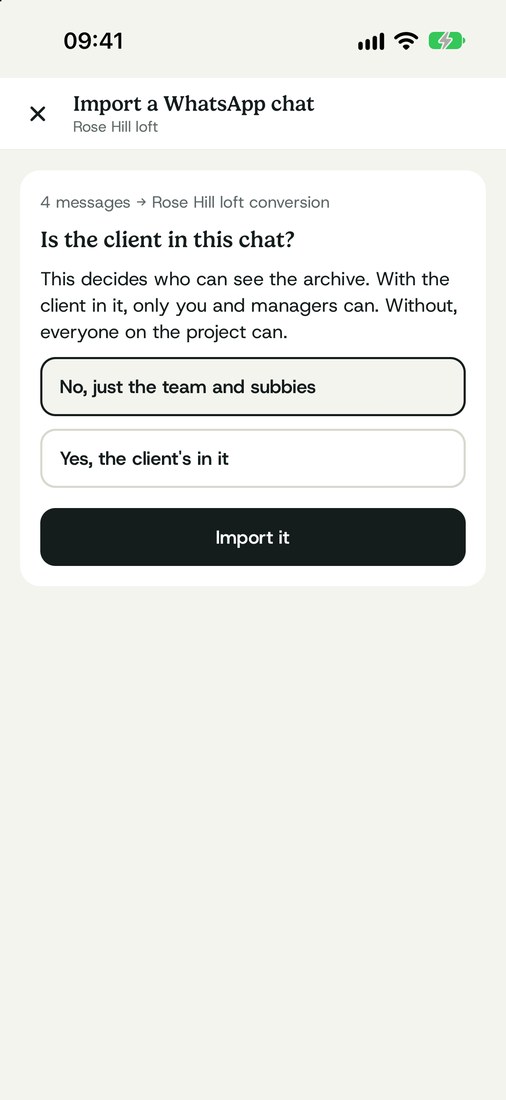 No, just the team and subbiesEveryone on the project can see it.Yes, the client's in itOnly you and managers can see it.
- That's it. The old chat is on the project.It's a read-only archive at the bottom of your Chats, and the photos are on the project and searchable.
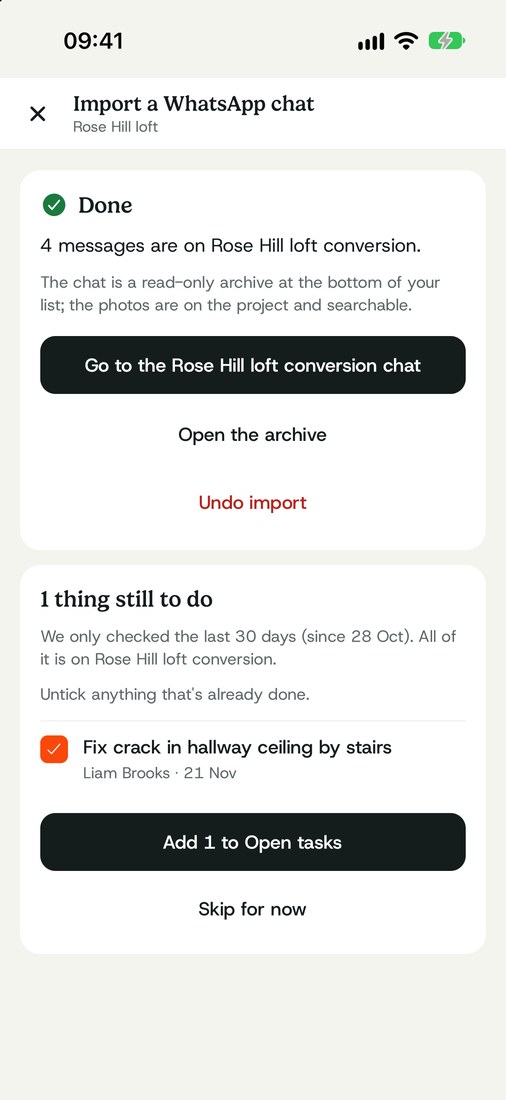 Done
Having trouble?
Will it change my WhatsApp?
No. WhatsApp shares a copy with BRCKS. Nothing in WhatsApp is changed or deleted.
Where does it go?
It's a read-only archive at the bottom of your Chats. The photos go on the project and you can search them.
It found things still to do
It looks back over the last 30 days. Untick anything that's already done, then tap the Add … to Open tasks button, or Skip for now.
I imported the wrong chat
The Done screen has an Undo import button.
Did this help?