
Start a new project
Every project gets its own chat, so photos and messages never get mixed up.
- Tap the orange + at the top of your Chats screen.
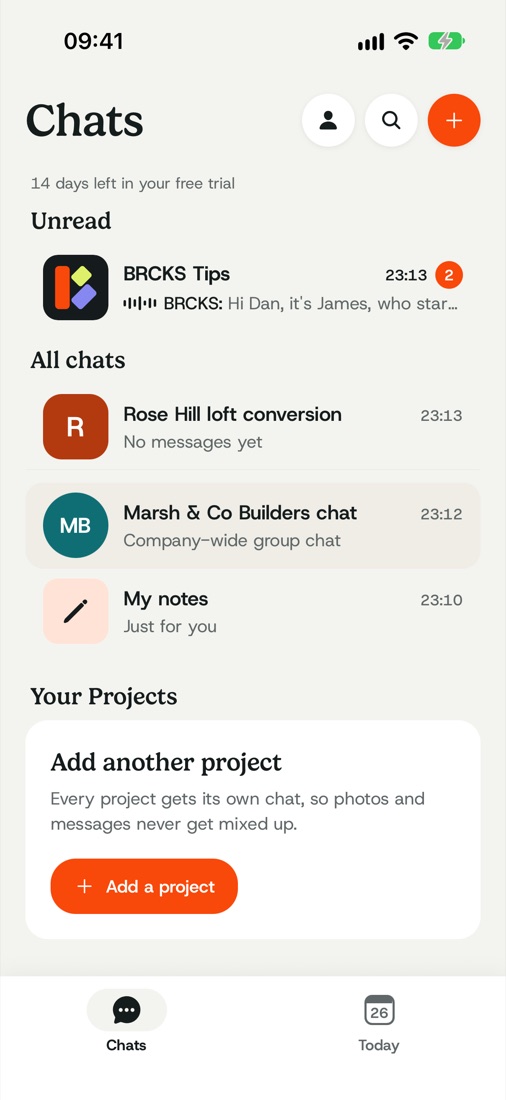 Tap here
- Tap New project.
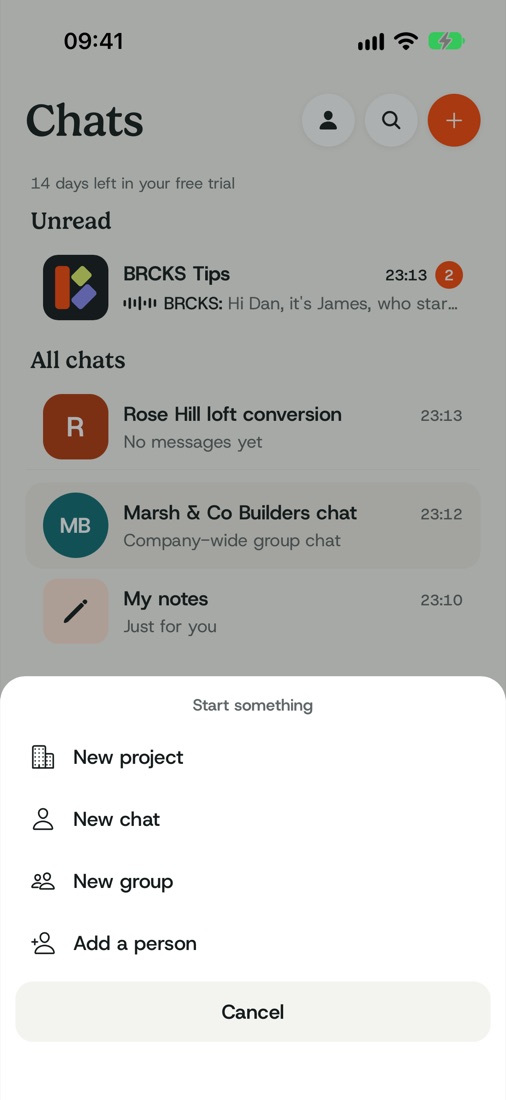 Tap here
- Under Where is it?, start typing the address. Tap it when it shows up.Can't see it? Tap Use "…" as typed at the bottom of the list.
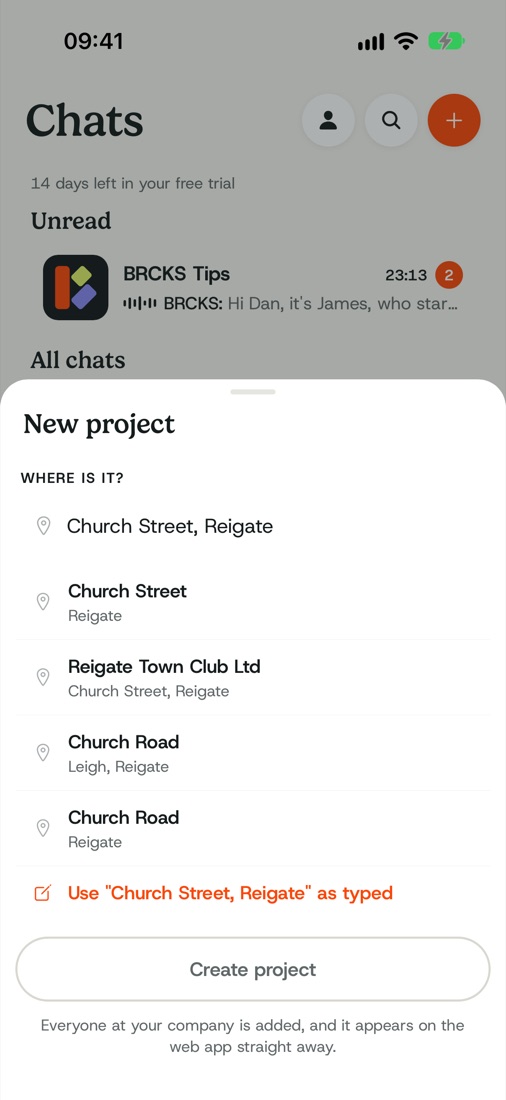 Tap your address
- Tap Create project.The project is named after the address. To change it, tap the name under Call it.
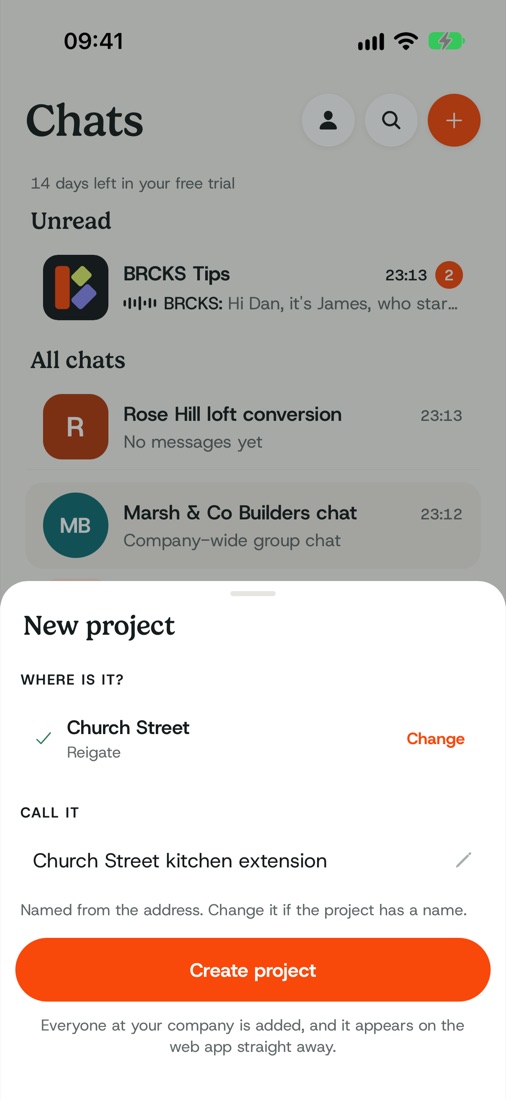 Tap here
- That's it. The project's chat opens straight away.Tap Project info to add notes like codes and logins, and drawings and files.
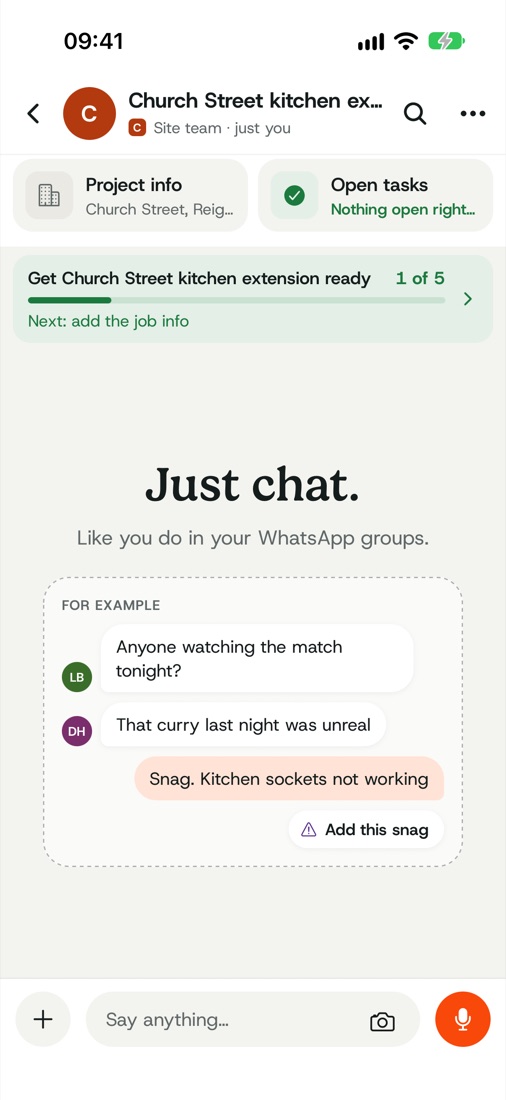 Project info
Having trouble?
I can't find the address
Type it in full, then tap Use "…" as typed at the bottom of the list.
Who can see the new project?
Everyone at your company is added to it, and it shows up on the web app straight away.
Can I give it a different name?
Yes. Before you tap Create project, tap the name under Call it and type a new one.
Did this help?