
Send a photo to a project
Send it in the project's chat and it saves to the project by itself. Nothing to file.
- On your Chats screen, tap the project.
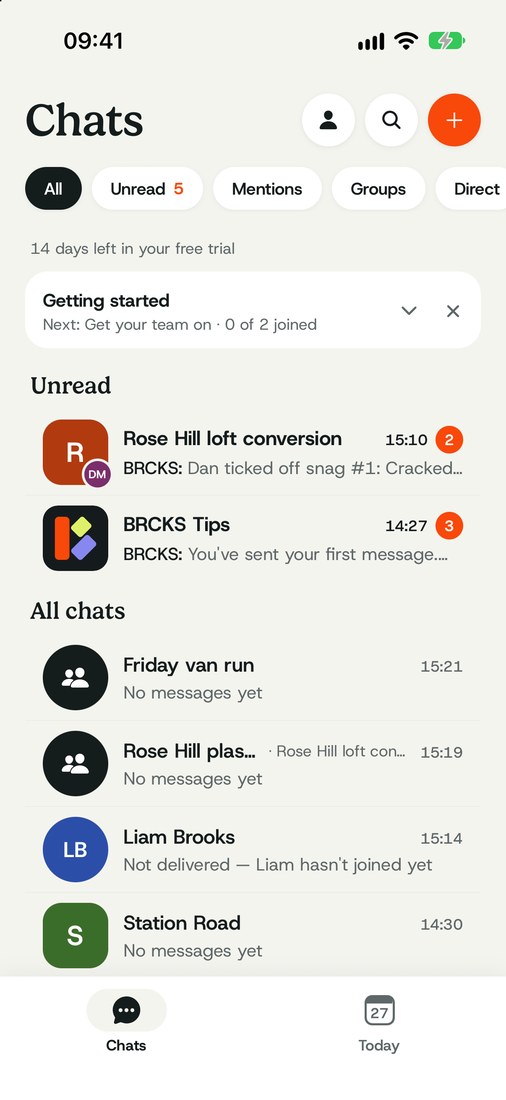 Tap your project
- Tap the camera in the message box.
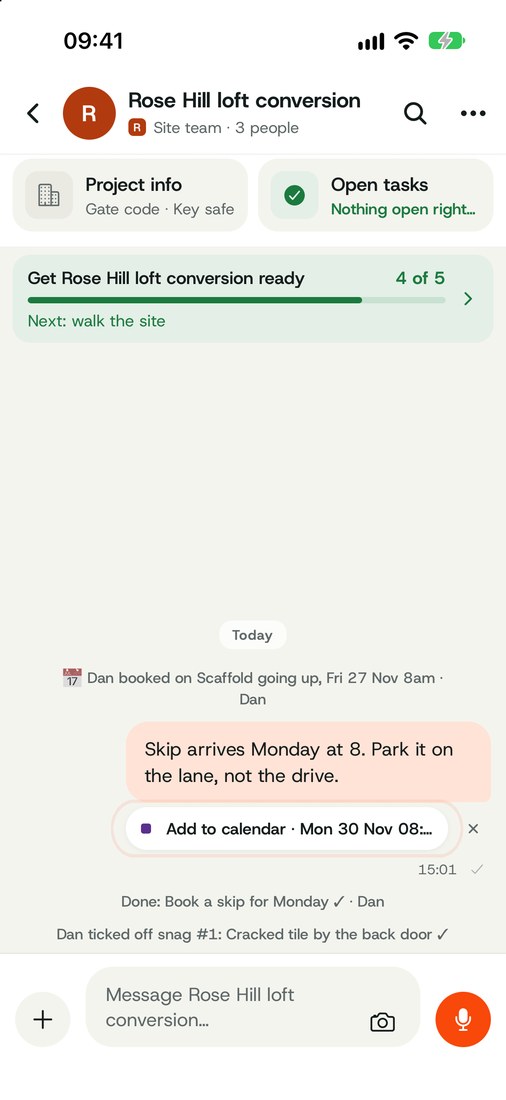 Tap here
- Tap Upload from gallery.Or tap Take a photo or video to use your camera.
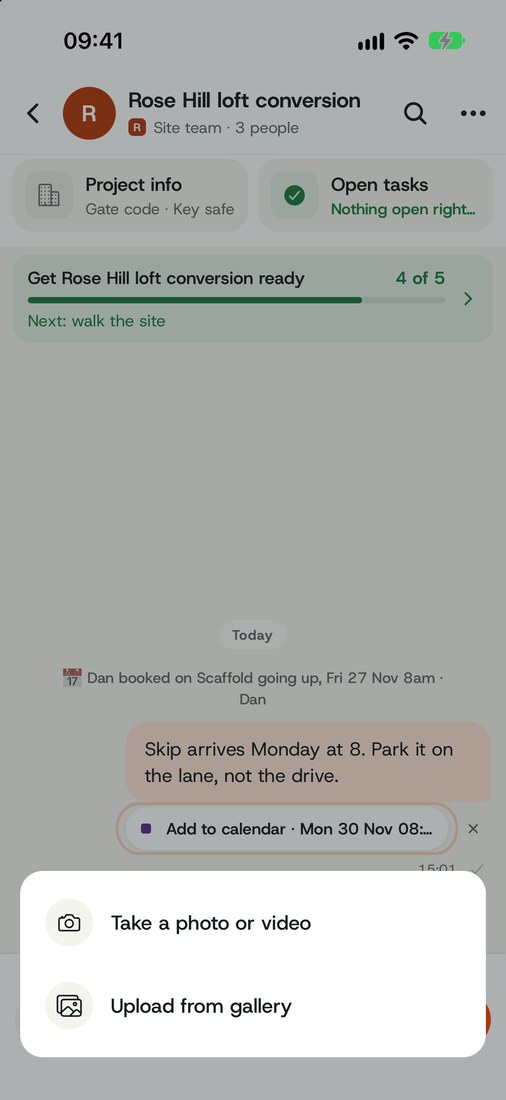 Tap here
- The first time, your phone asks which photos BRCKS Chat can see. Pick one.
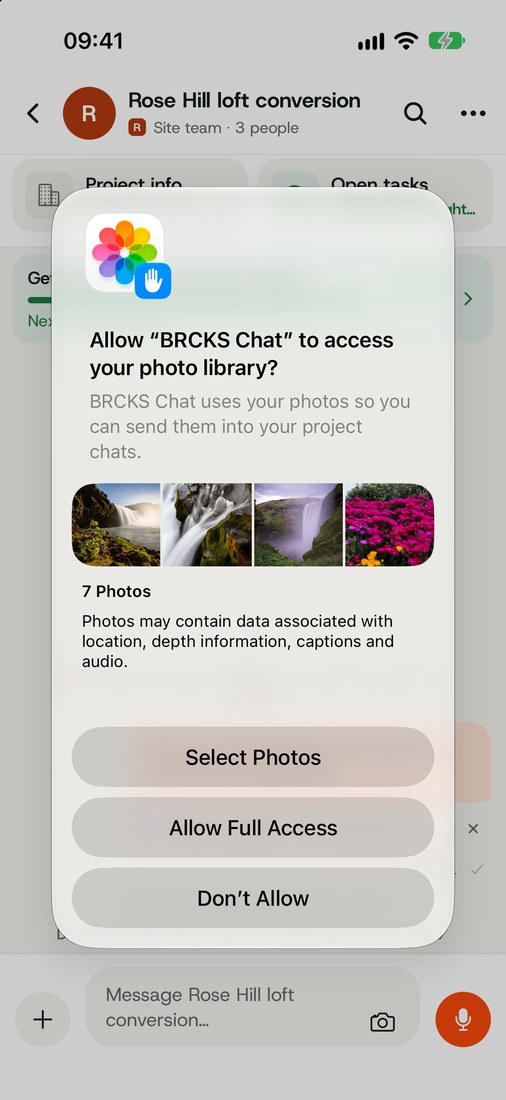 Select PhotosBRCKS only sees the ones you pick.Allow Full AccessBRCKS can see all your photos.
- Tap the photo, then tap the blue tick.You can pick up to 30 at once.
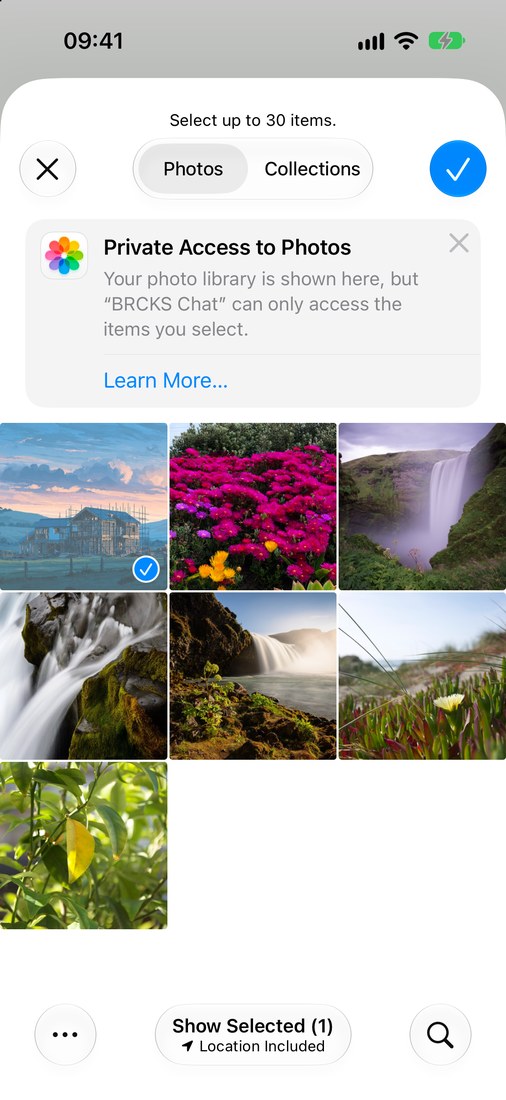 Tap here
- Add a message if you like, then tap the orange arrow.
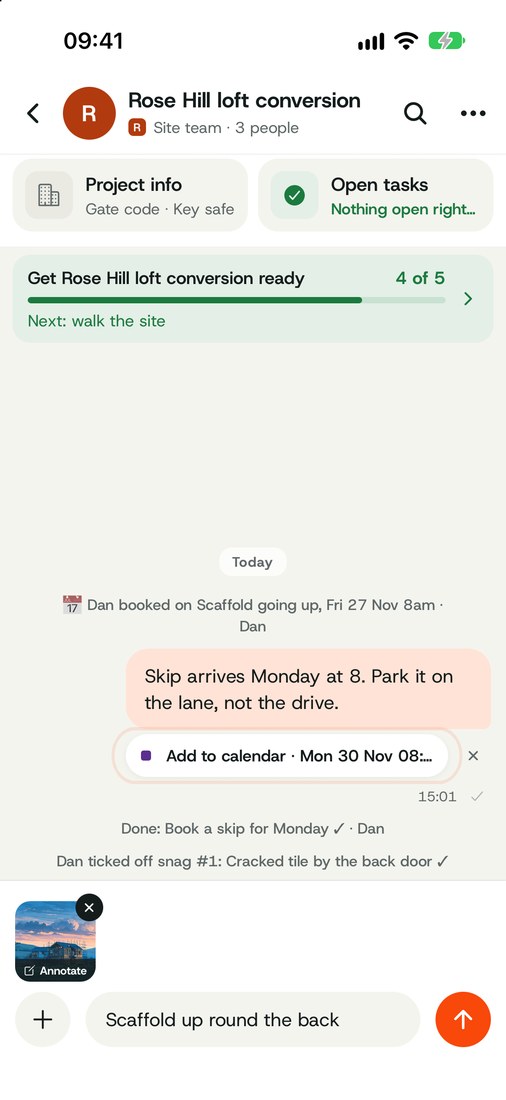 Send
- That's it. It's in the chat and saved to the project.Under the photo it says Saved to the project's name.
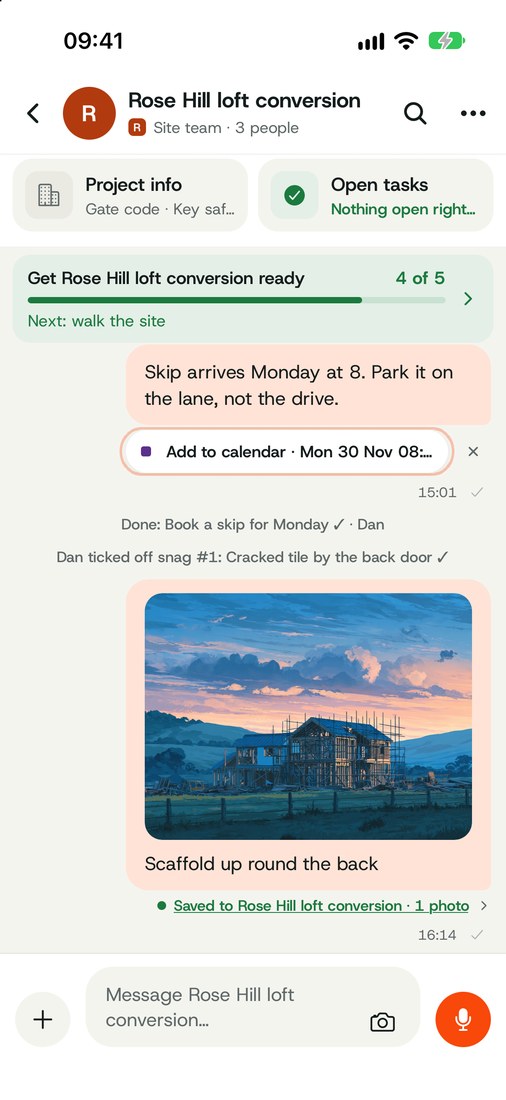 Saved to the project
Having trouble?
Do I need to file it?
No. When you send a photo in a project's chat, it saves to that project by itself. You'll see Saved to and the project's name under it.
Can I send more than one?
Yes. You can pick up to 30 at once.
I chose Select Photos and can't see a photo
Your phone only shows BRCKS the photos you picked. You can change which ones in your phone's settings.
Did this help?