
Walk the site
Take as many photos as you like as you walk round, then send them all together. Talk as you go and BRCKS writes your notes for you.
- On your Chats screen, tap the project.
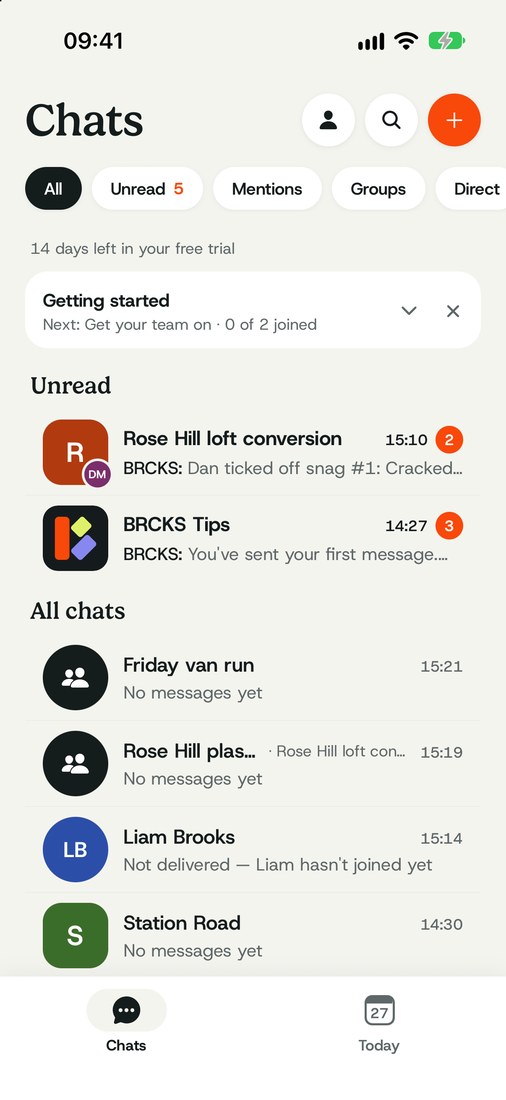 Tap your project
- Tap the + next to the message box.
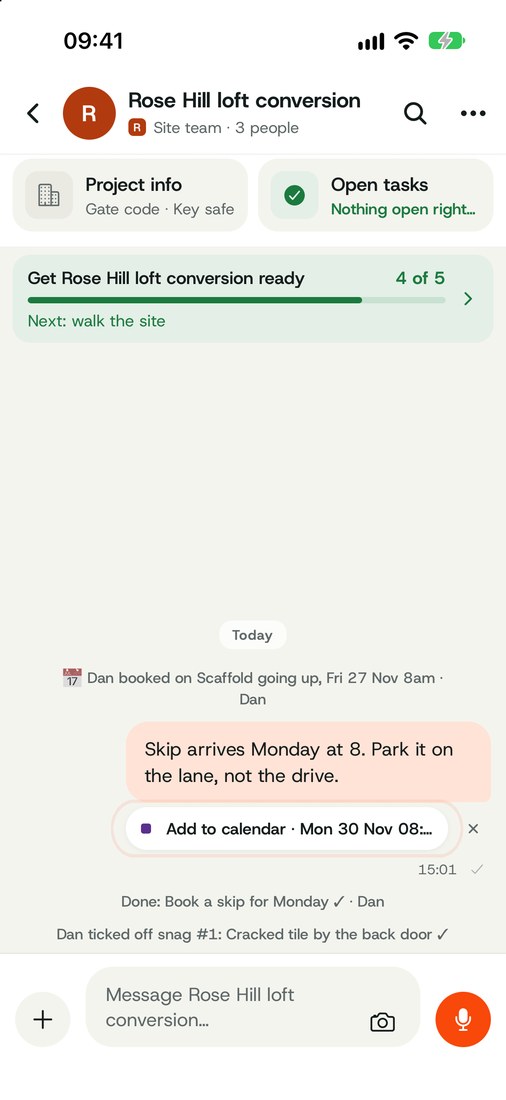 Tap here
- Tap Walk the site.
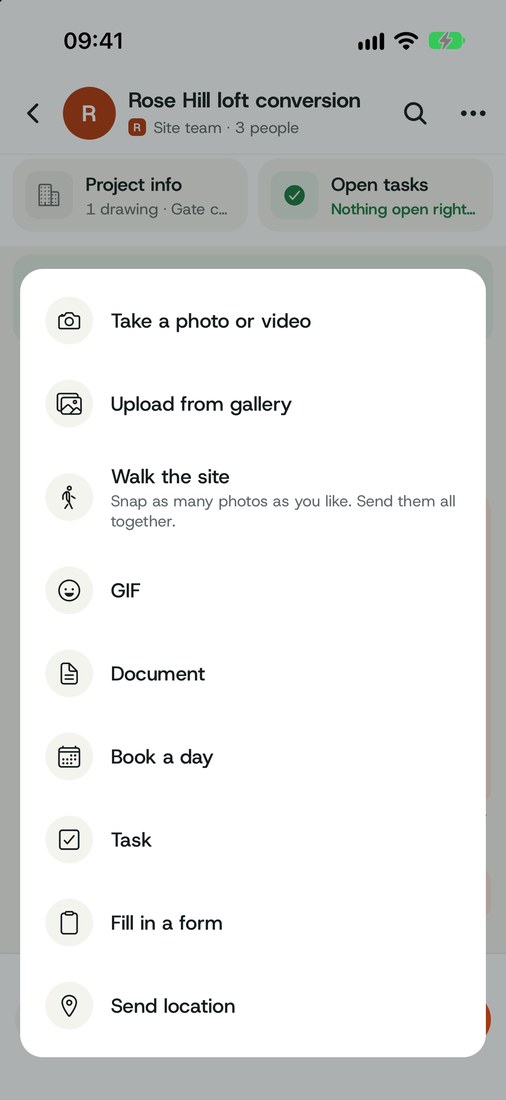 Tap here
- The first time, your phone asks to use the camera and your location. Allow them.
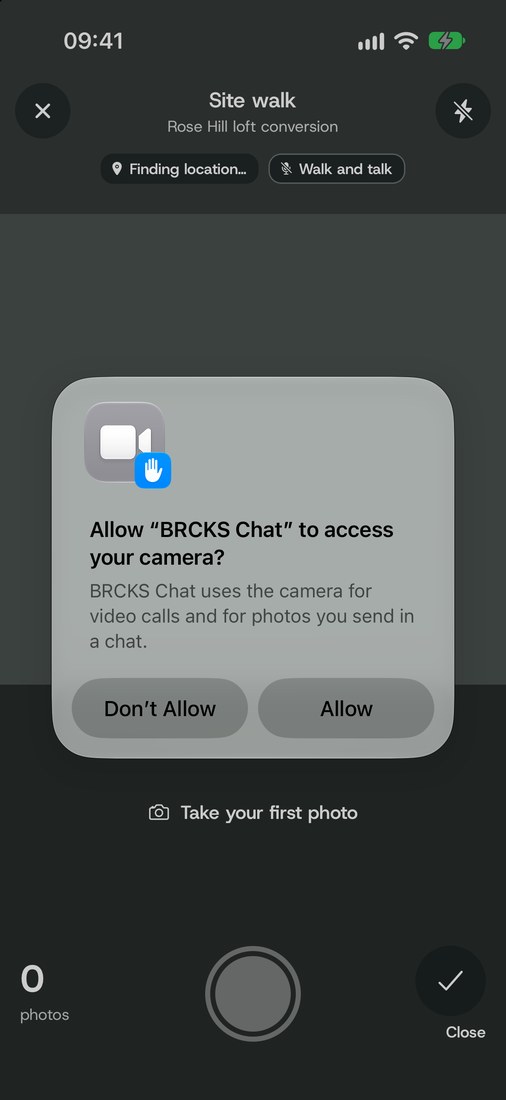 CameraTo take the photos.LocationSo each photo shows where on the job it was taken.
- To walk and talk, tap Walk and talk.The first time, allow speech recognition and the microphone. Then take a photo and talk about it. What you say becomes the note on that photo. Only the words are kept, never the recording.
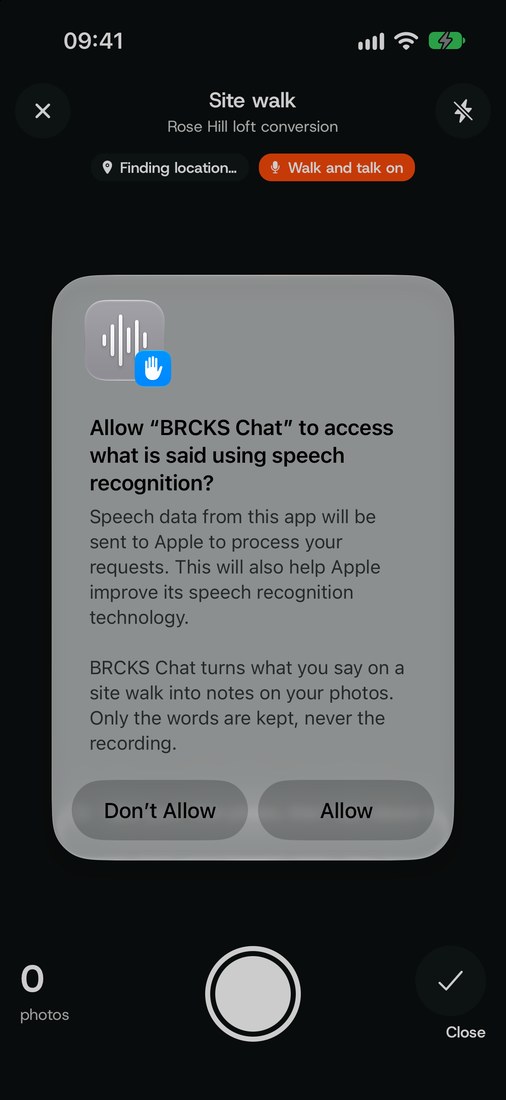 Walk and talk on
- Tap the big white button for each photo.Not talking? Type a note under Note on the photo you just took. Notes are optional.
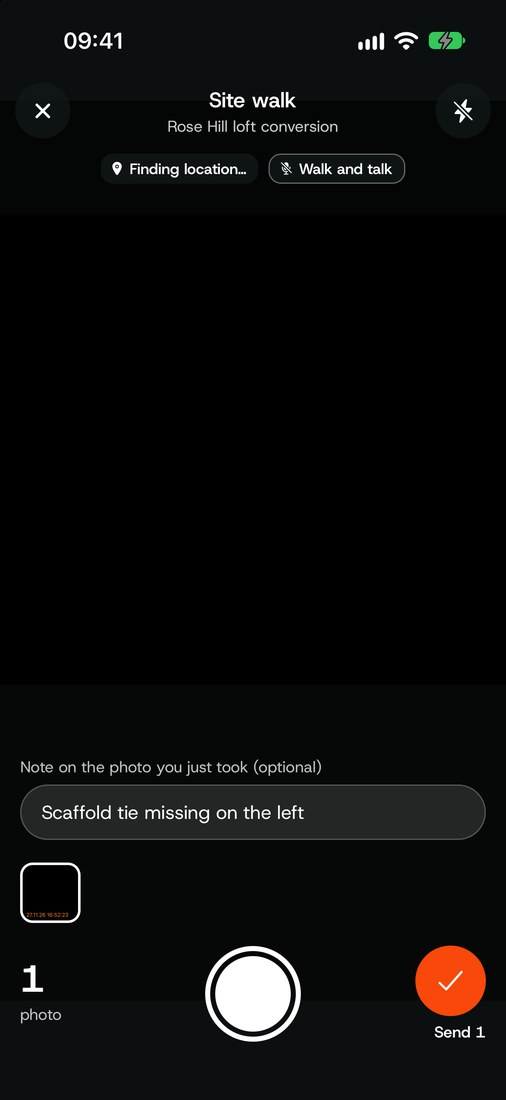 Take a photo
- When you're done, tap the orange tick to send them all.It shows how many, like Send 2.
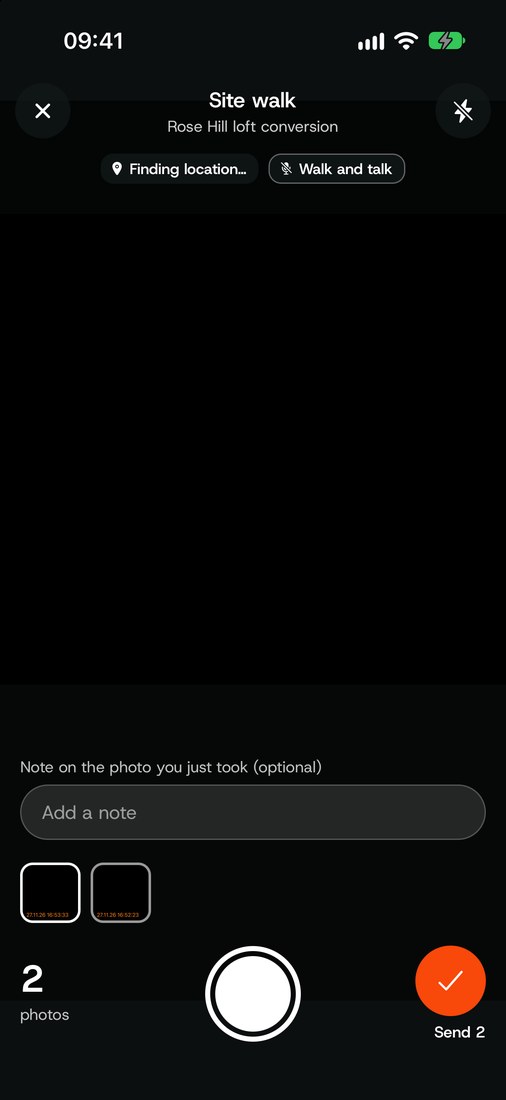 Send
- That's it. Your walk is in the chat and saved to the project.It shows how many photos and notes, and when you started and finished.
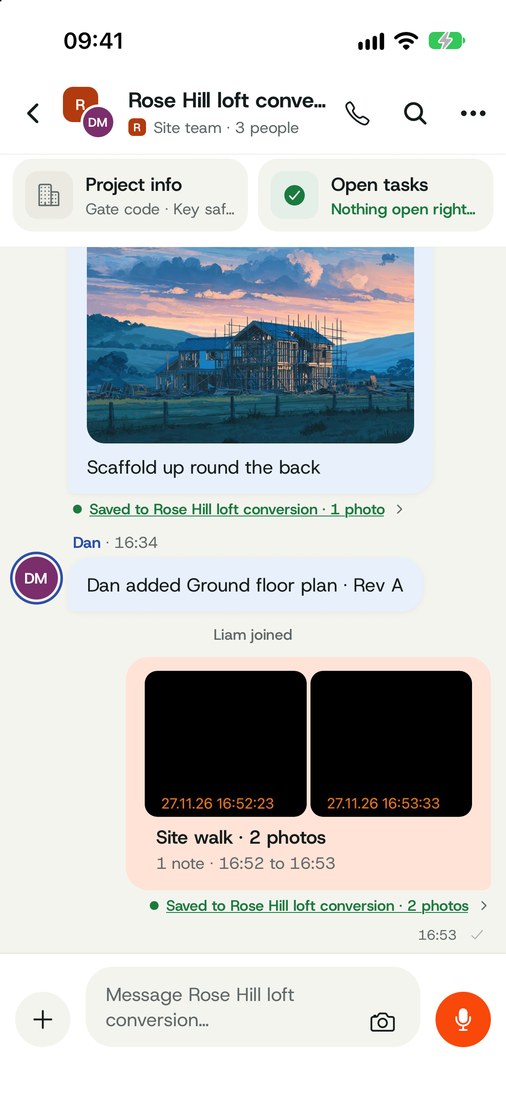 Your site walk
Having trouble?
Is my voice recorded?
No. Only the words are kept, never the recording.
Who can see where I took them?
A photo's location is kept with the photo and shown to the people on that job. It's never used in the background.
Walk and talk won't turn on
It needs the microphone and speech recognition. Check BRCKS Chat is allowed both in your phone's settings. You can always type your notes instead.
Did this help?