Catch up on everything across your jobs
The Feed shows every update from every job in one list, newest first.
Web only
Do this on a computer at app.brcks.io. Sign in with your mobile number.
- In the menu on the left, click Feed.
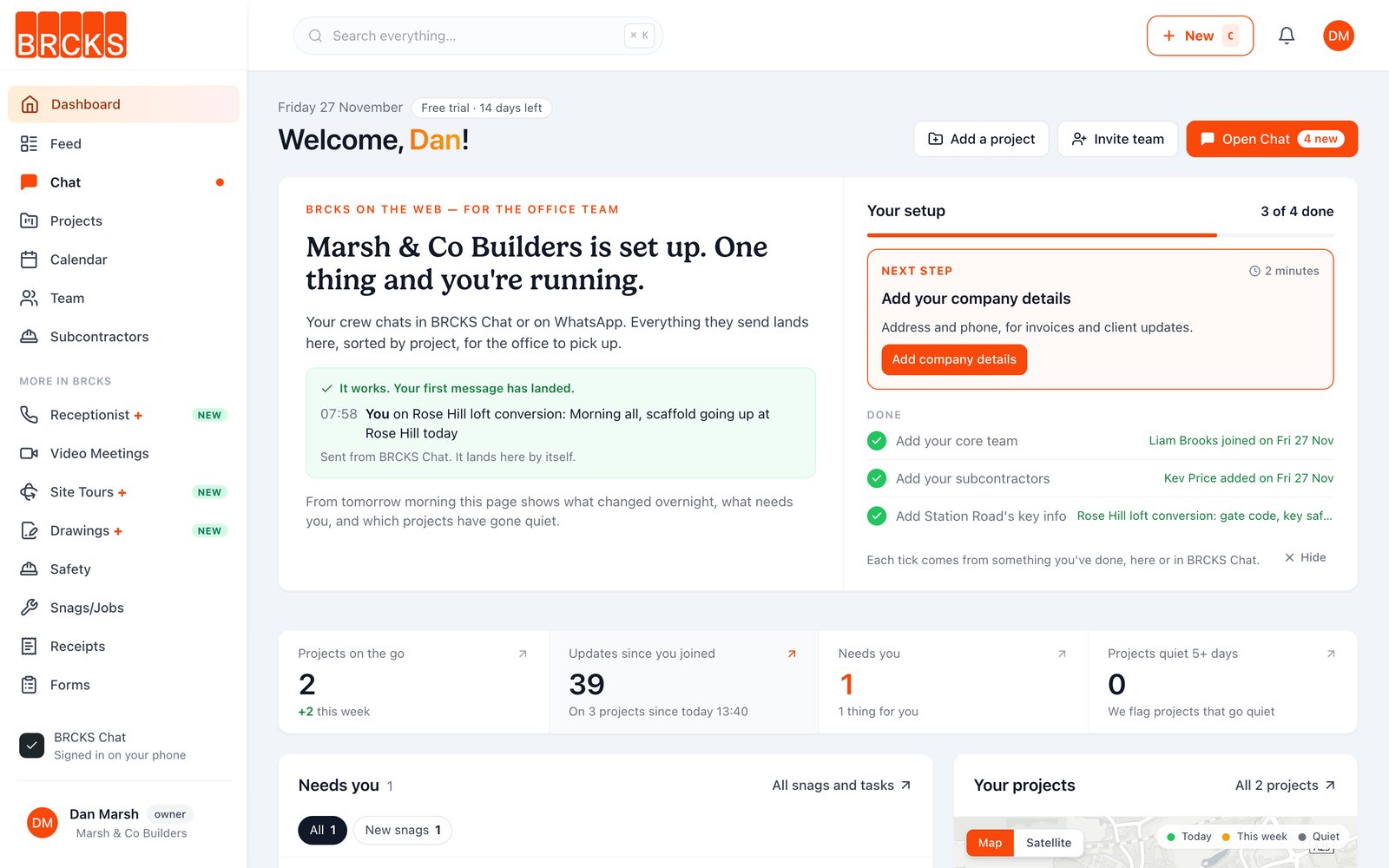
 Click here
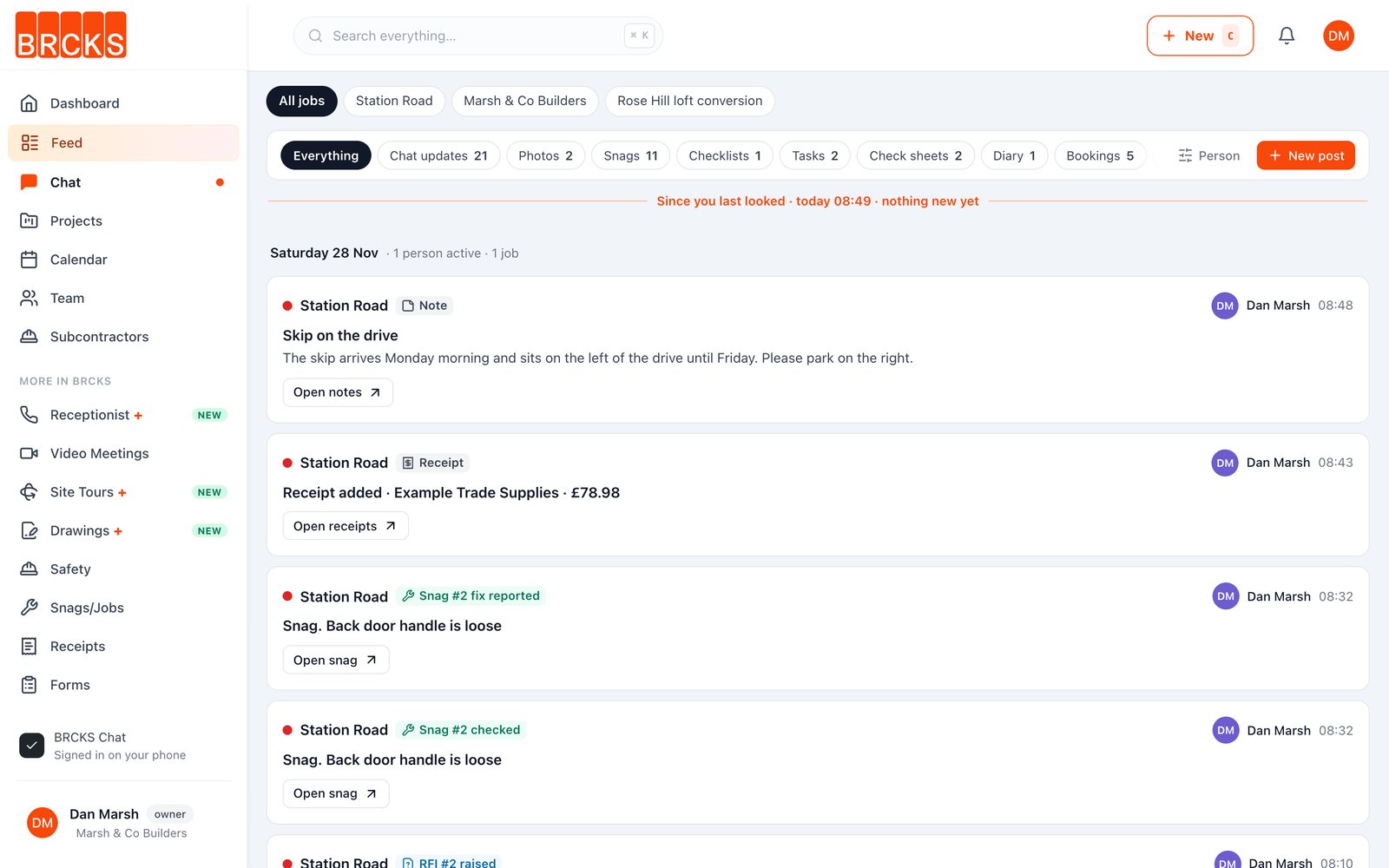
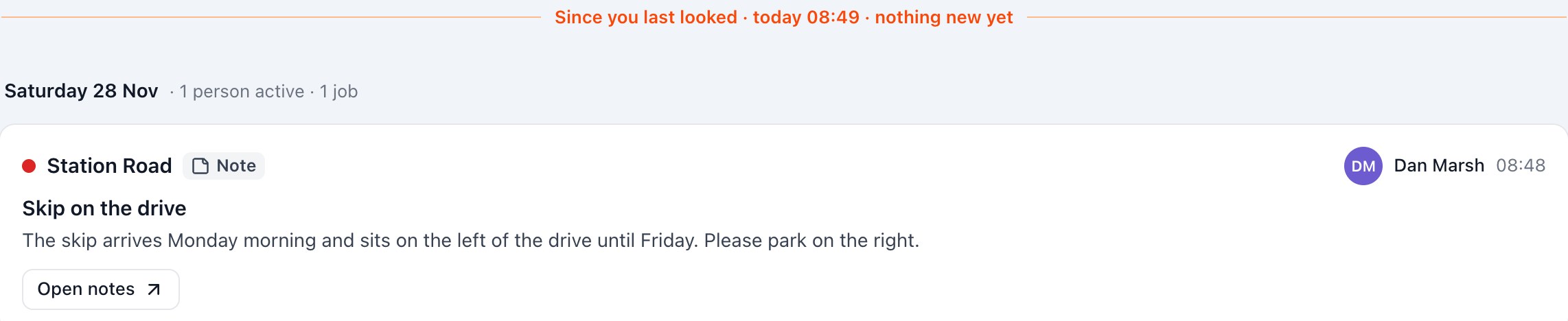
- Every update from your jobs is here, newest first.The orange line shows what's new since you last looked.
 Latest
- To see one job, click its name at the top.
 Click here
- To see one kind of update, click it. Like Snags or Photos.The job's details show on the right, with Open job page and Open job chat.
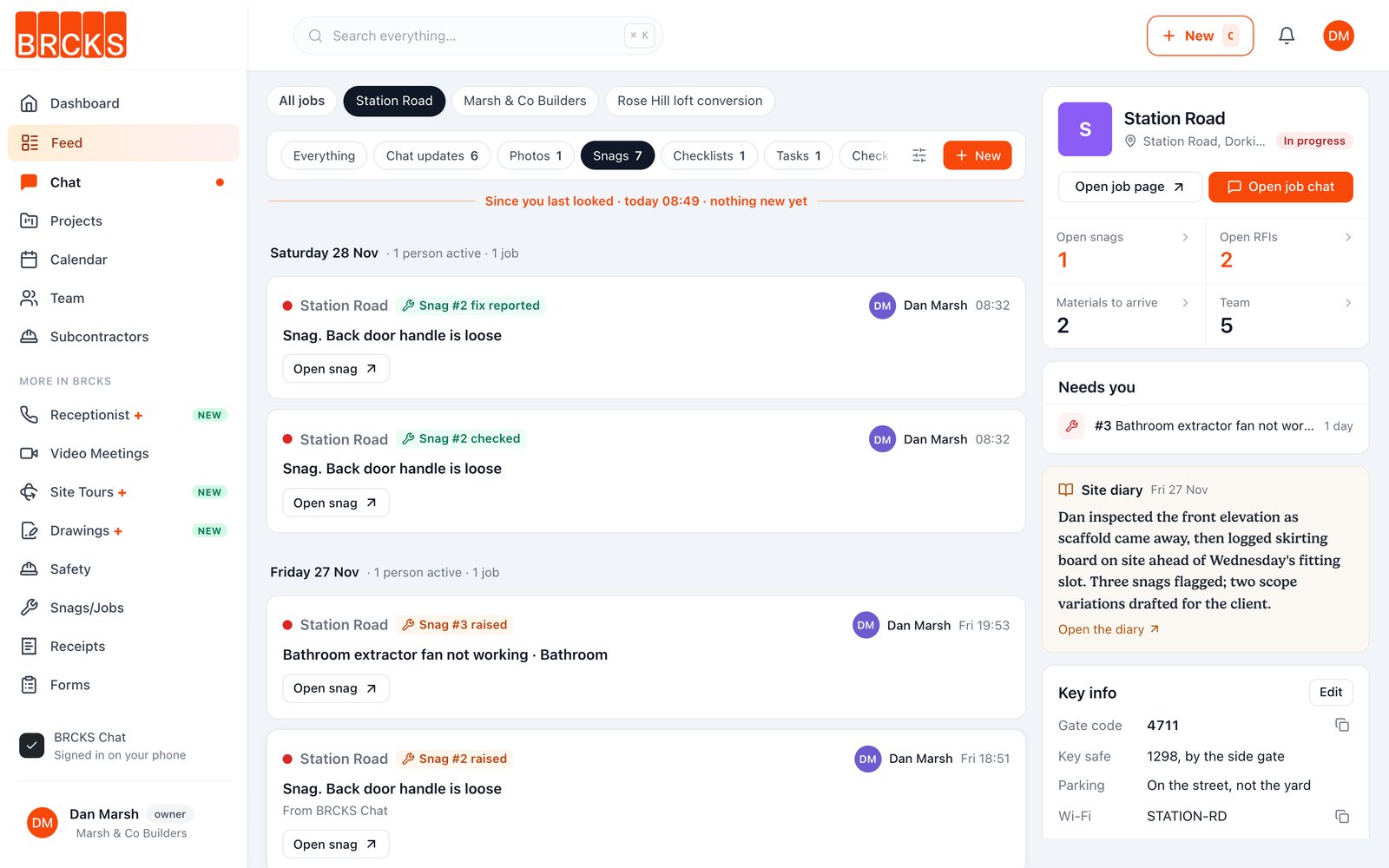
 Click here
- To see one person's updates, click Person and pick them.
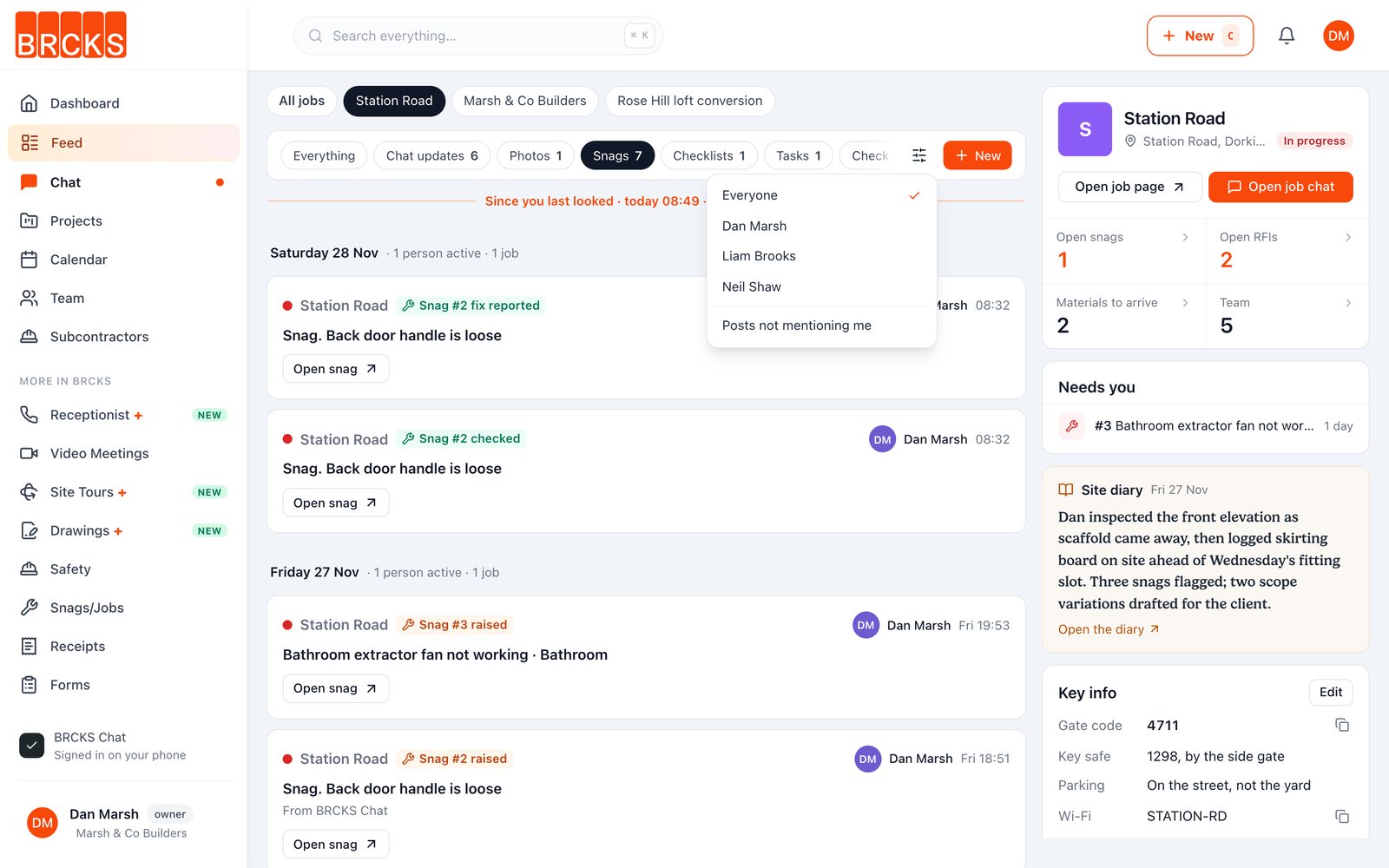
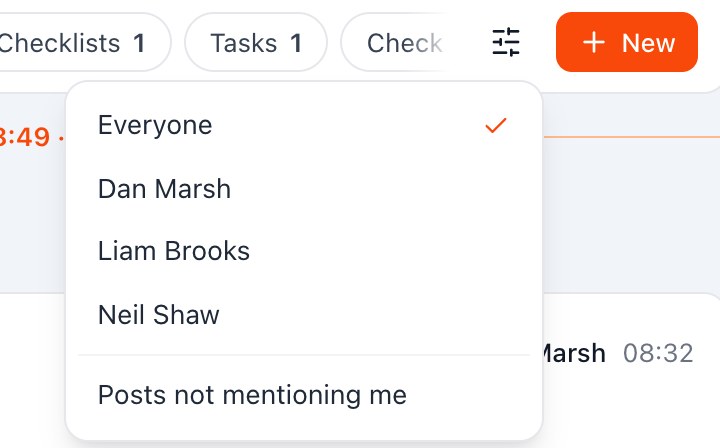 Pick someone
- Click Open snag, Open notes and so on to go straight to it.
 Go to it
Having trouble?
Can I post from here?
Yes. Click New post at the top of the Feed.
I only want things that mention me
Click Mentions me along the top.
Did this help?