
Check and sign off the site diary
BRCKS writes a diary for each project, every day, from what your team sends. You check it and sign it off.
Web only
Do this on a computer at app.brcks.io. Sign in with your mobile number.
- In the menu on the left, click Projects.
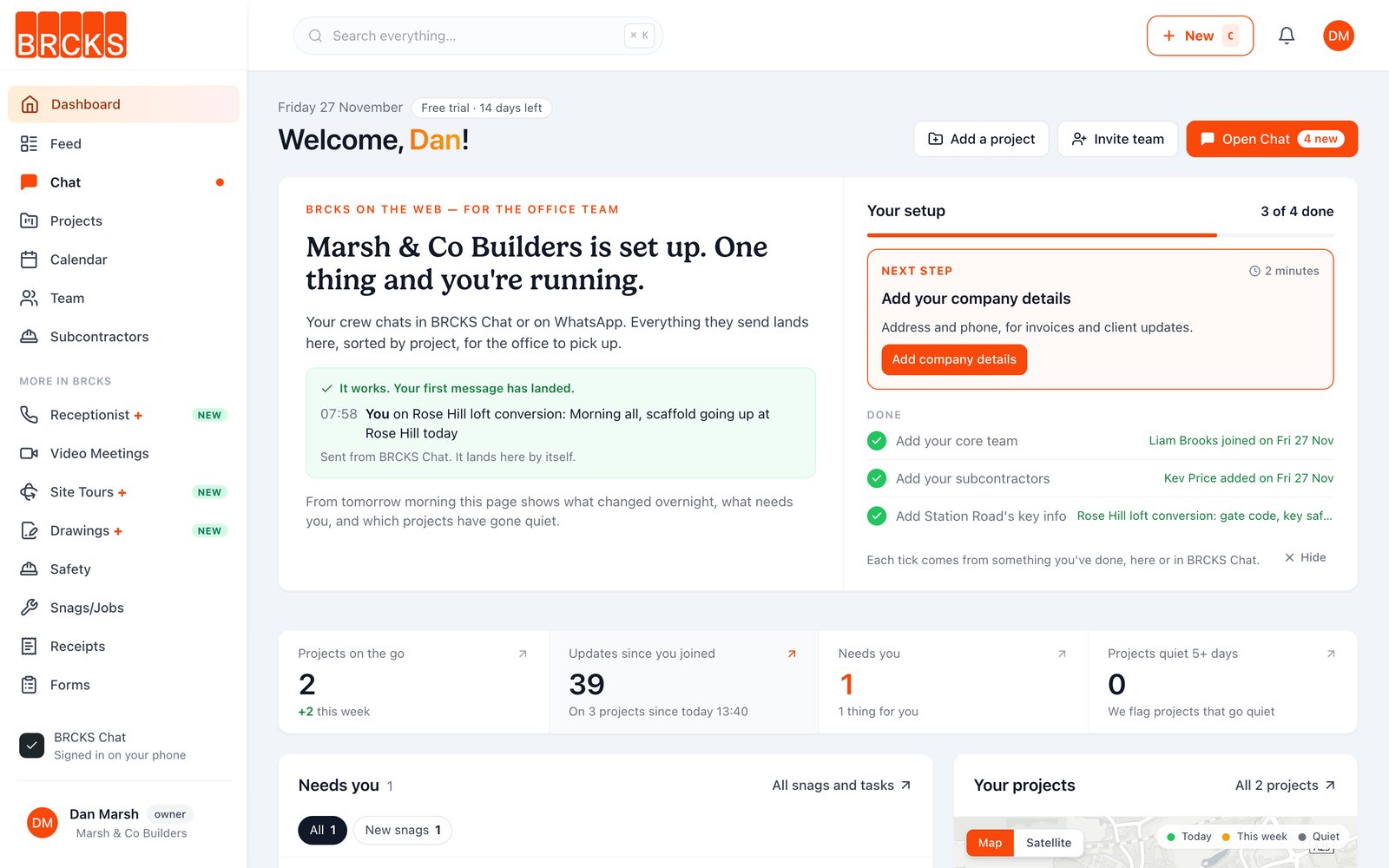
 Click here
- Click the project.
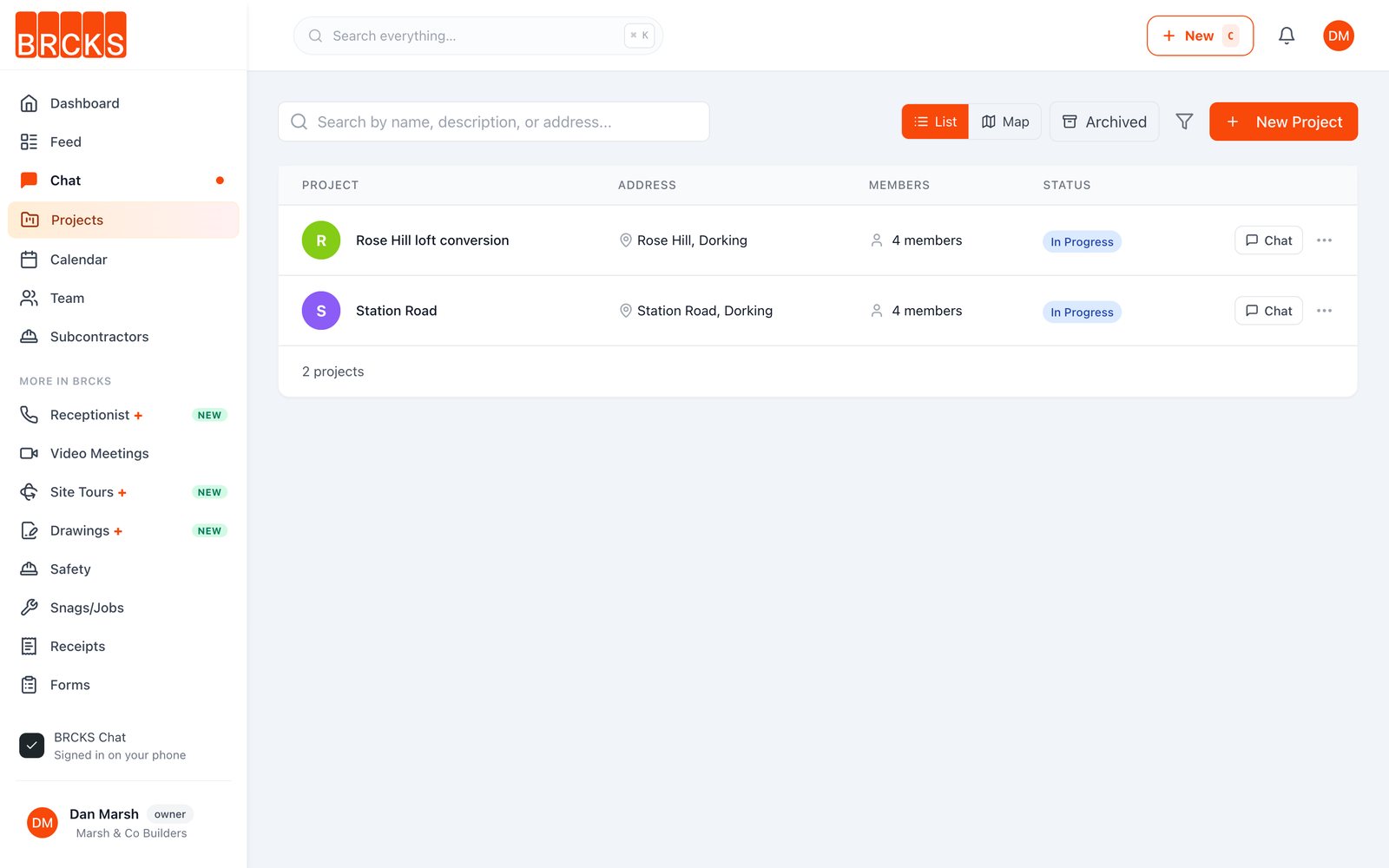
 Click here
- At the top of the project, click Site diary.
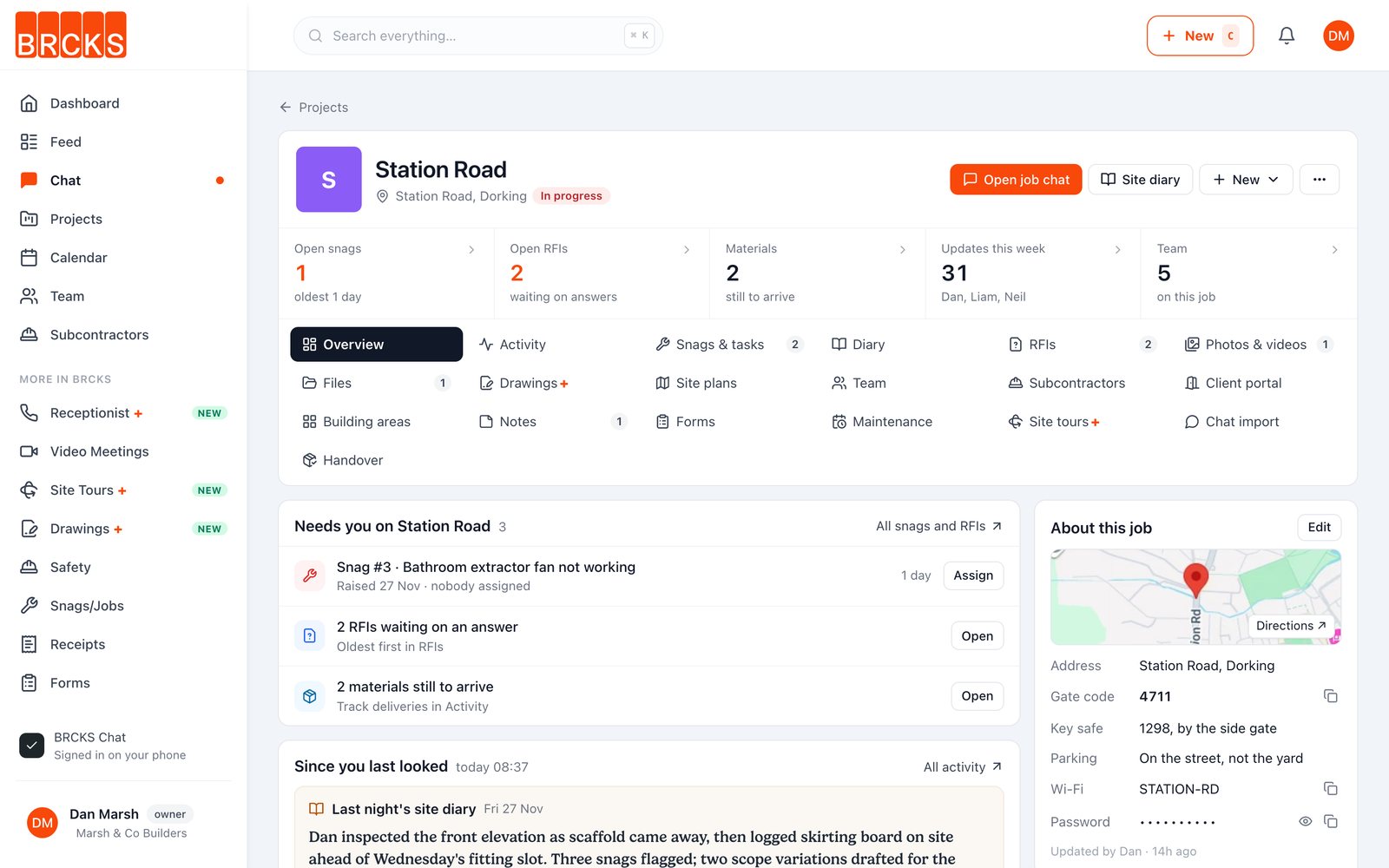
 Click here
- Click a day.Days with a diary show how many updates and photos went into it.
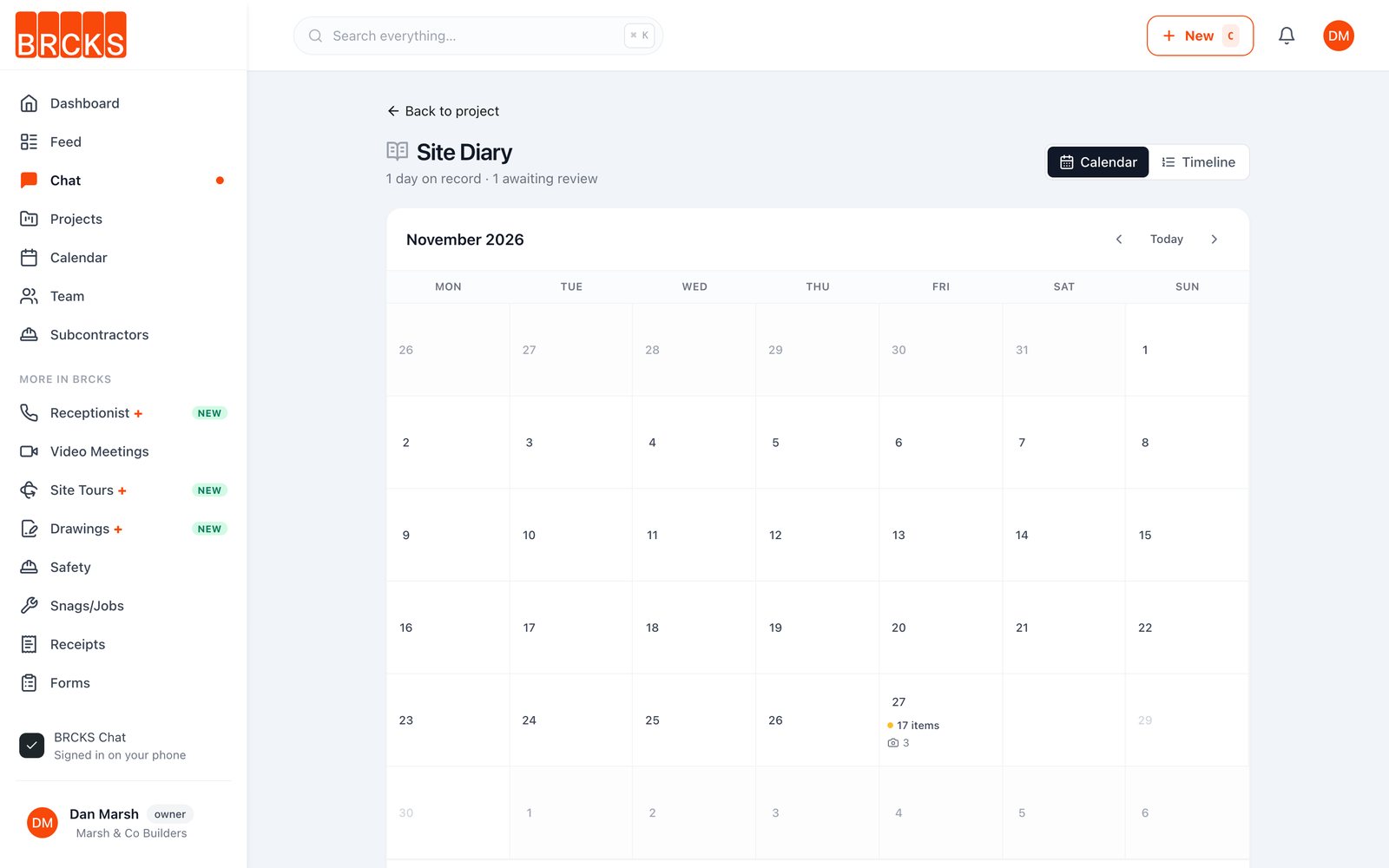
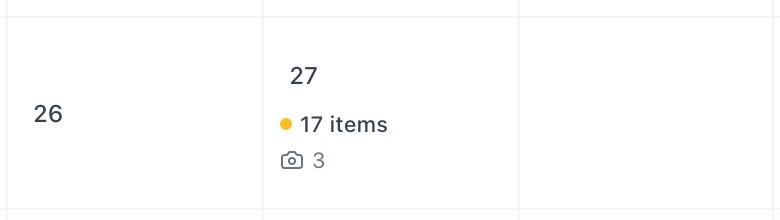 Click here
- Read through the day. To keep a copy, click Export PDF.It covers the weather, photos, deliveries, issues, snags and who was on site.
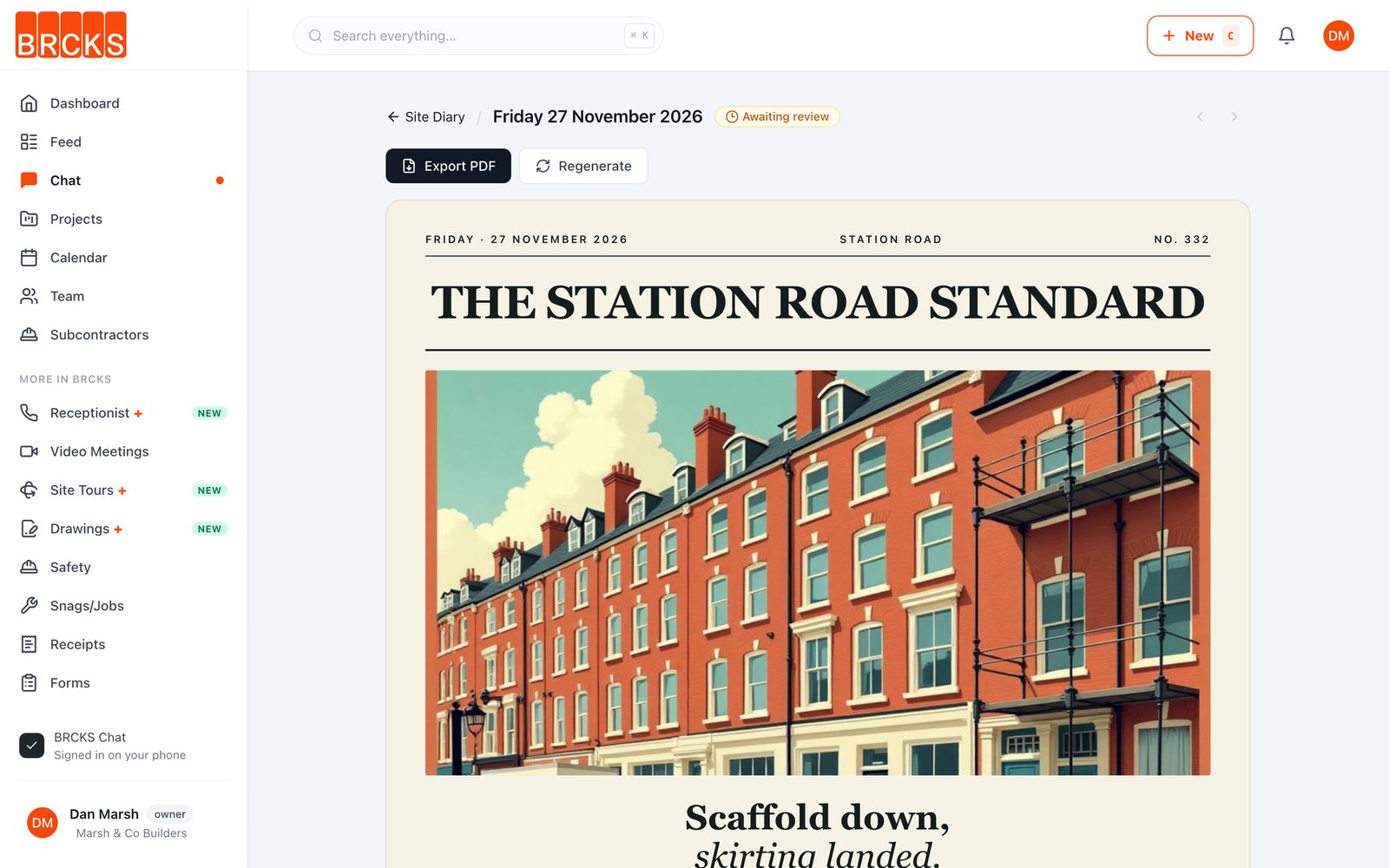
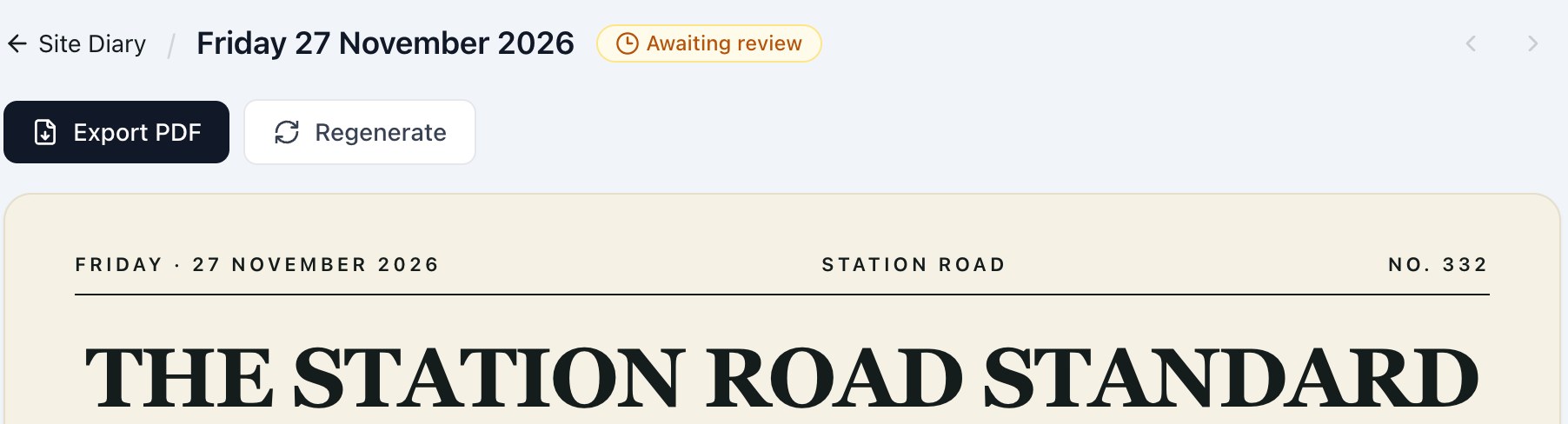 Click here
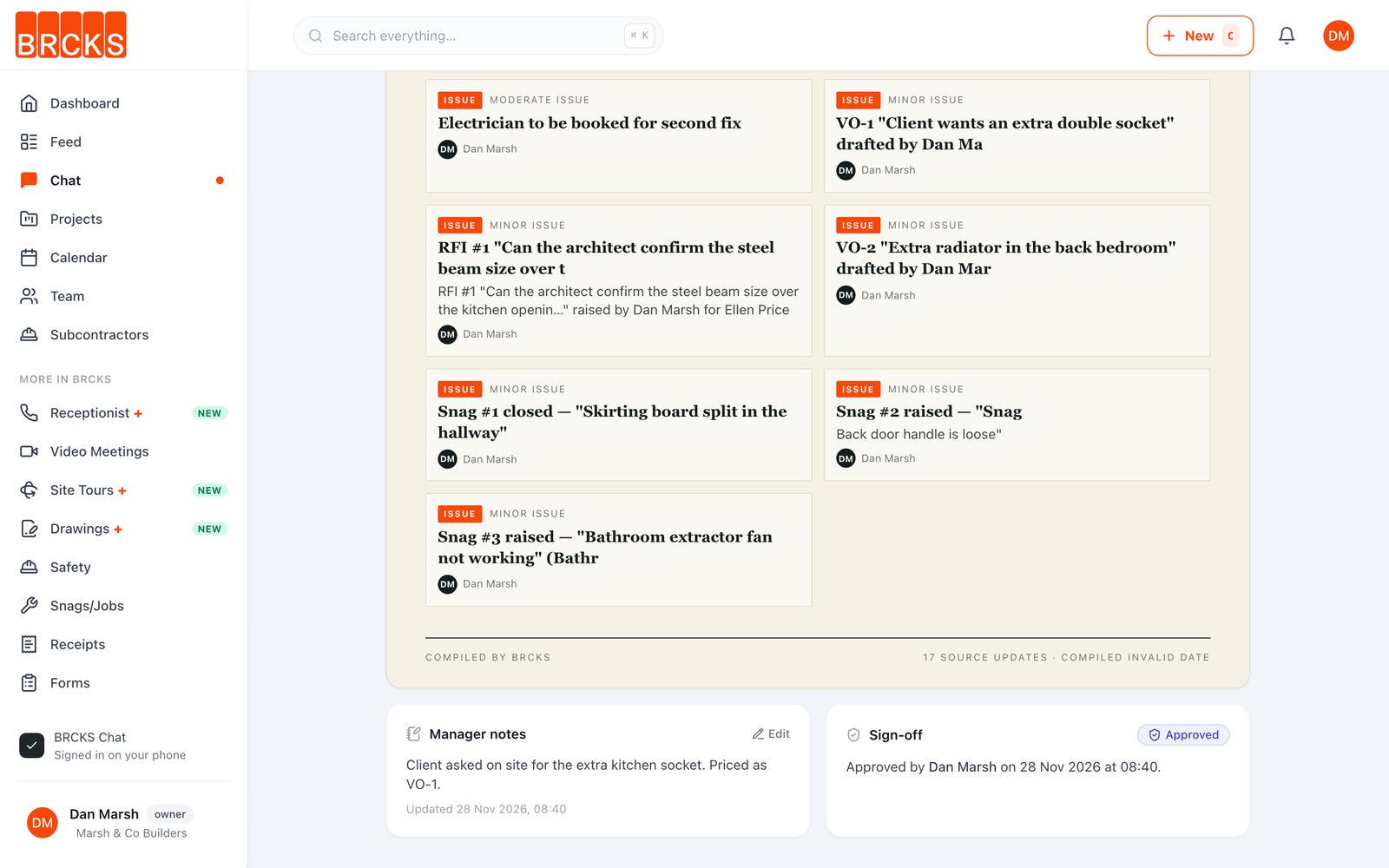
- Scroll to the bottom. Next to Manager notes, click Add.
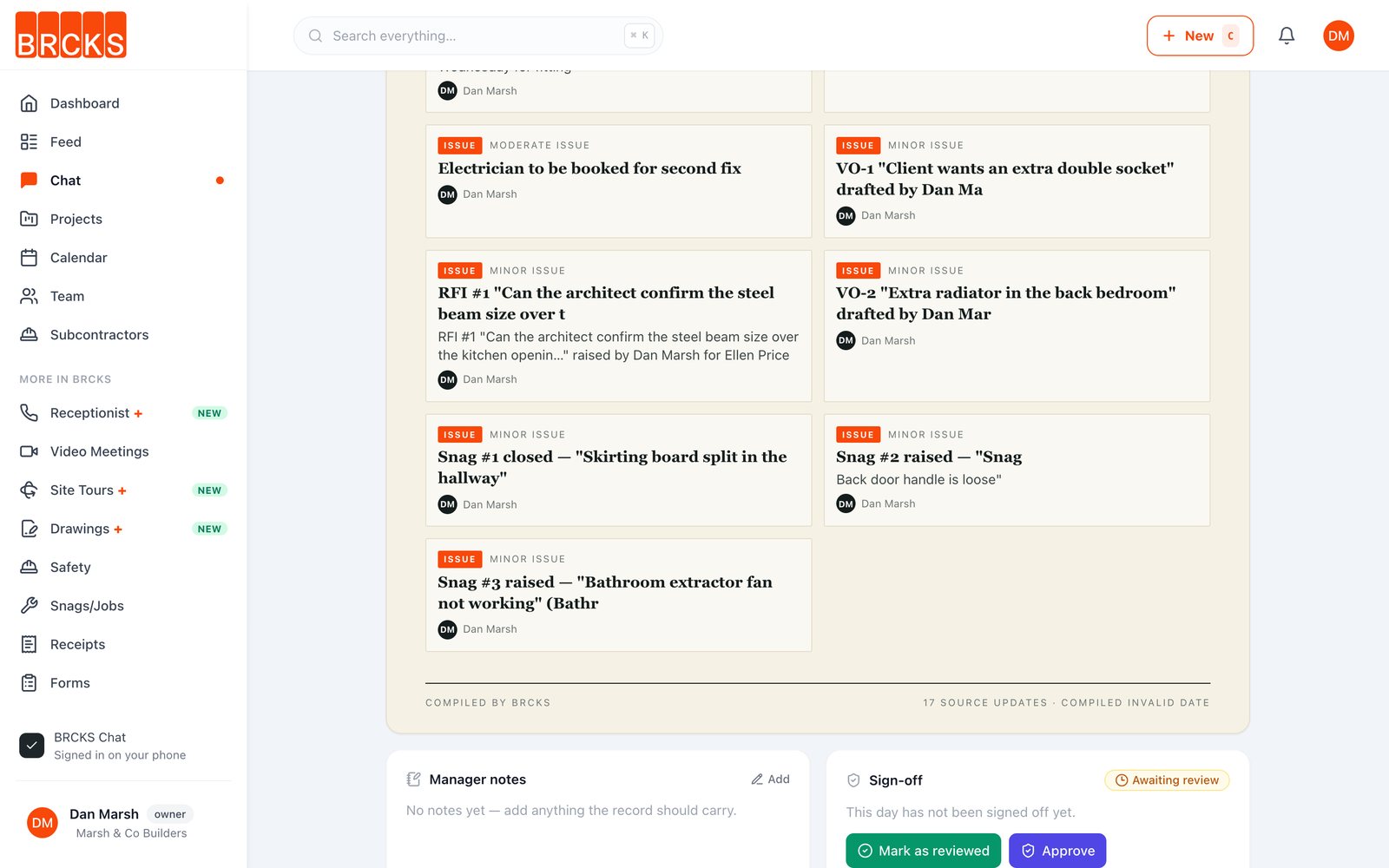
 Click here
- Type anything the record should carry, then click Save notes, next to Cancel.Like a verbal instruction from the client.
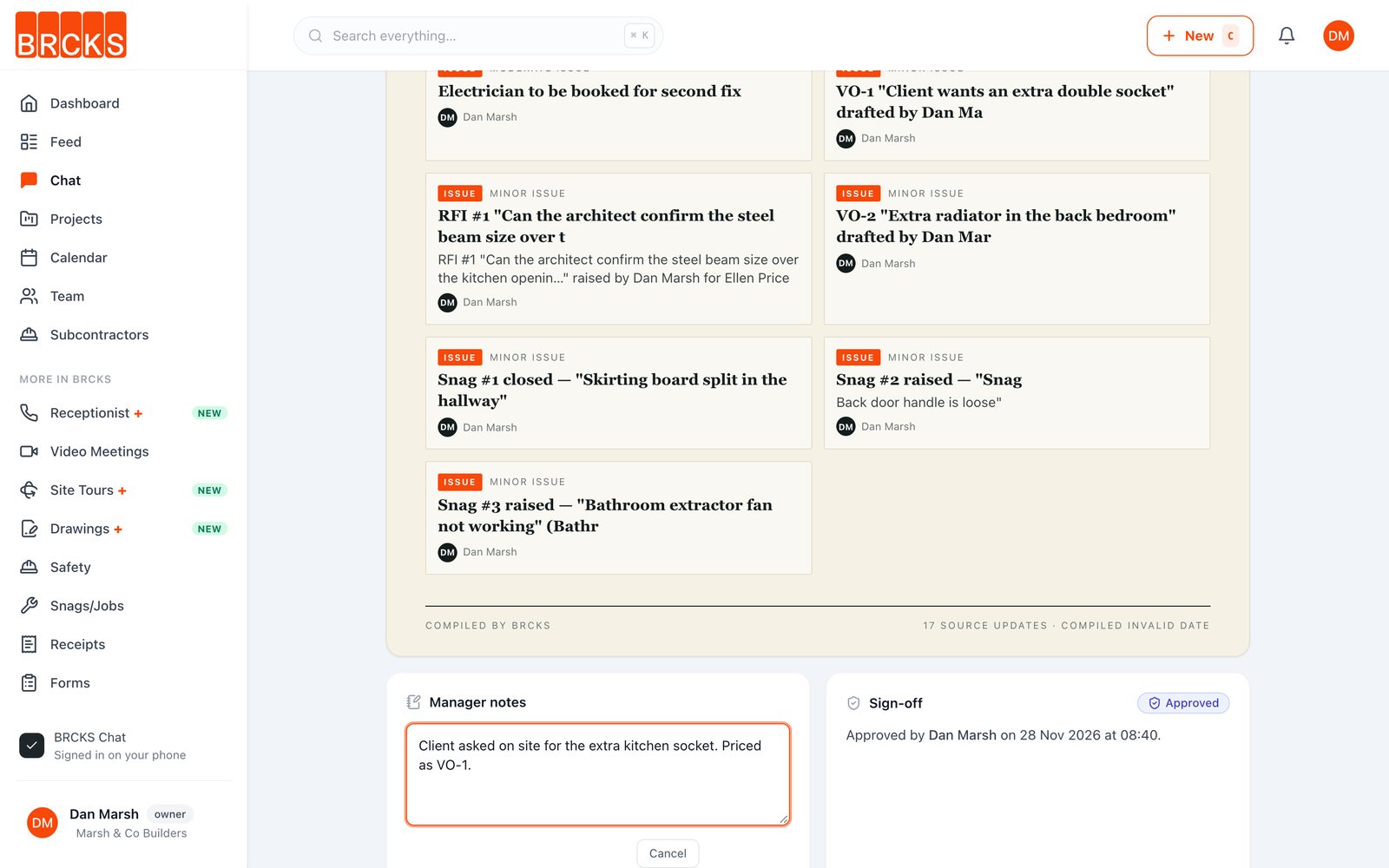
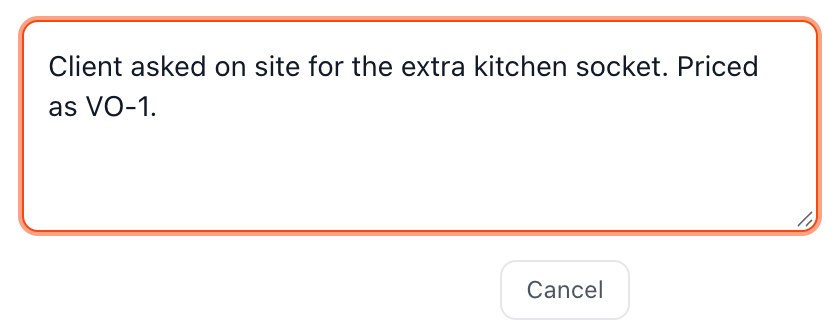 Type here
- Click Approve.Only checked it, not signing it off? Click Mark as reviewed instead.
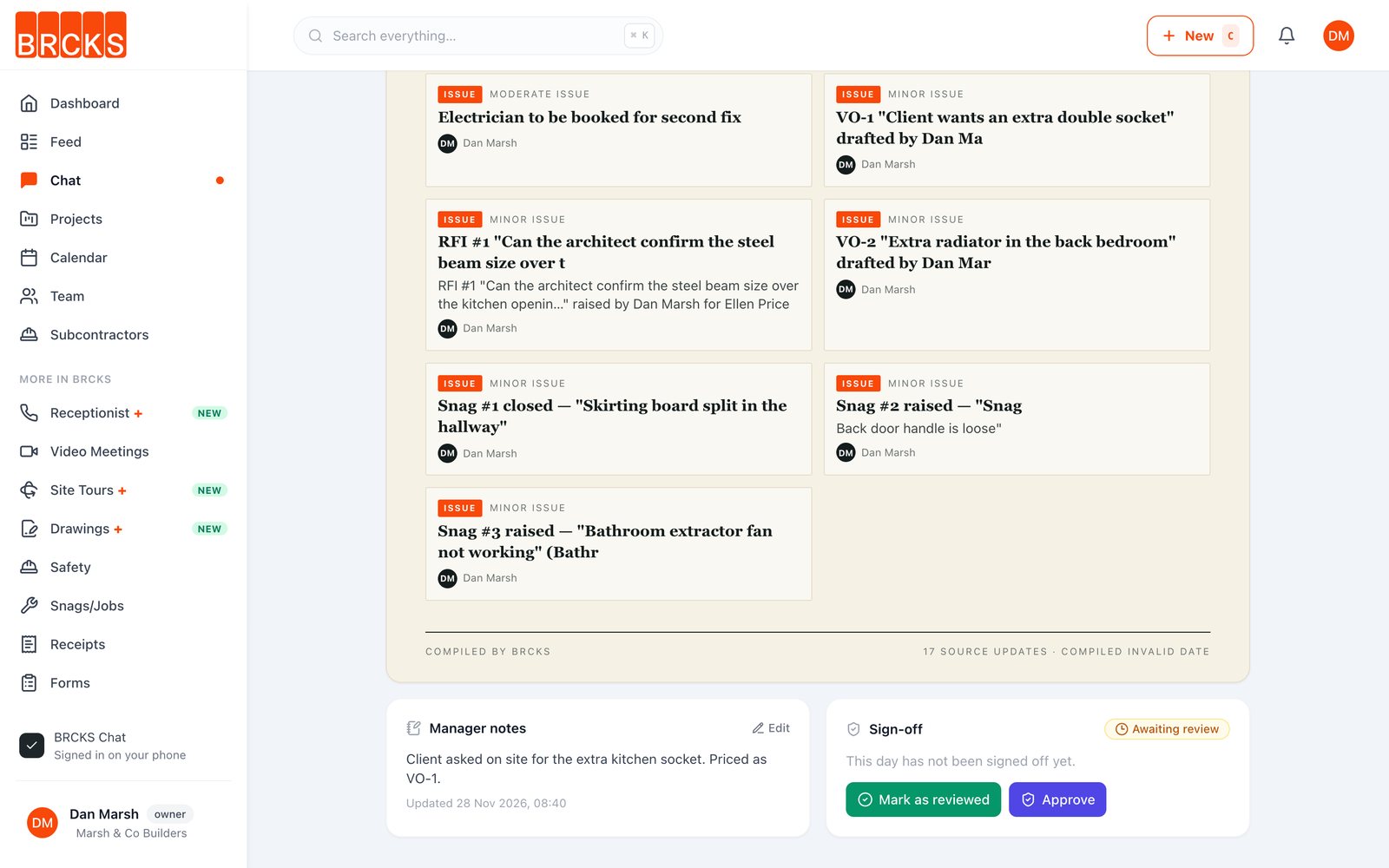
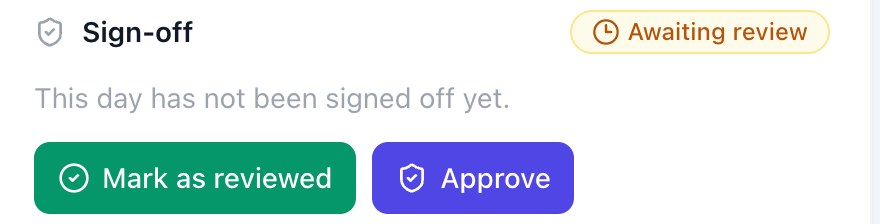 Click here
- That's it. The diary shows who approved it and when.
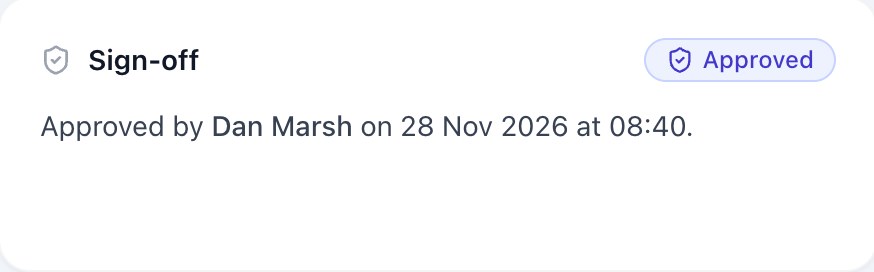 Approved
Having trouble?
A day has no diary
BRCKS writes it each evening from that day's messages, posts and photos. If nobody sent anything, there's nothing to write.
I can't see Approve
Only owners and managers can sign off a diary.
Can I see more than one day?
Click Timeline at the top of the Site Diary to see the days in a list.
Did this help?