Check and approve receipts
Receipts are read by AI. You check what it read, approve them, and export them for your accounts.
Web only
Do this on a computer at app.brcks.io. Sign in with your mobile number.
- In the menu on the left, click Receipts.
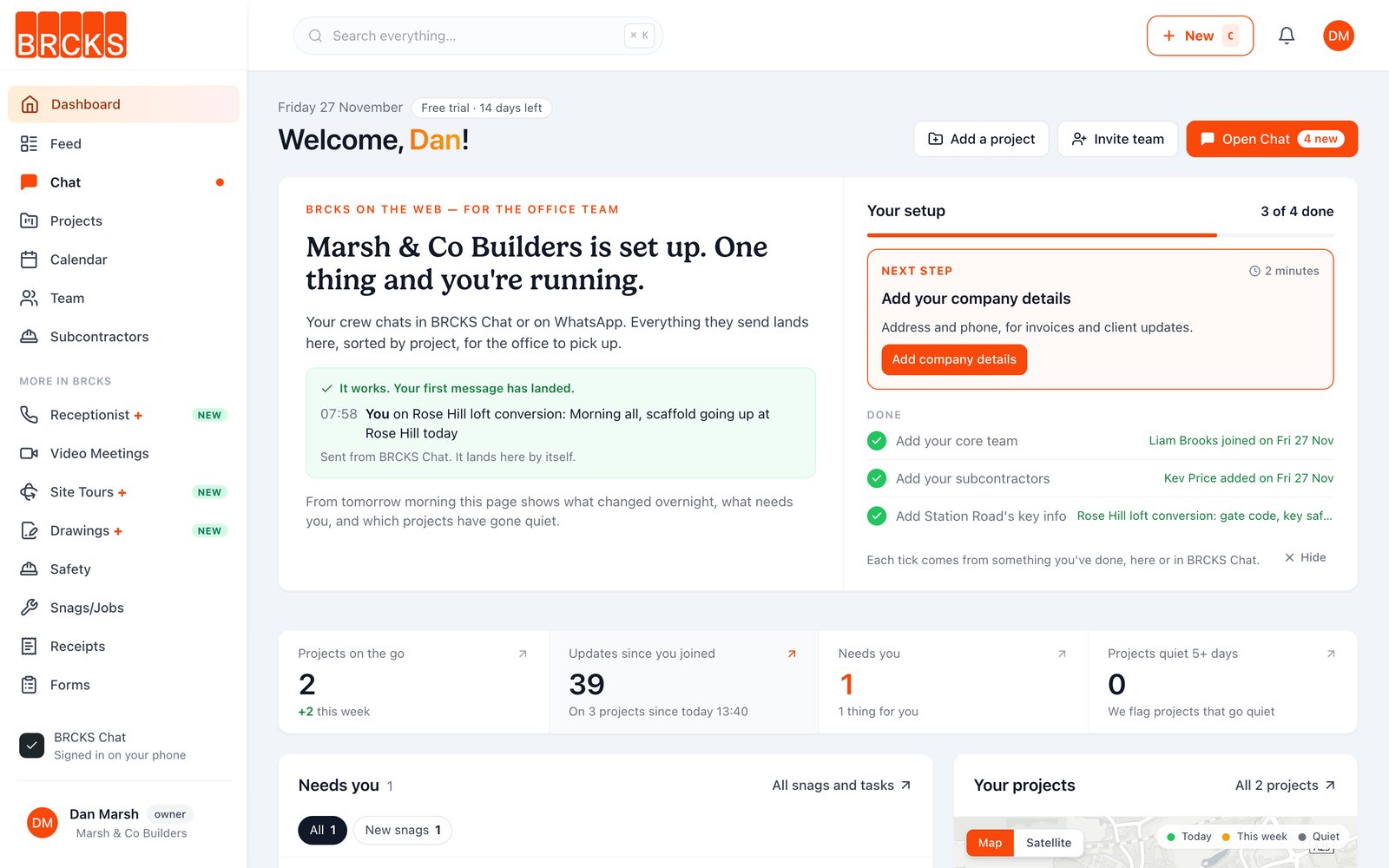
 Click here
- To add a receipt yourself, click Add receipt.Receipts your team adds land here by themselves.
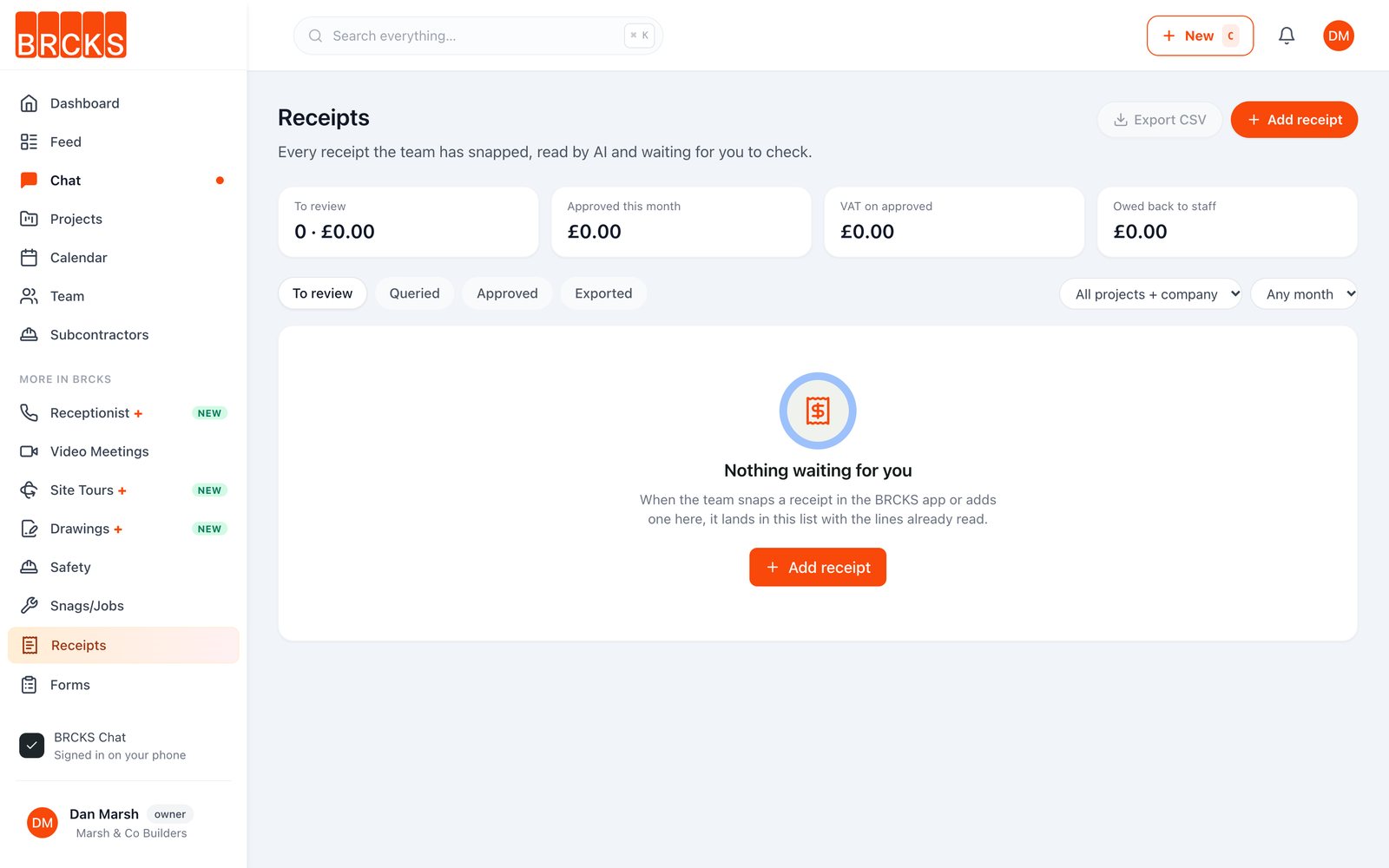
 Click here
- Drop in a photo or PDF of the receipt, or click to choose one.You can add several at once. One receipt each.
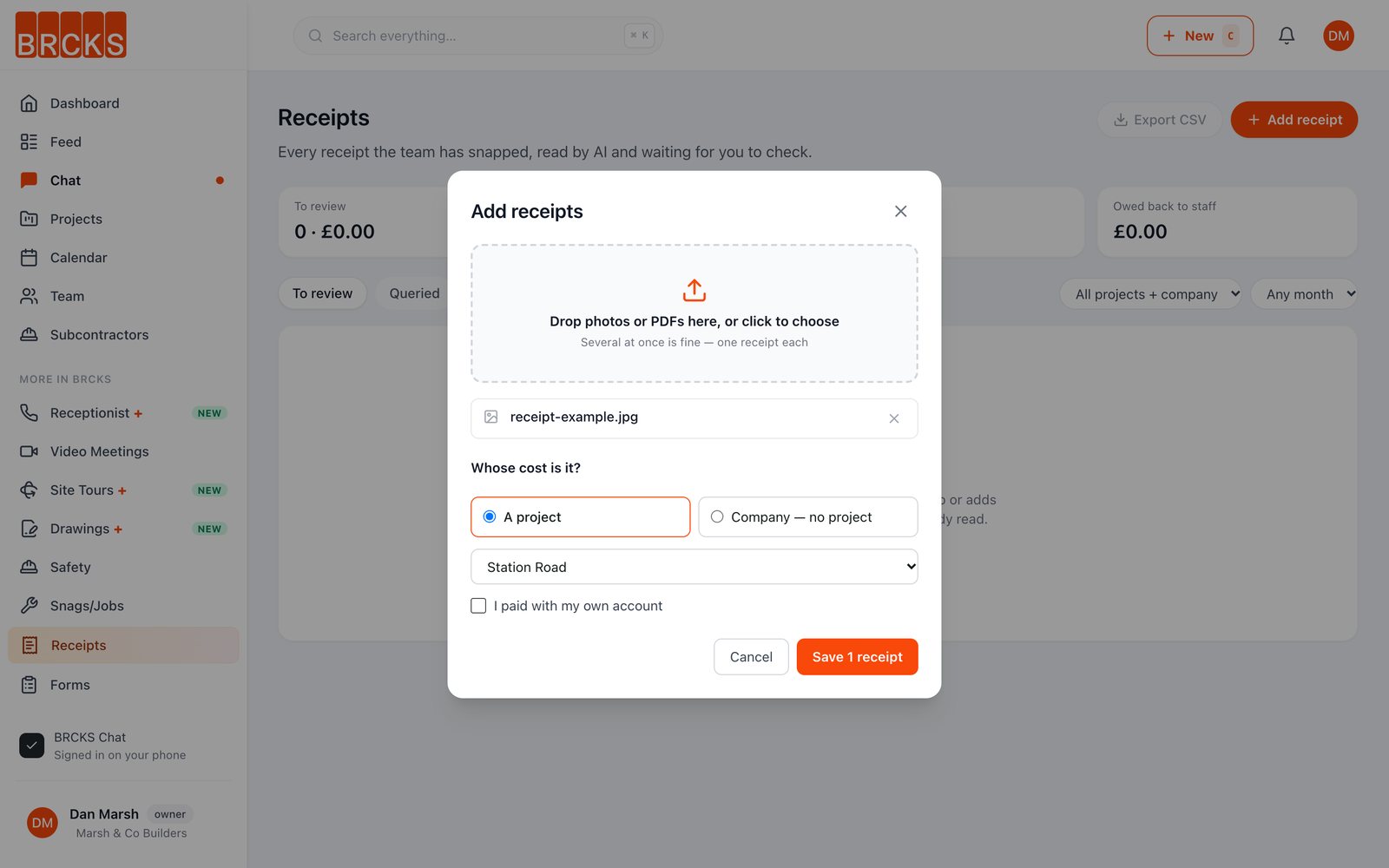
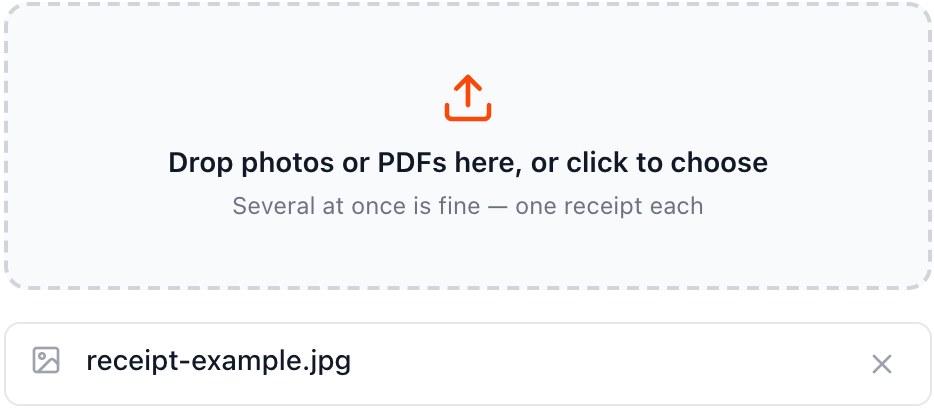 Drop it here
- Choose the project it's for.Not for a project? Choose Company — no project. Tick I paid with my own account if you need paying back.
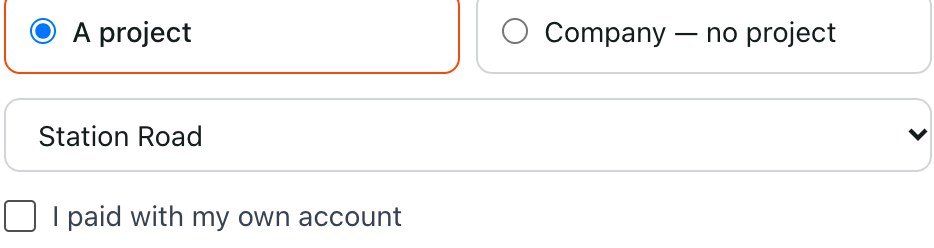 Pick here
- Click Save 1 receipt.AI reads the supplier, date, lines and VAT for you.
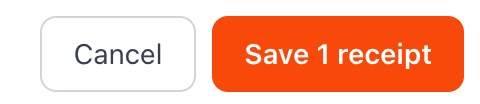 Click here
- Click the receipt to check it.
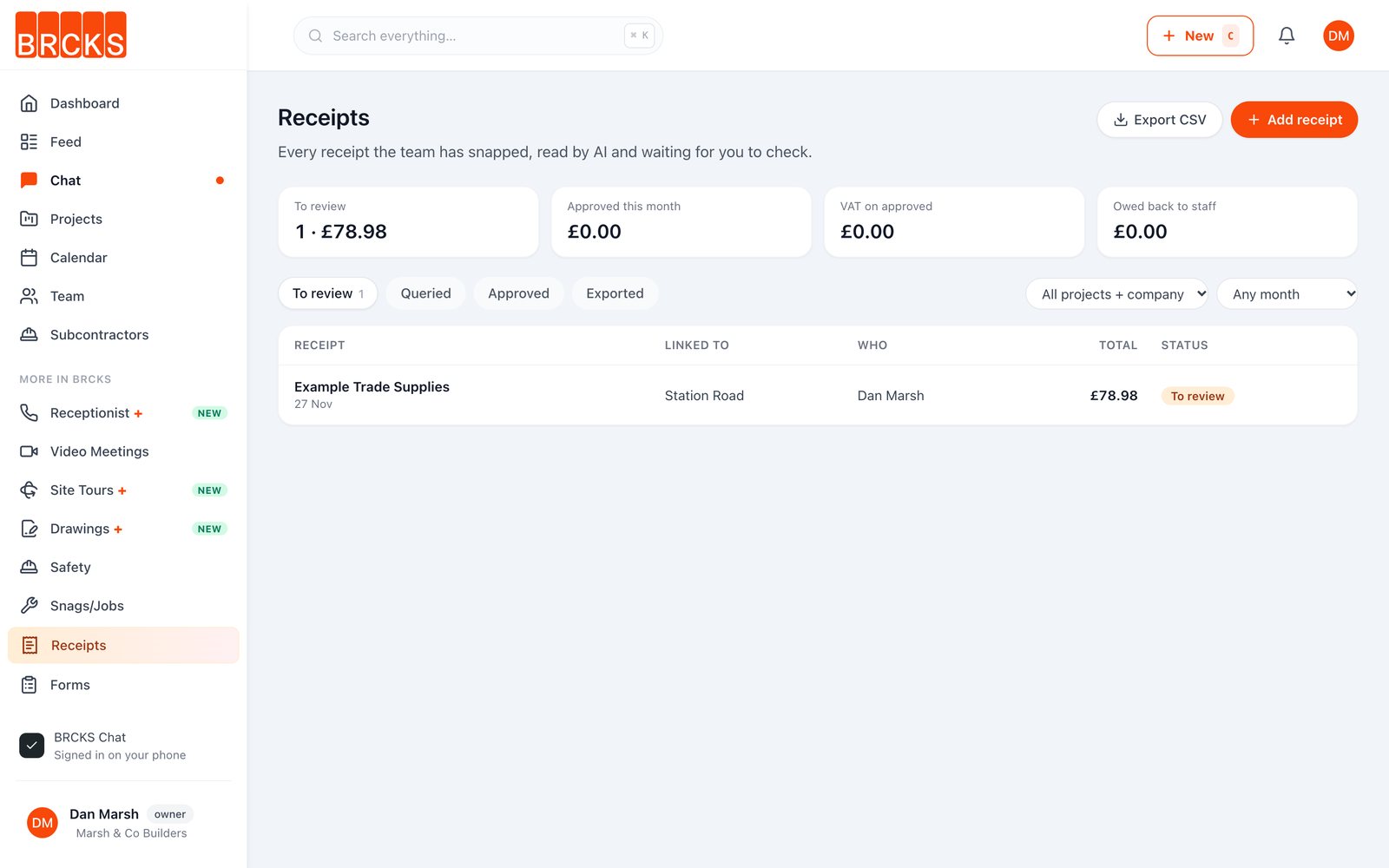
 Click here
- Check what AI read against the photo. Change anything it got wrong.
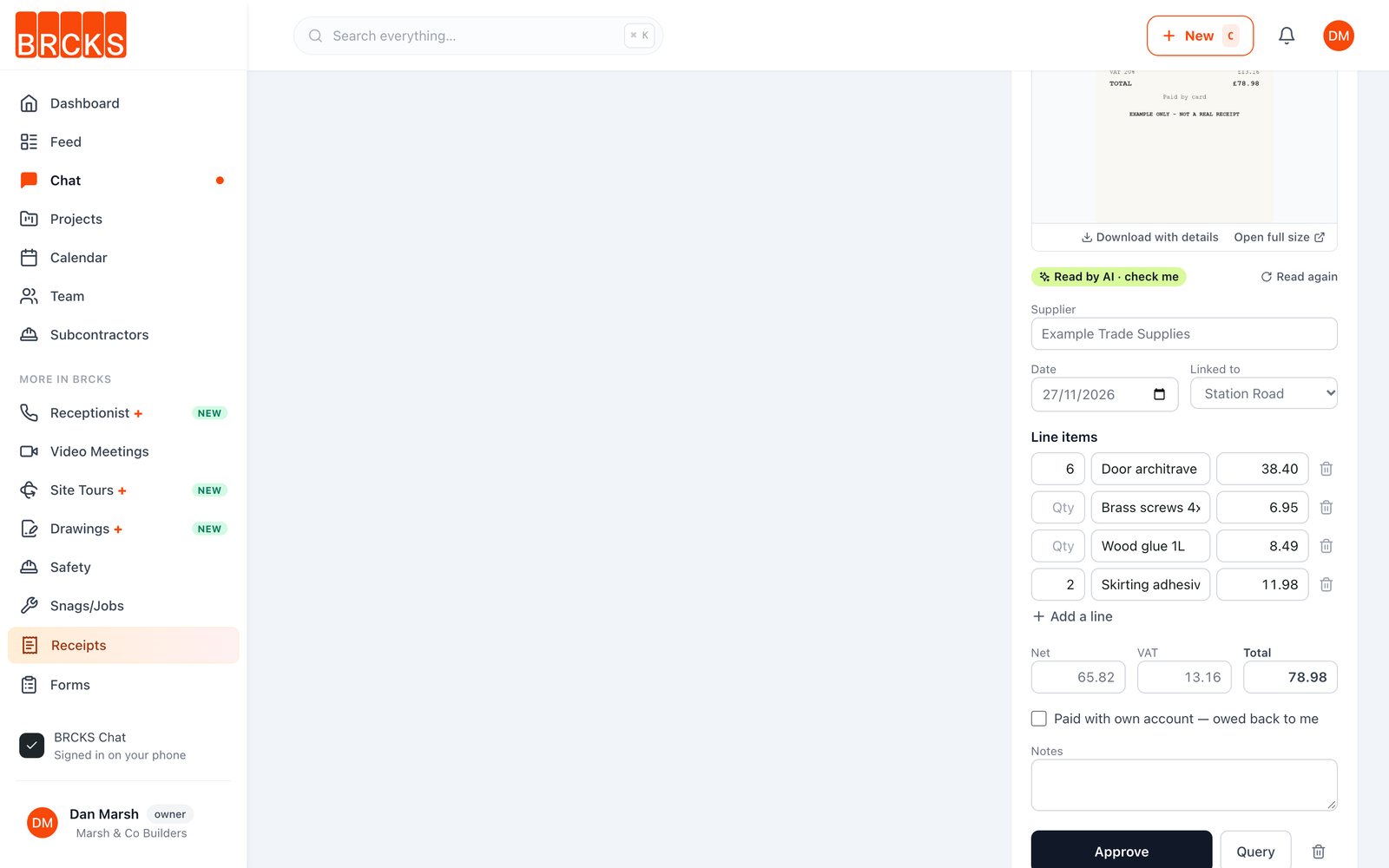
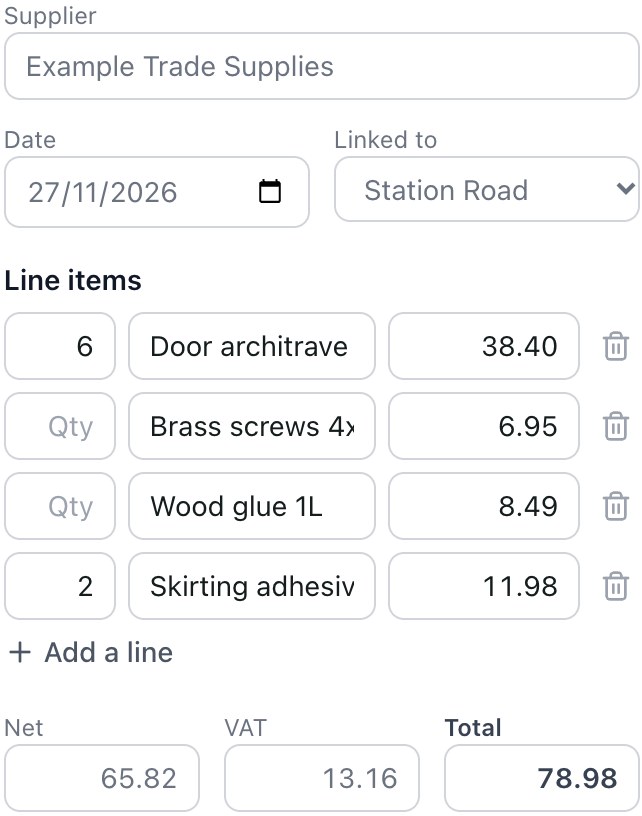 Check these
- Click Approve.Something not right? Click Query instead.
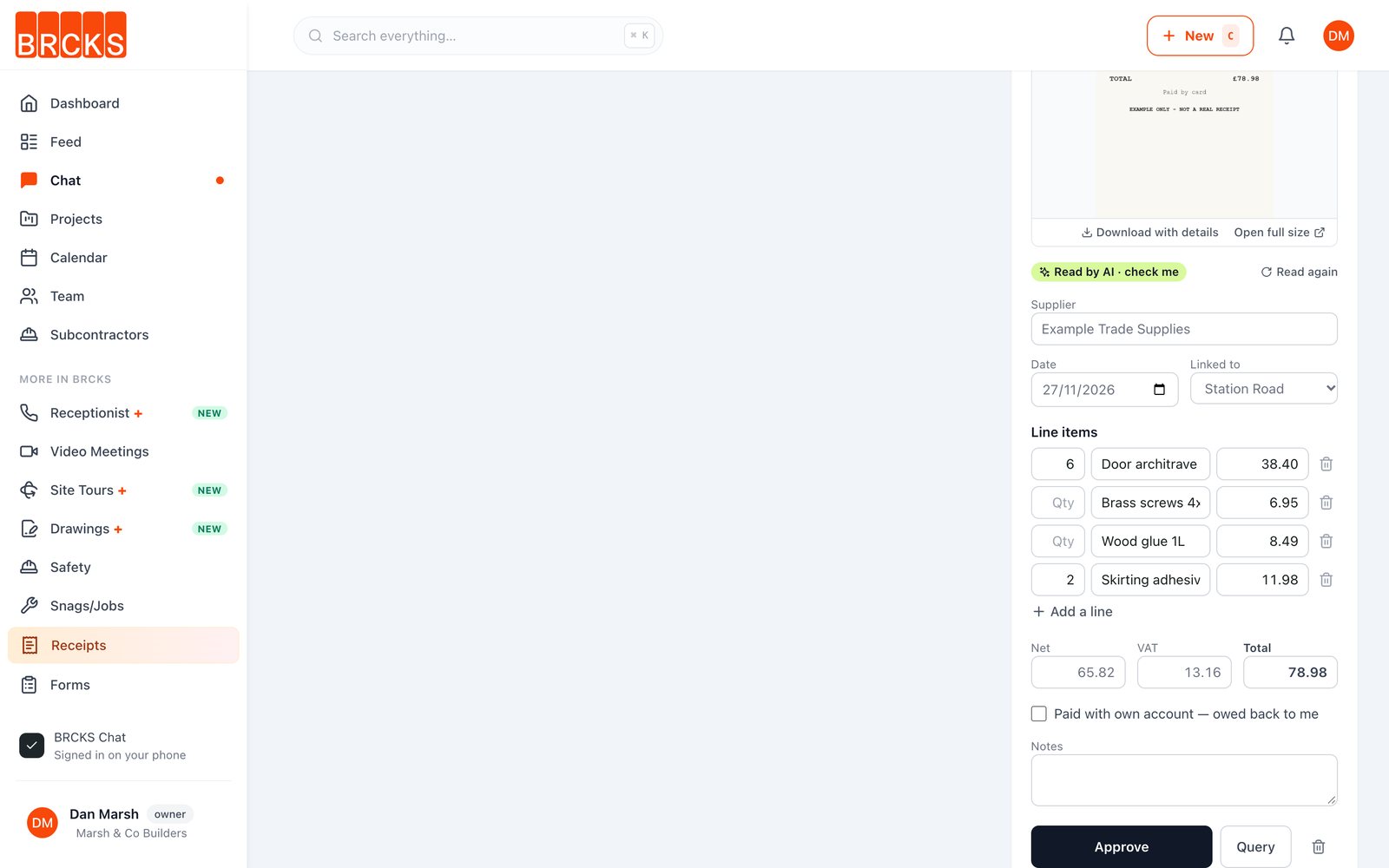
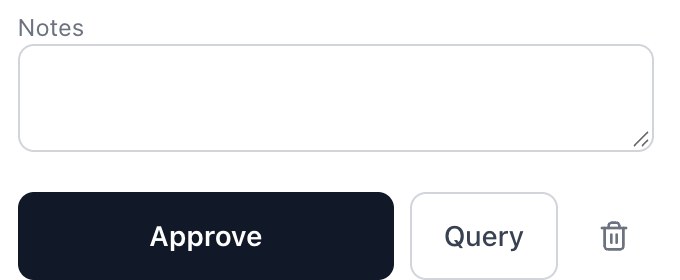 Click here
- That's it. It's in Approved, ready for your accounts.Export CSV at the top downloads them.
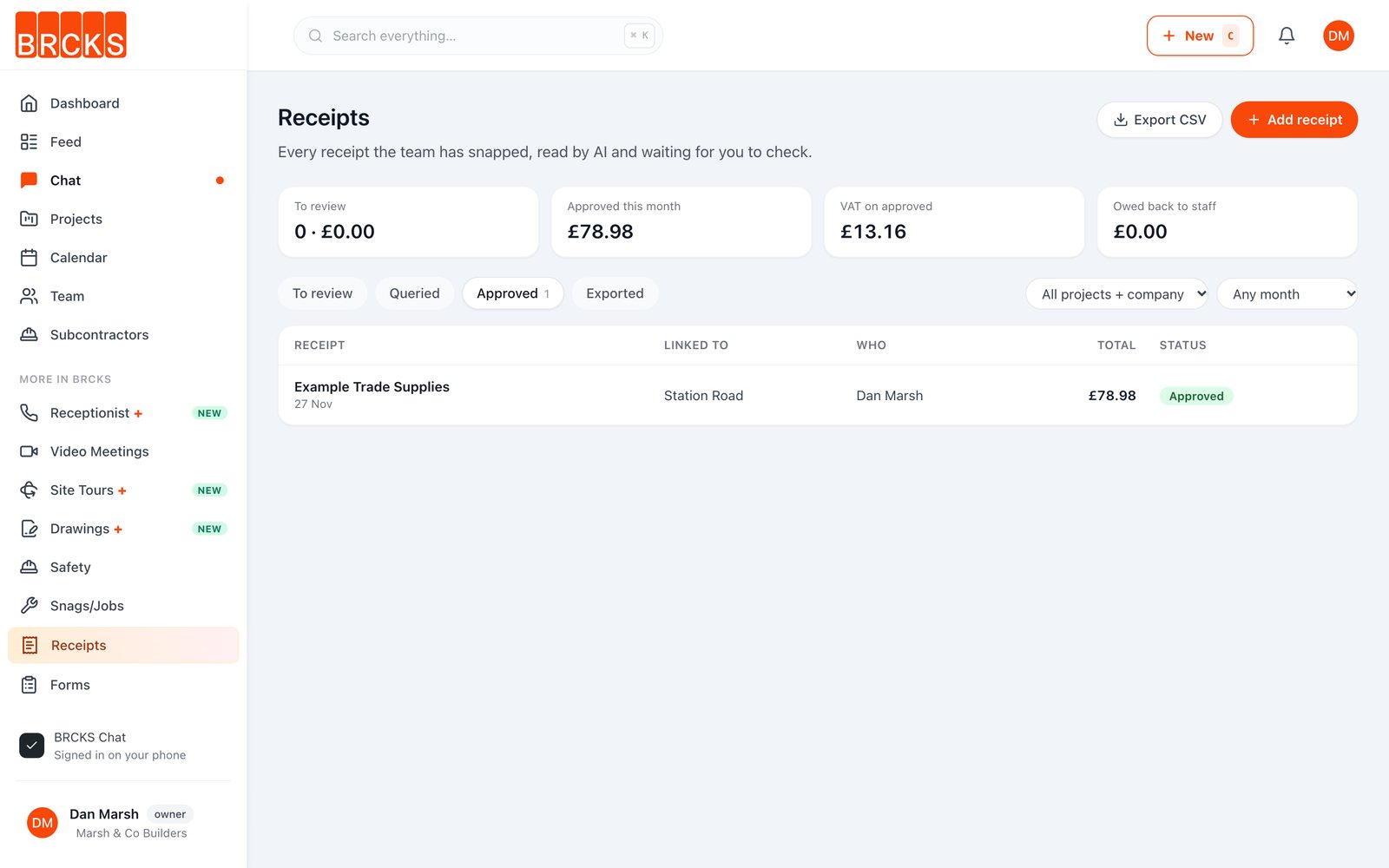
 Approved
Having trouble?
AI got something wrong
Type over it before you approve. Or click Read again to have it read the photo again.
Someone paid with their own money
When you check the receipt, tick Paid with own account — owed back to me. It shows in Owed back to staff at the top.
Did this help?