
Choose what your client can see and do
Each client has their own private page for the project. You decide what's on it.
Web only
Do this on a computer at app.brcks.io. Sign in with your mobile number.
- In the menu on the left, click Projects.
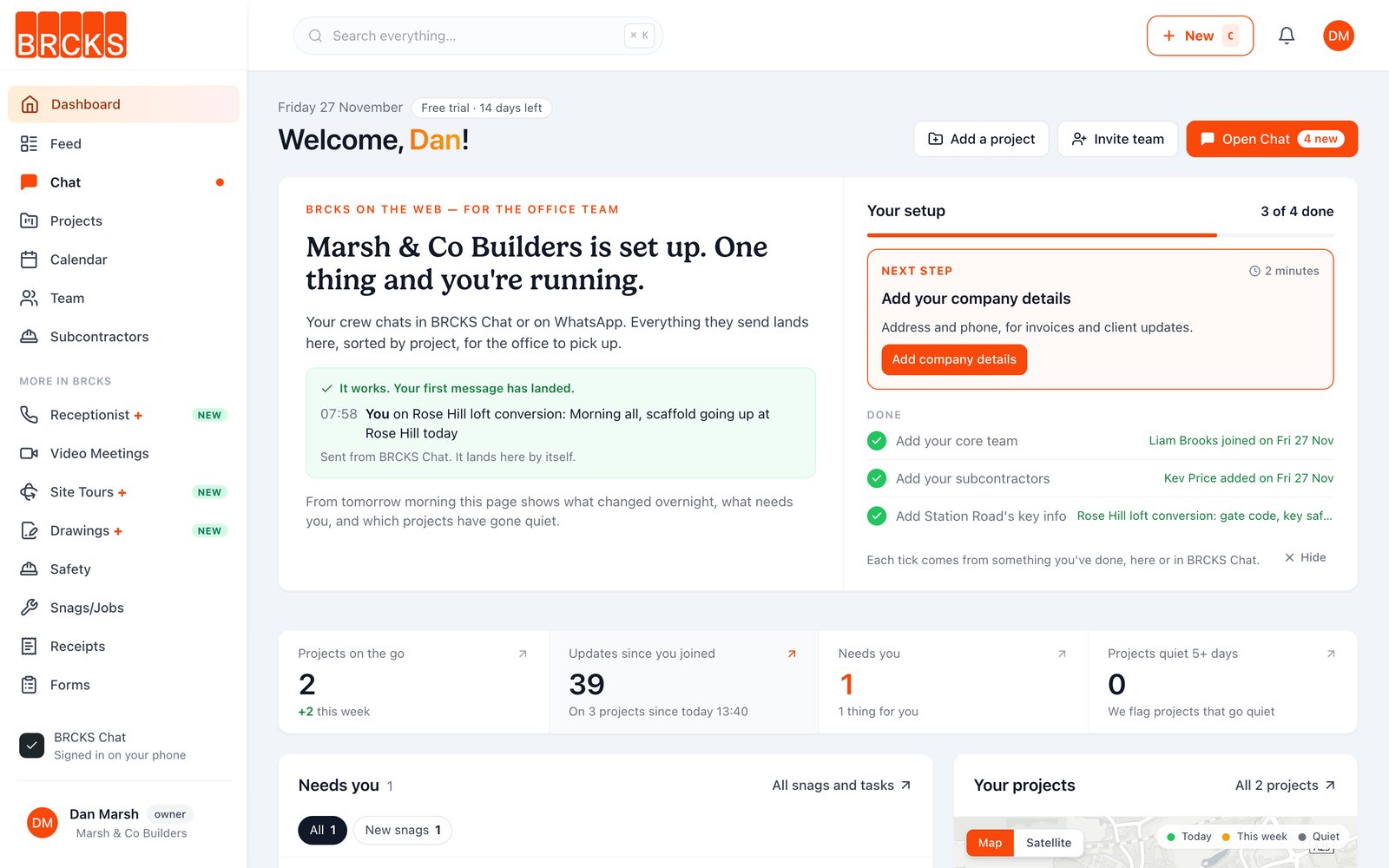
 Click here
- Click the project.
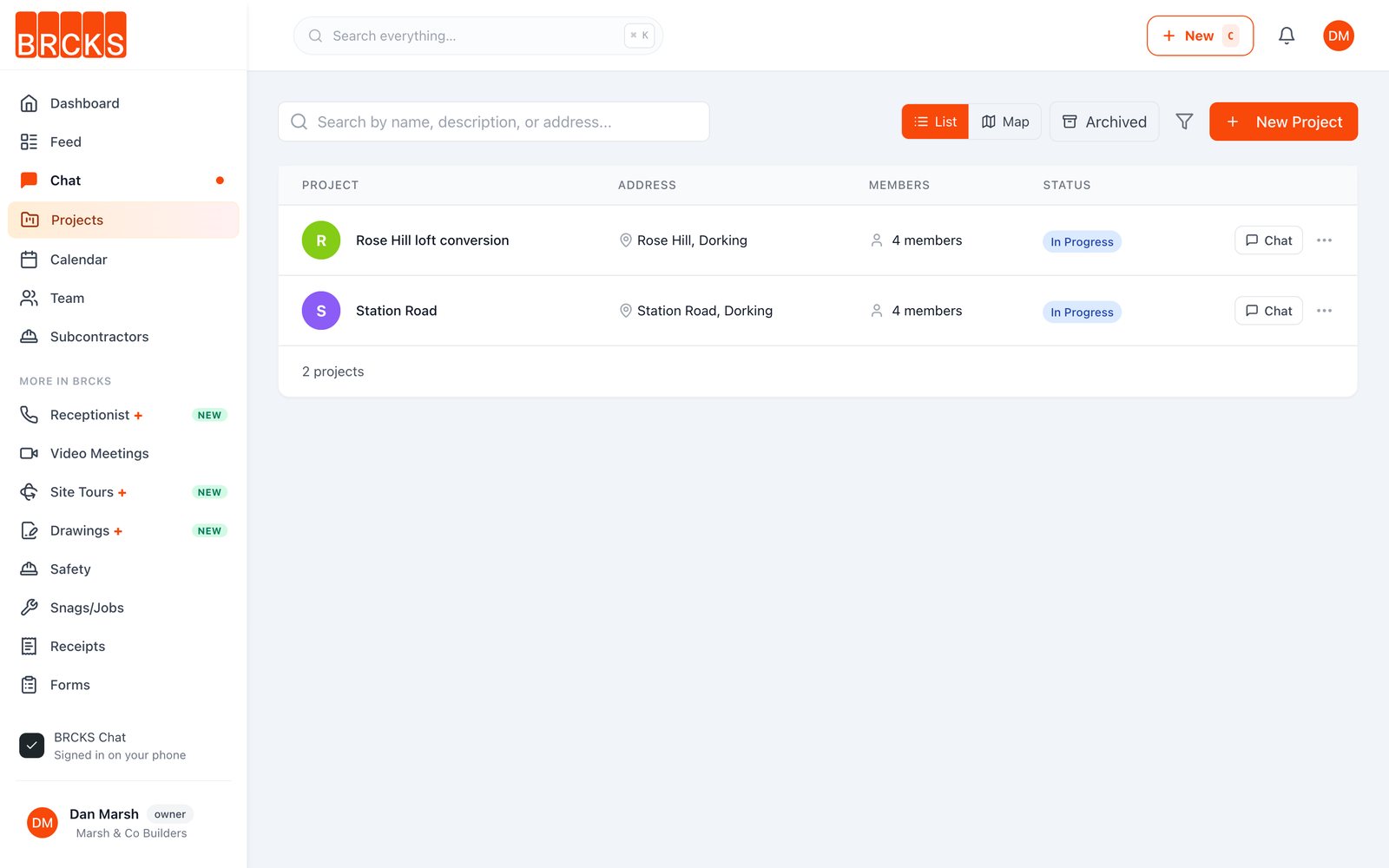
 Click here
- Click Client portal.
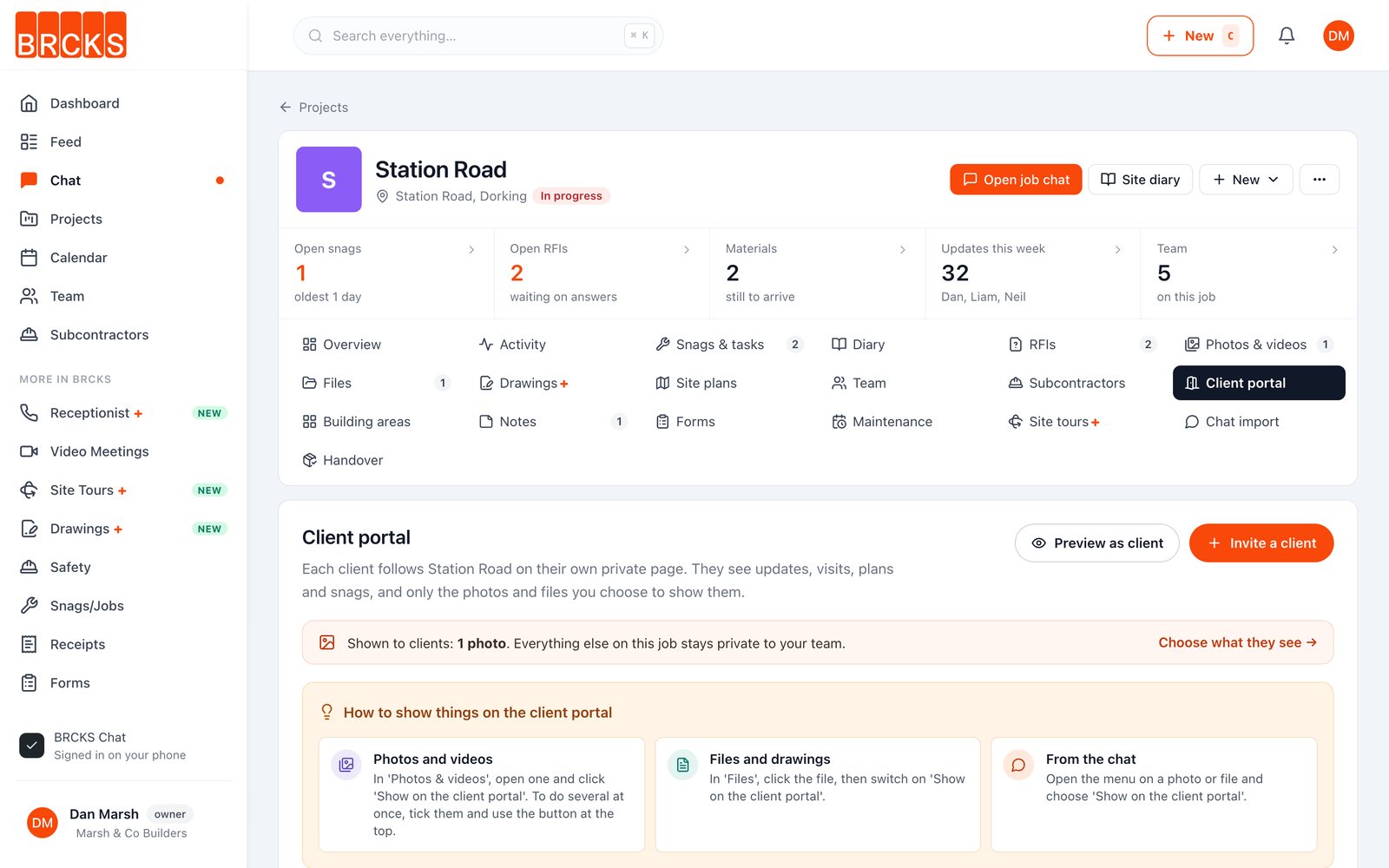
 Click here
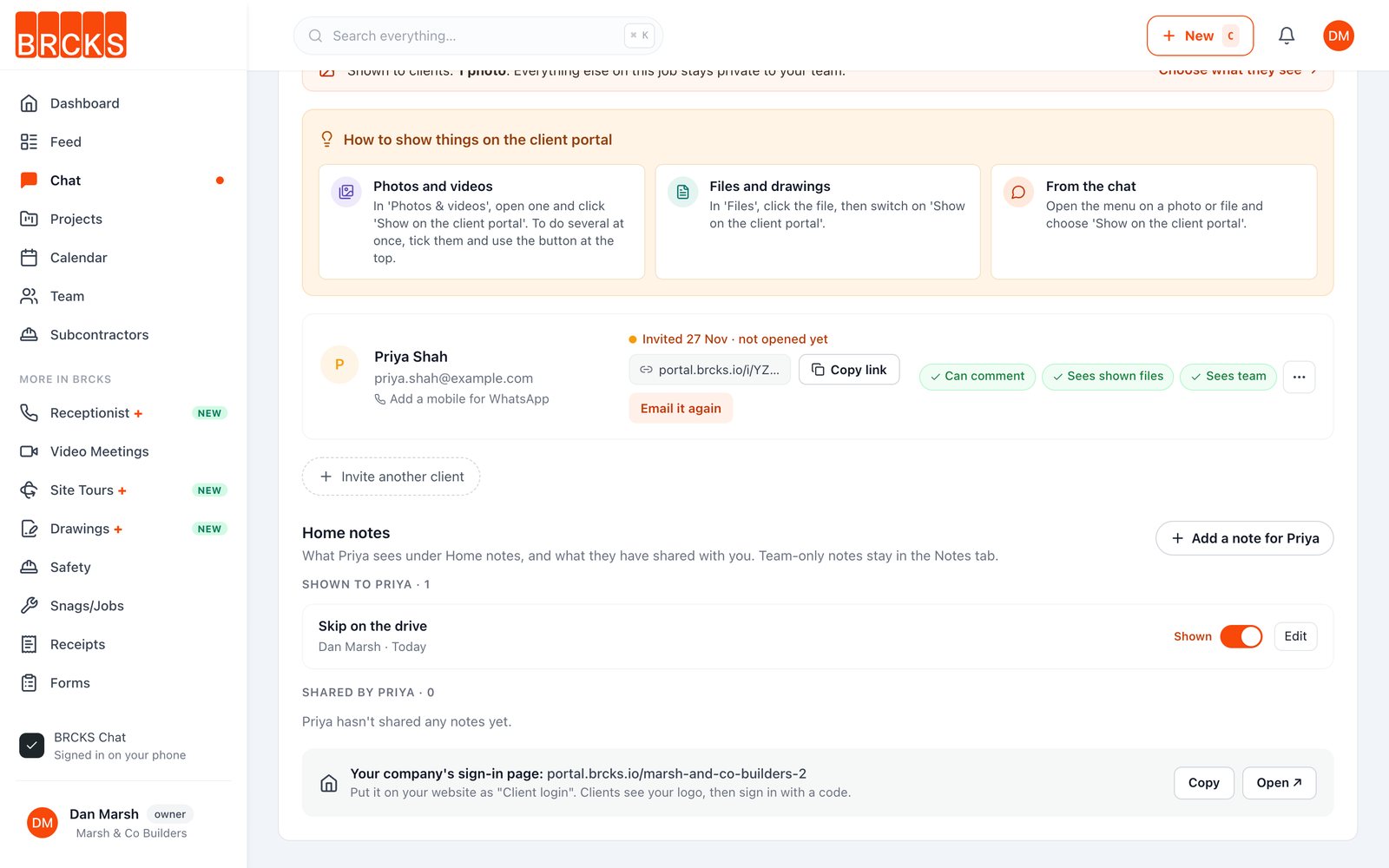
- Scroll down to your client. Next to their name, choose what they get: Can comment, Sees shown files and Sees team.Green means it's on. Click one to switch it off.
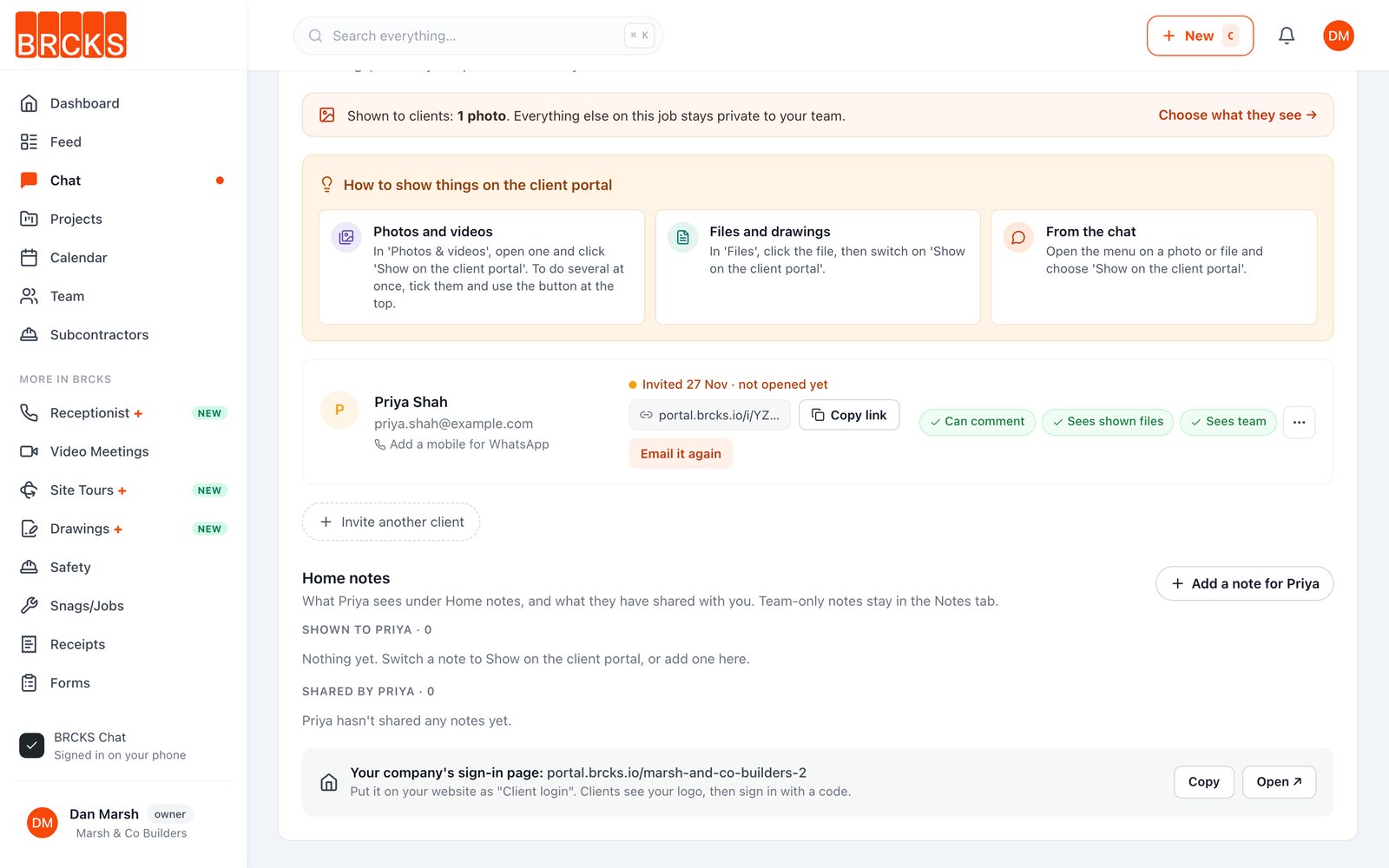
 Click to switch
- Grey means it's off. Click it again to switch it back on.
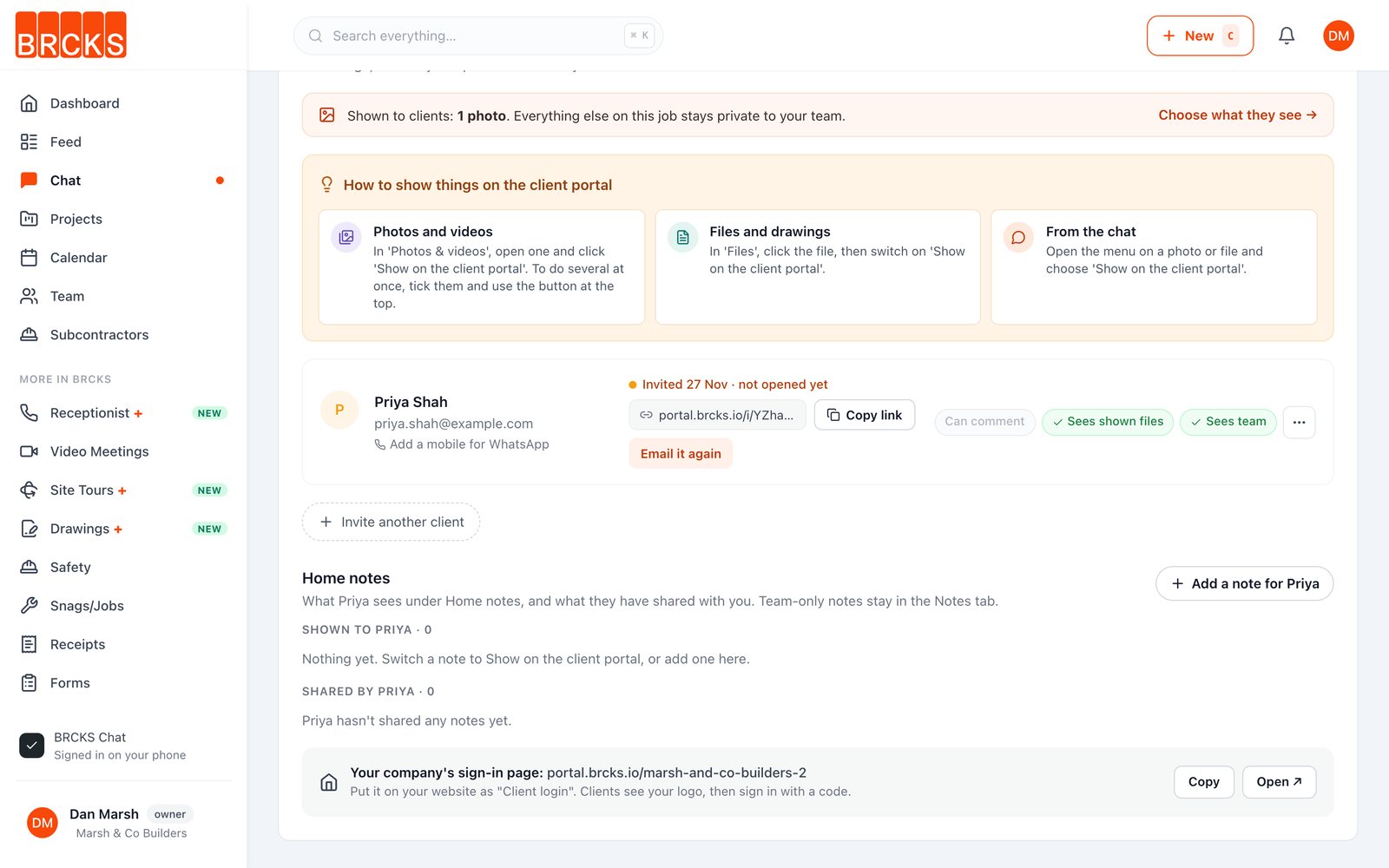
 Off
- To leave your client a note, click Add a note for and their name.Like where the skip goes, or bin day.
 Click here
- Type a Title and a Description.Username and password are optional, for things like a gate code.
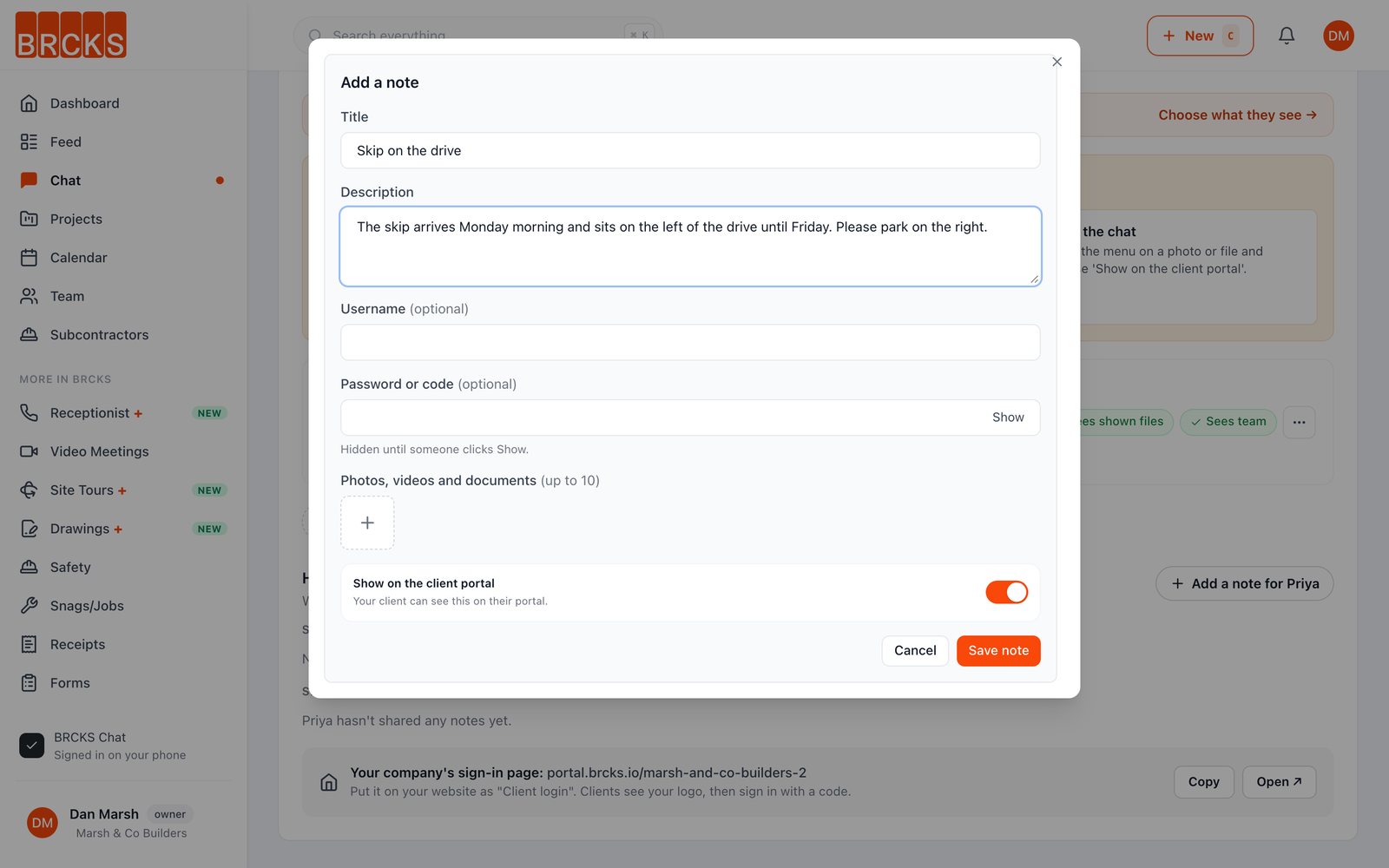
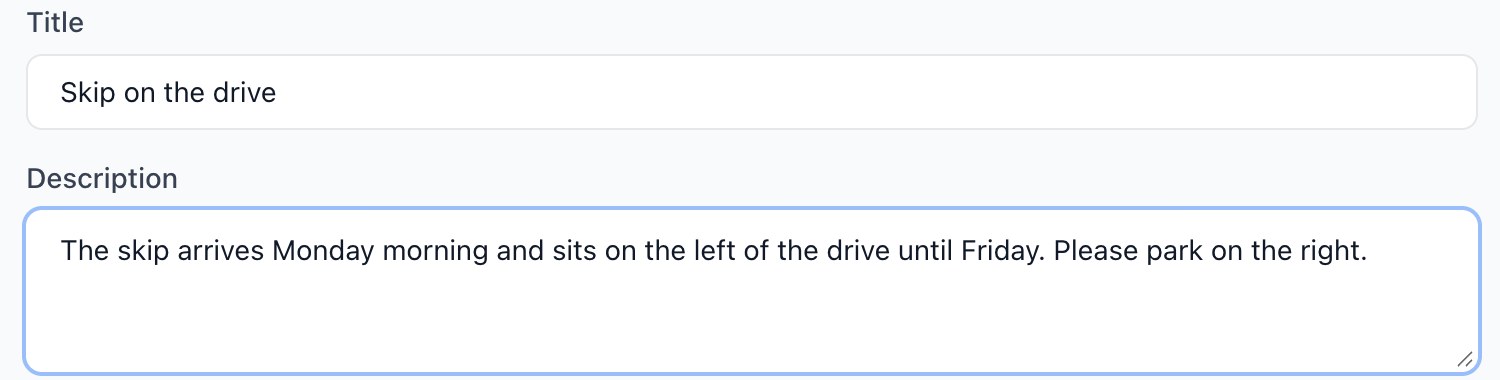 Type here
- Leave Show on the client portal on, then click Save note.
 Click here
- That's it. Your client sees it under Home notes.
 Shown
Having trouble?
Where do my clients sign in?
At the bottom of the Client portal tab is Your company's sign-in page. Click Copy and put it on your website as "Client login".
How do I show photos and files?
Open the photo or file and switch on Show on the client portal. Everything else on the job stays private to your team.
They haven't opened their invite
Click Email it again, or Copy link and send it to them yourself.
Did this help?