File a receipt from a job chat
Send a photo of the receipt in the job's chat. BRCKS reads it and offers to file it for the office.
Which are you using?The steps change to match.
- On your Chats screen, tap the project.
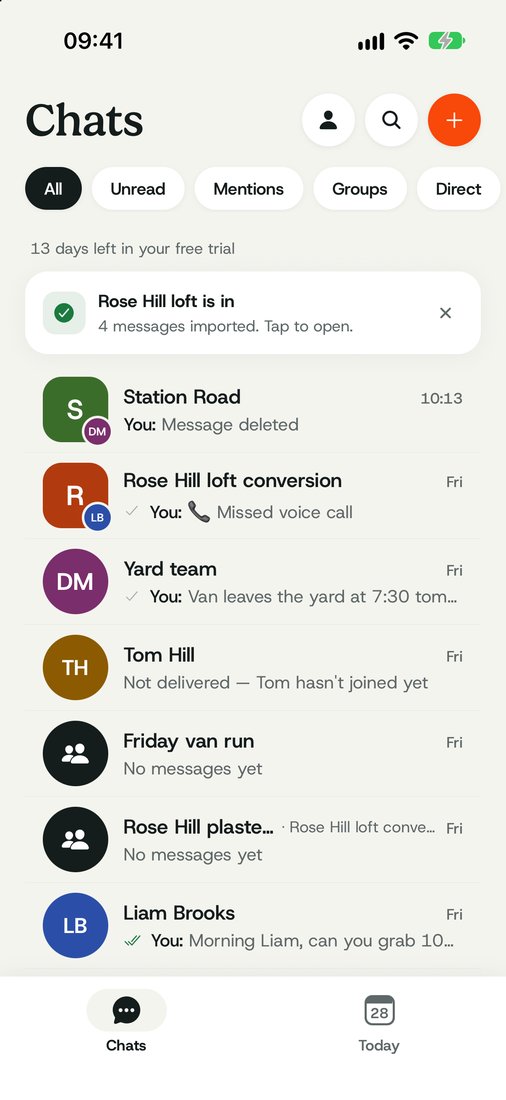 Tap your project
- Tap the camera in the message box.
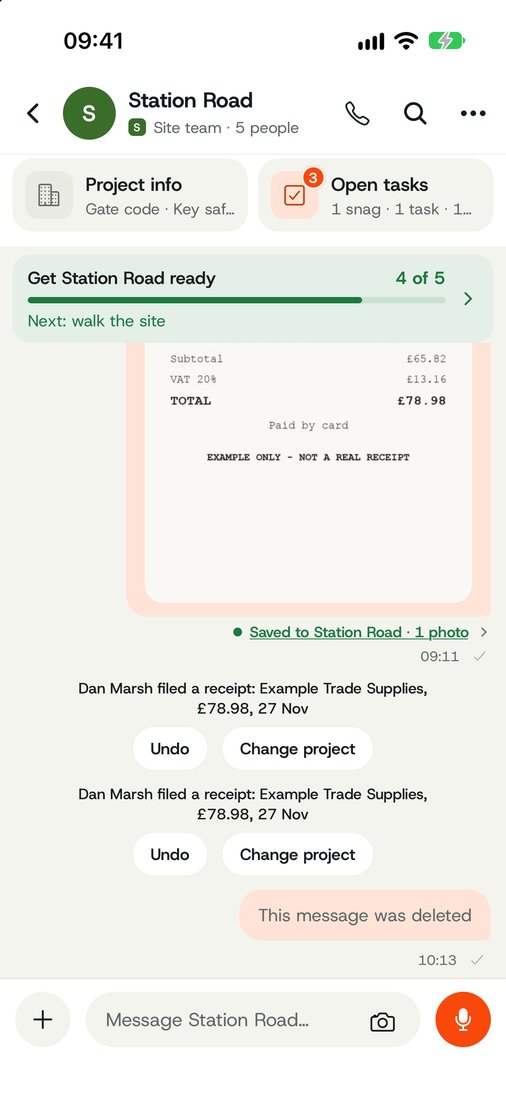 Tap here
- Tap Upload from gallery.Or tap Take a photo or video to snap the receipt now.
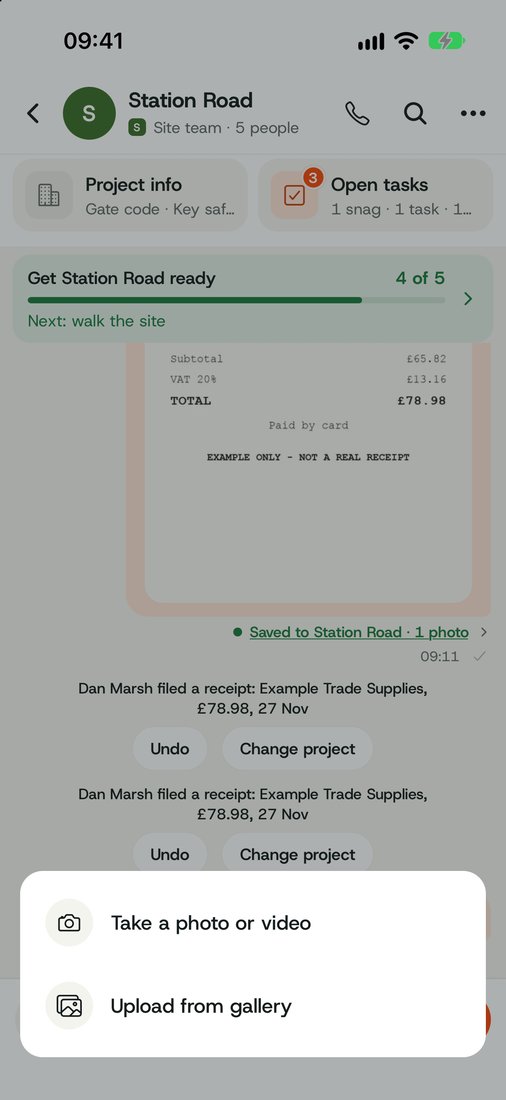 Tap here
- Tap the photo of the receipt, then tap the blue tick.
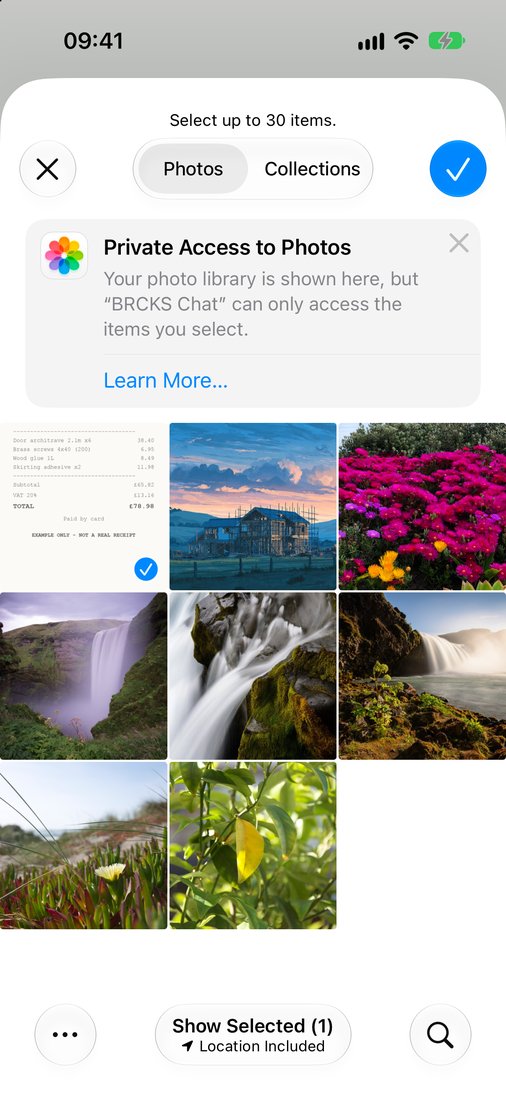 Tap here
- Tap the orange arrow to send it.
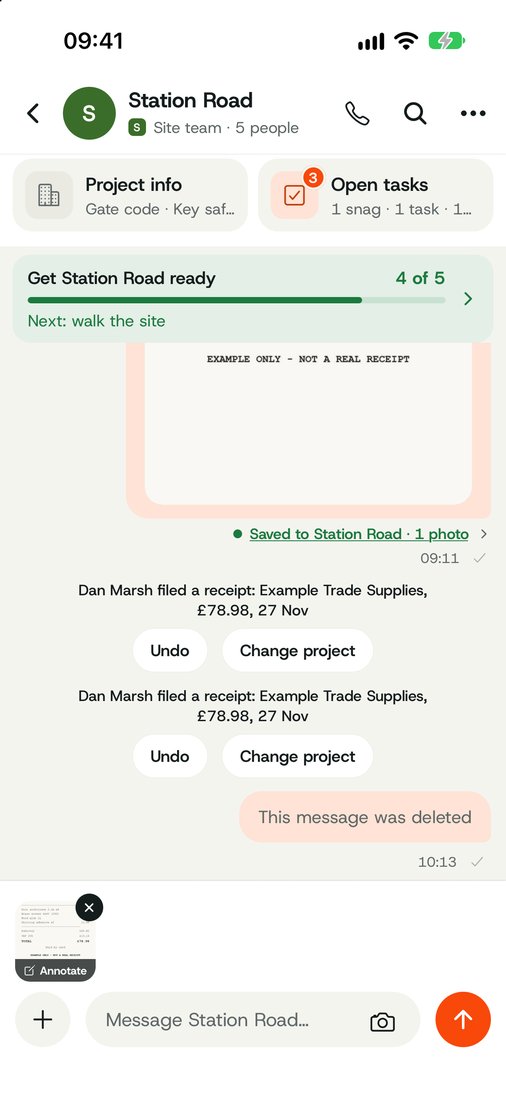 Send
- Under the photo, tap File as receipt.It shows once BRCKS has read the photo. That takes a few seconds. Only you see it.
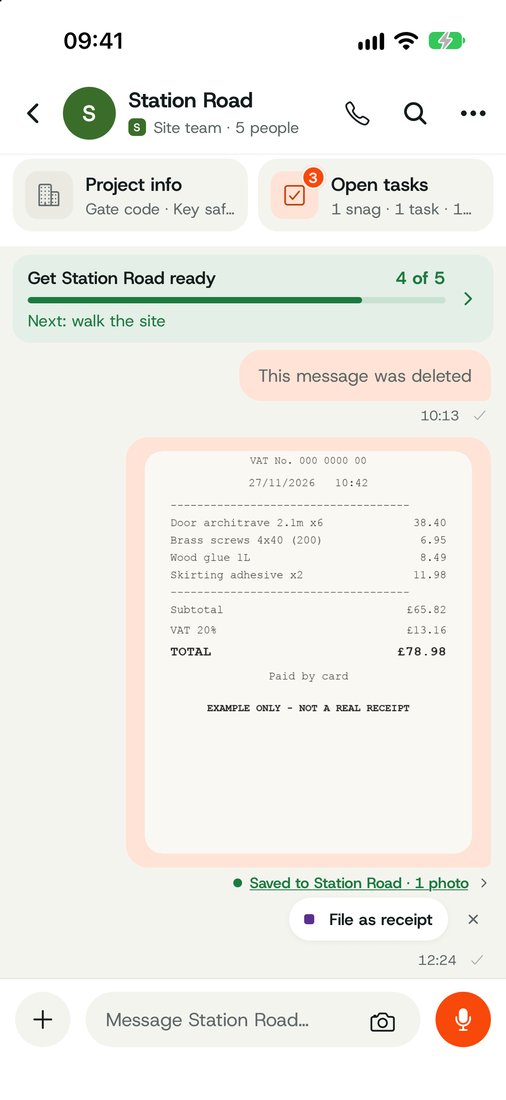 Tap here
- That's it. The receipt is filed for the office.The line says who filed it, the shop and the total. Tap Undo if you didn't mean it, or Change project.
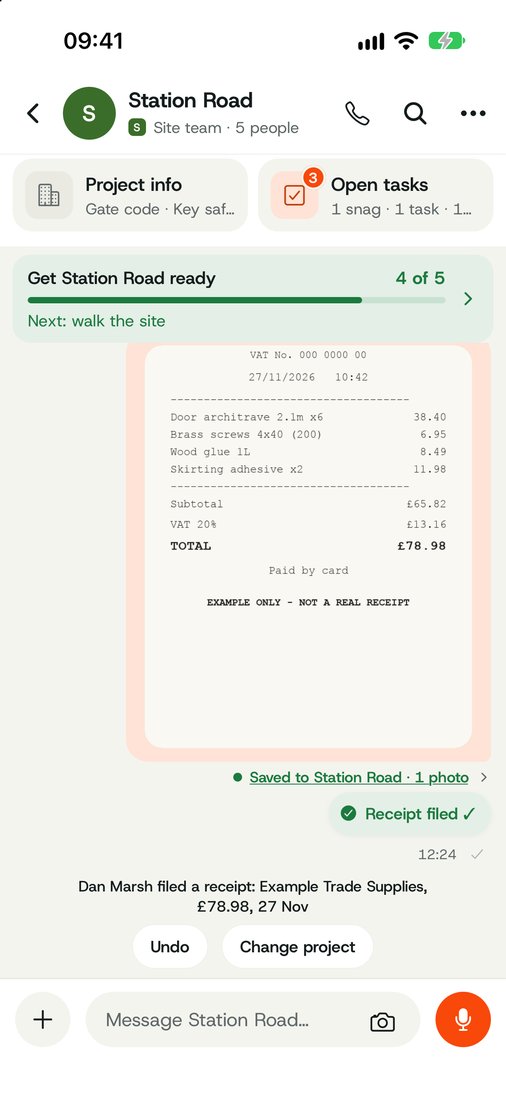 Filed
- In the menu on the left, click Receipts.
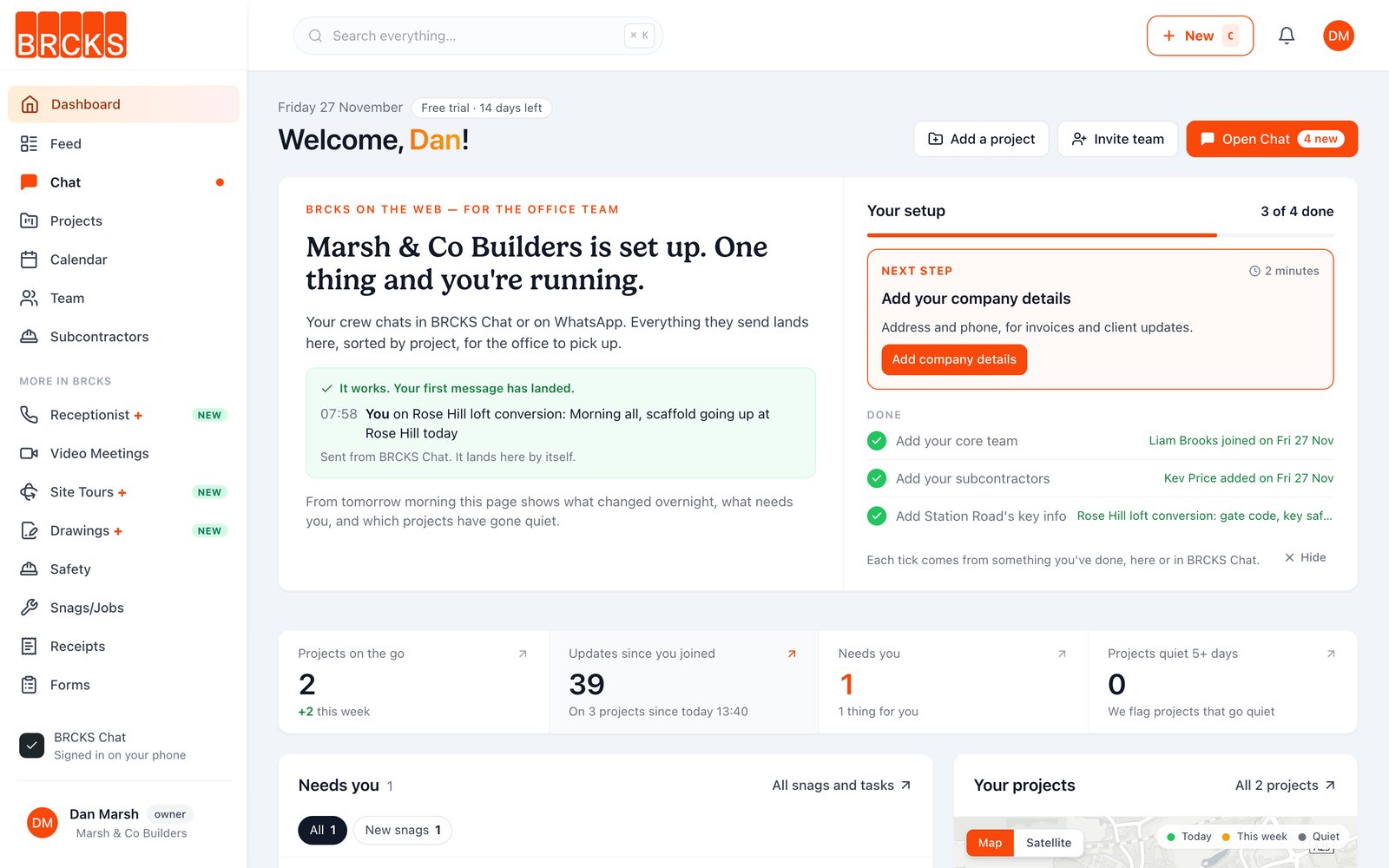
 Click here
- It's waiting under To review, with the project and who sent it.Click it to check what AI read, then Approve. The receipts guide shows how.
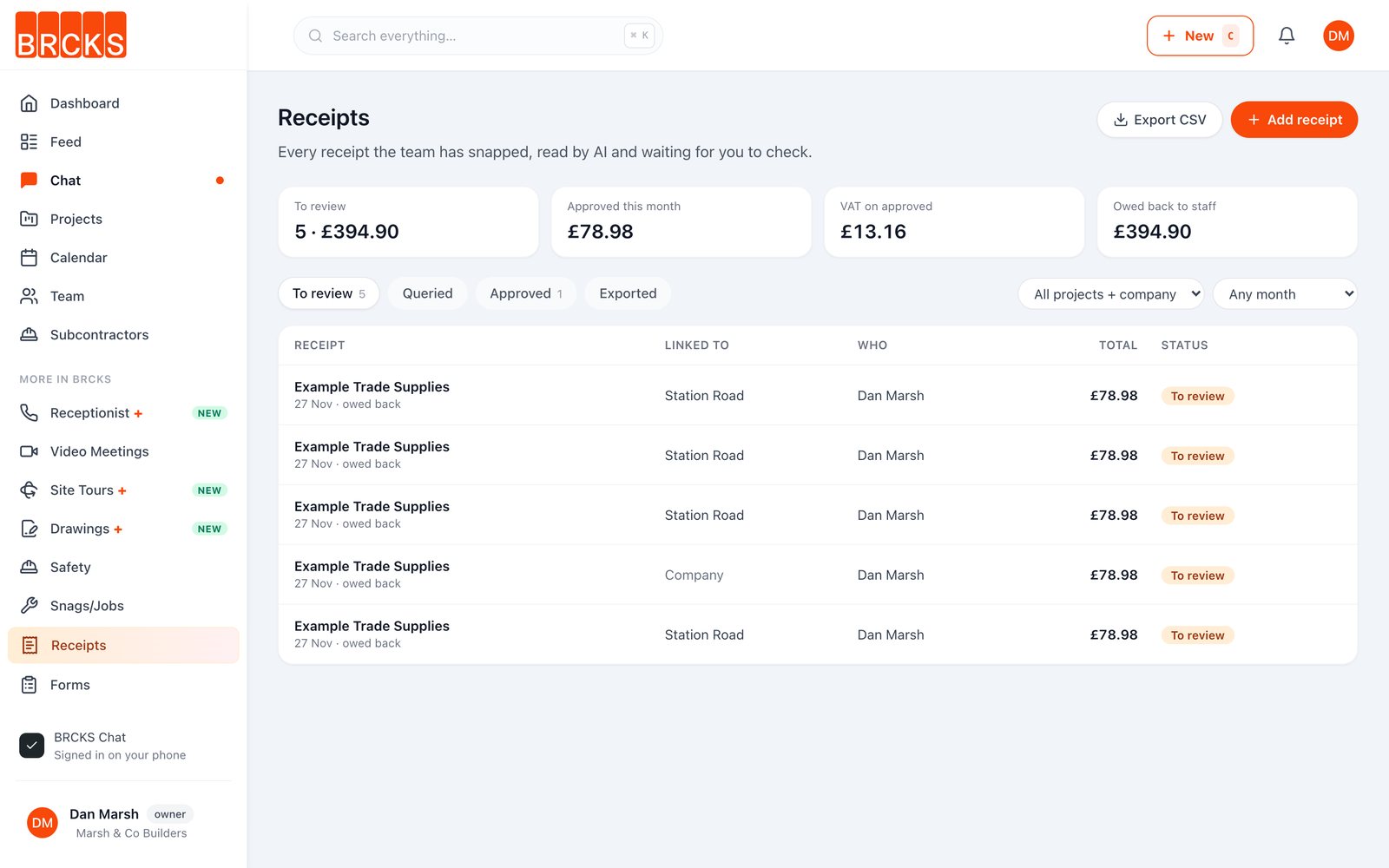
 Waiting for you
Having trouble?
I don't see File as receipt
Press and hold the photo, then tap File as receipt. That works on any photo or PDF you sent.
Who gets paid back?
Whoever files the receipt. It shows as owed back to them until the office deals with it.
Can I do this on the web?
Yes. In a chat on app.brcks.io, the same File as receipt shows under the photo, and in its menu.
Where do receipts from the chat go?
To Receipts in the menu on the left, under To review. Owners and managers check and approve them there.
Did this help?