
Mark up a photo before you send it
Circle the problem, add an arrow or a label, then send. Everyone sees exactly what you mean.
- On your Chats screen, tap the project.
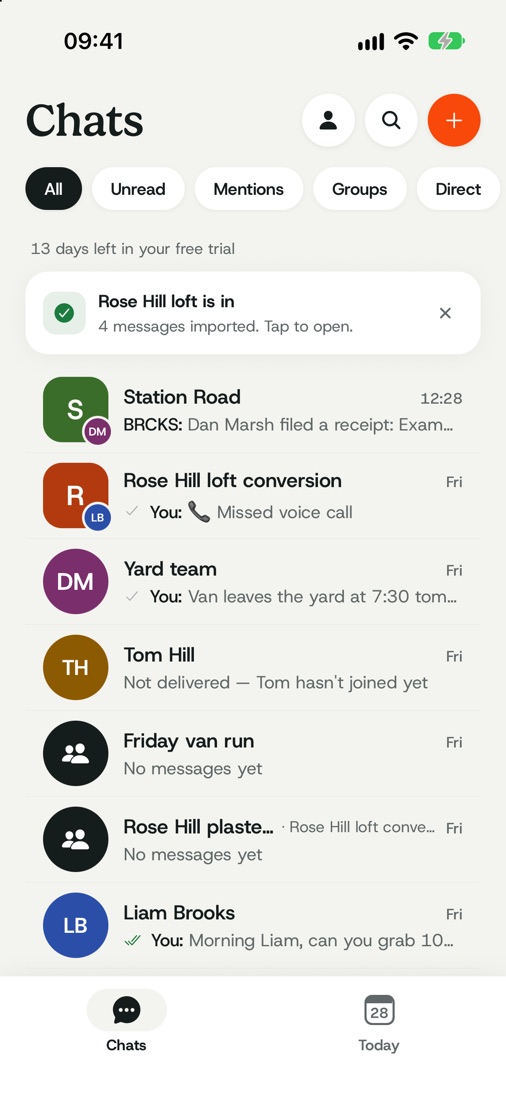 Tap your project
- Tap the camera in the message box.
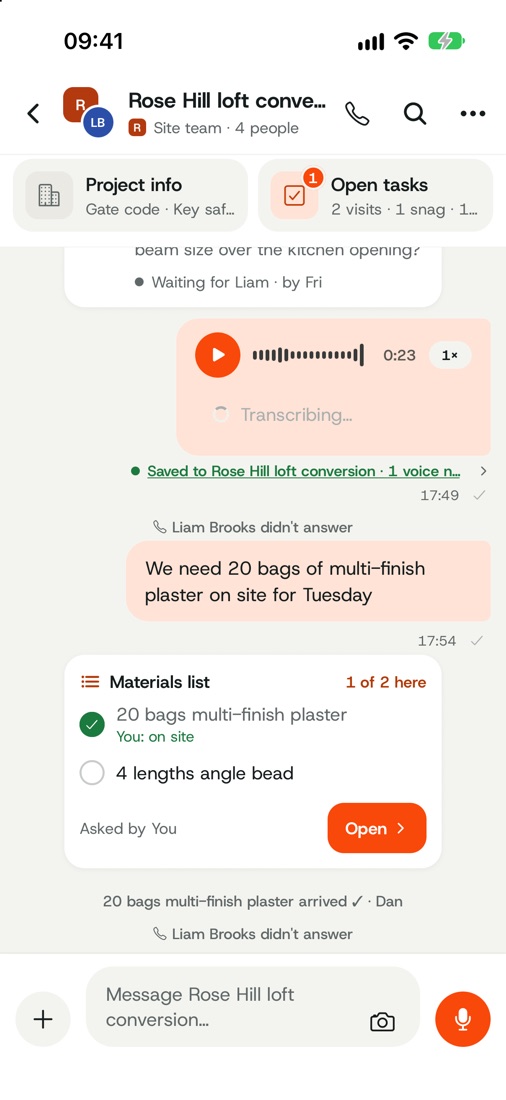 Tap here
- Tap Upload from gallery, pick your photo, then tap the blue tick.Or tap Take a photo or video to use your camera.
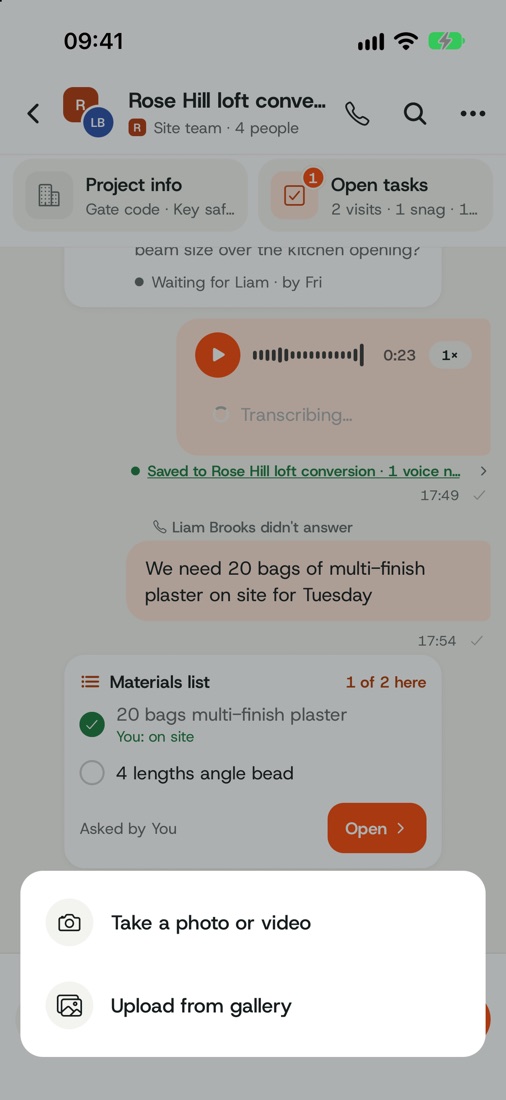 Tap here
- The photo sits in the message box. Tap Annotate on it.
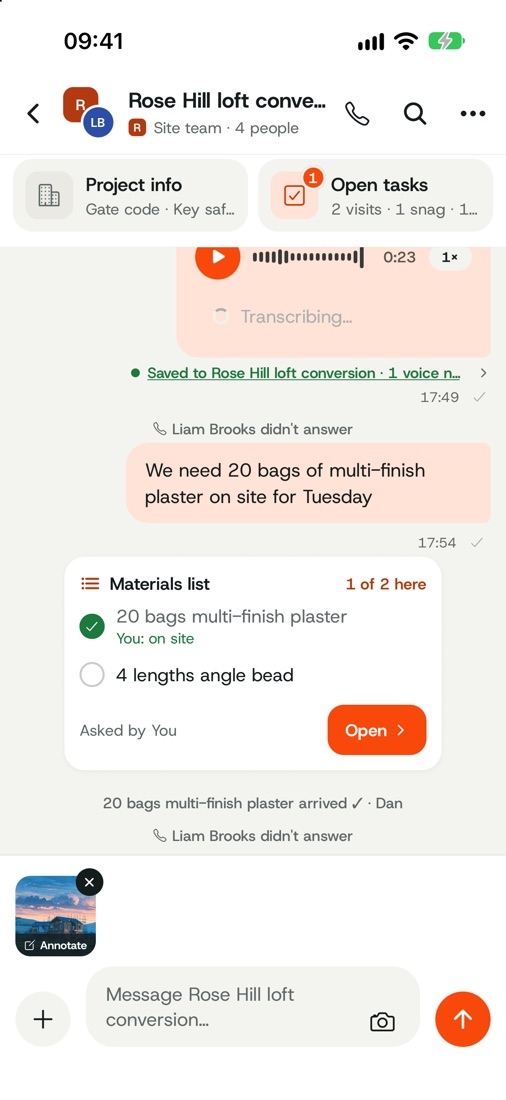 Tap Annotate
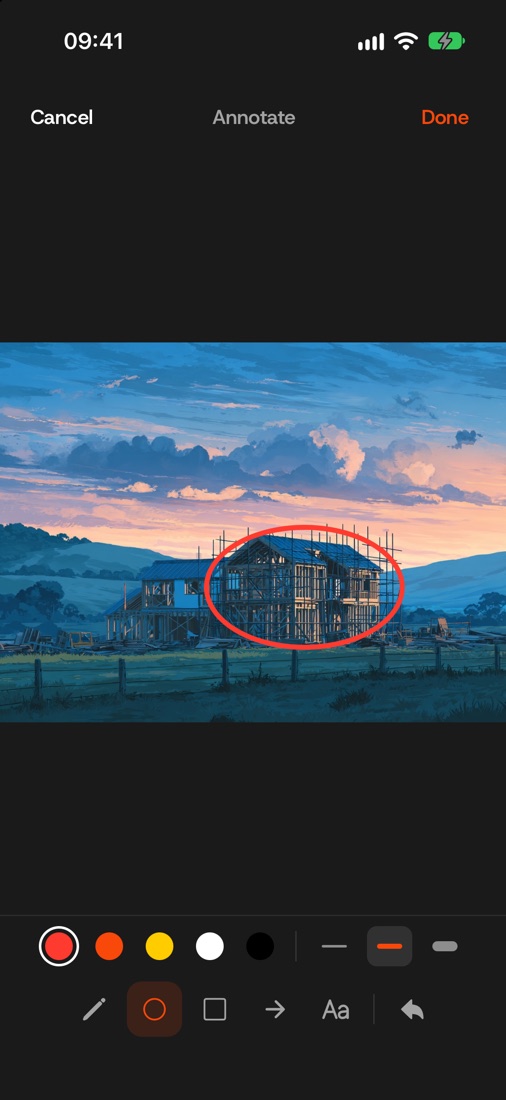
- Tap the circle, then drag round the problem.Pick a colour and a line size first if you like. The pencil draws freehand and the square draws a box.
 Tap here
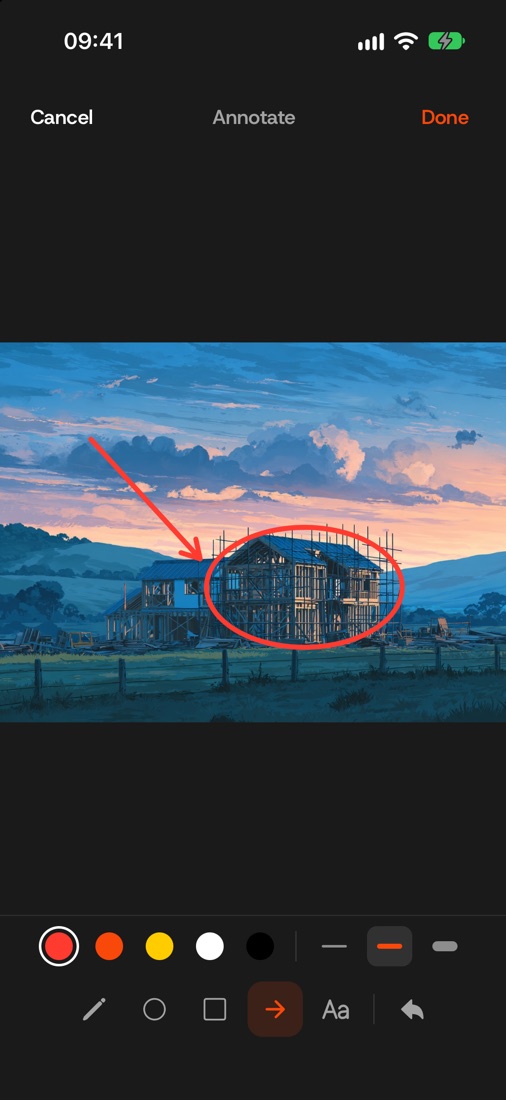
- Tap the arrow, then drag to point at it.
 Tap here
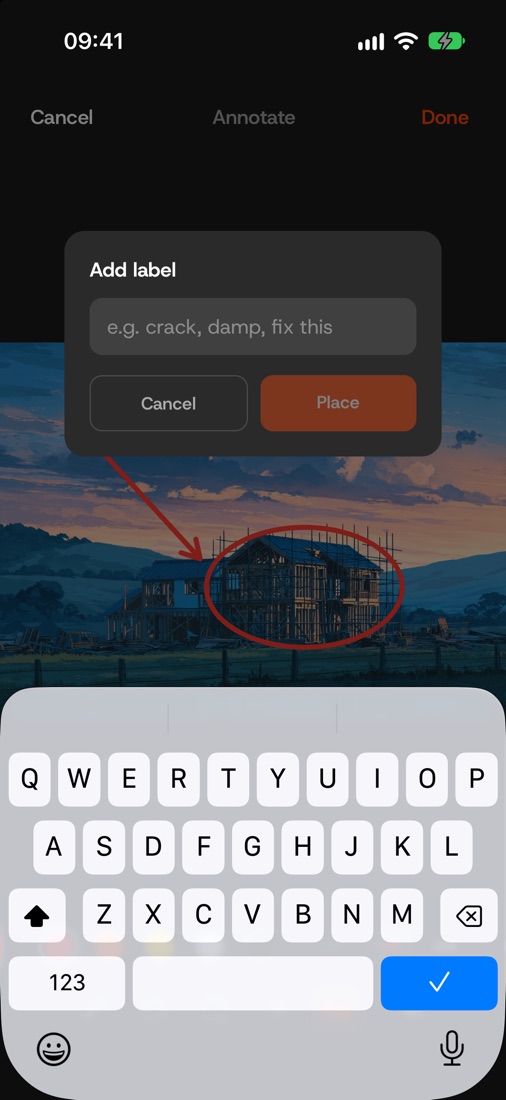
- Tap Aa, then tap the photo where you want a label.A box opens: Add label.
 Add label
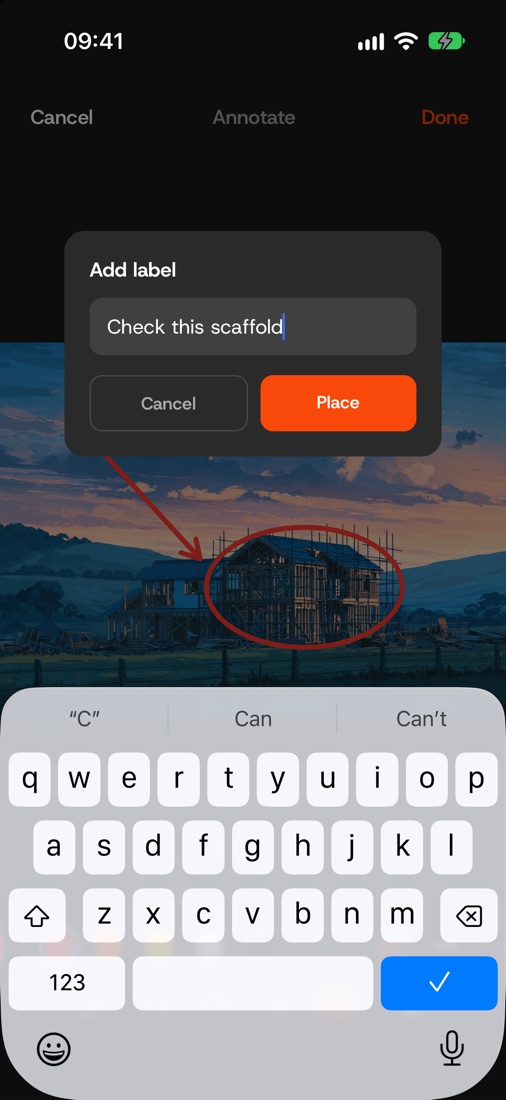
- Type your label, then tap Place.
 Tap here
- Tap Done.Made a mistake? Tap the curved arrow at the end of the tools to undo it.
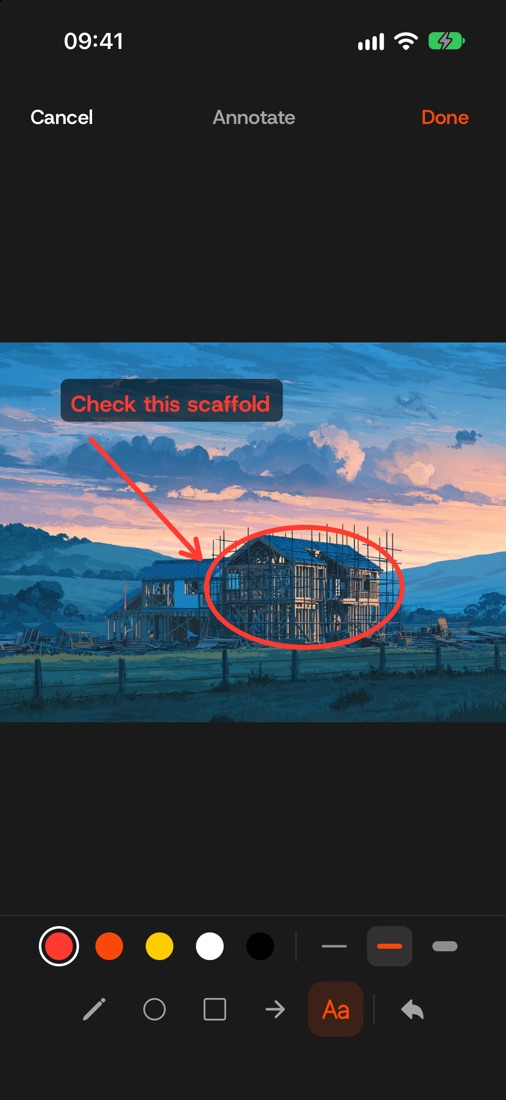 Tap here
- Tap the orange arrow to send it.Want another go first? Tap Annotate again.
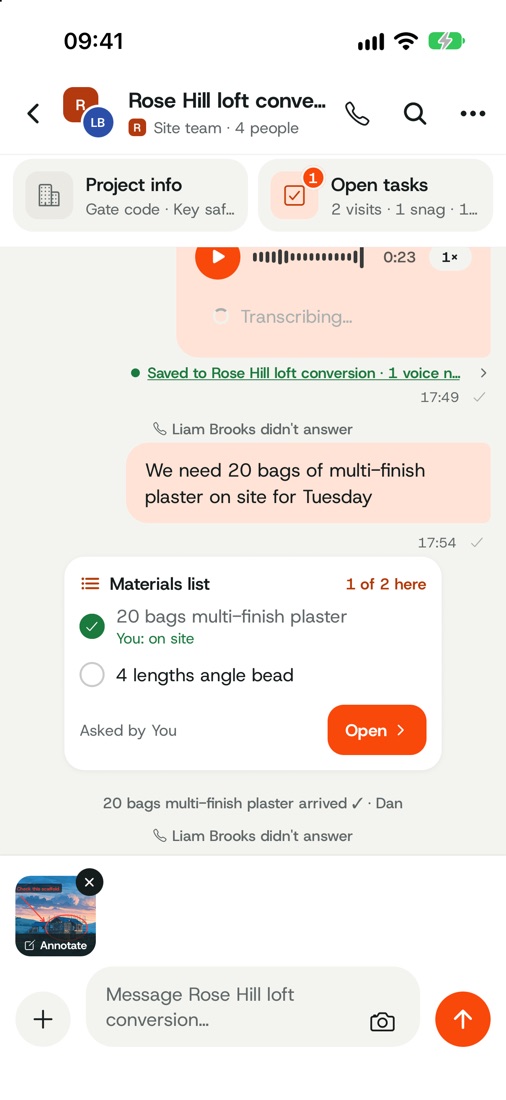 Send
- That's it. Everyone in the chat sees your marked-up photo.In a project chat it saves to the project, like any photo.
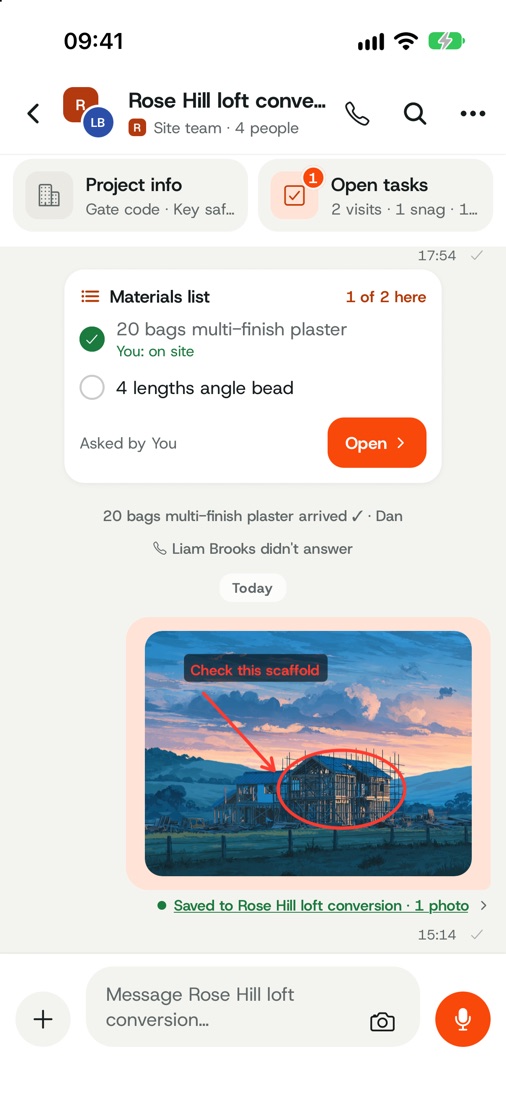 Sent
Having trouble?
Can I mark up a photo that's already in the chat?
Yes. Tap the photo, then tap Draw at the top.
Did this help?